Instagram doesn't provide a native transcript export button, so you need a browser tool, third-party transcription service, or script to turn an Instagram video into reusable text. Instagram captions can occupy up to 2,200 characters, while alt text is limited to 1,000 characters, so on-platform text usually needs to be edited down rather than copied as a full script.
You've probably encountered the problem after publishing a strong Reel. The speaker explains a useful process, answers a customer question, or delivers a sharp opinion, but the valuable language remains trapped inside the video. Instagram may display captions over the footage, yet that doesn't mean you can search, copy, download, or send the spoken words into a CMS.
An Instagram video transcript solves a different problem from visible captions. Captions help viewers follow the video while it plays. An exportable transcript gives your team a working text asset for accessibility, editorial review, SEO planning, knowledge management, and repurposing.
Table of Contents
- Why You Need an Instagram Video Transcript
- Getting Transcripts from Instagram Captions
- Automated Transcription Services and Tools
- How Scribiz Can Help
- Scriptable Approaches for Developers
- Formatting and Exporting Captions as SRT or VTT
- Repurposing Instagram Transcripts for SEO and Content
- Legal and Permission Considerations for Transcribing
Why You Need an Instagram Video Transcript
A content manager receives a Reel URL from a social team and wants to turn it into a blog post. The video is clear, the hook is strong, and the comments show that viewers have questions. The manager can watch the Reel repeatedly and type everything by hand, or try to reconstruct the wording from captions that were designed for display, not reuse.
That friction appears because Instagram's native captioning system and its export workflow are separate concerns. Captions can be generated and displayed inside supported video surfaces, but Instagram doesn't offer a general transcript panel or copy button for downstream work. Guidance on Instagram Reel transcript extraction highlights this gap directly, especially for teams that need structured text for databases, documentation, or AI workflows.
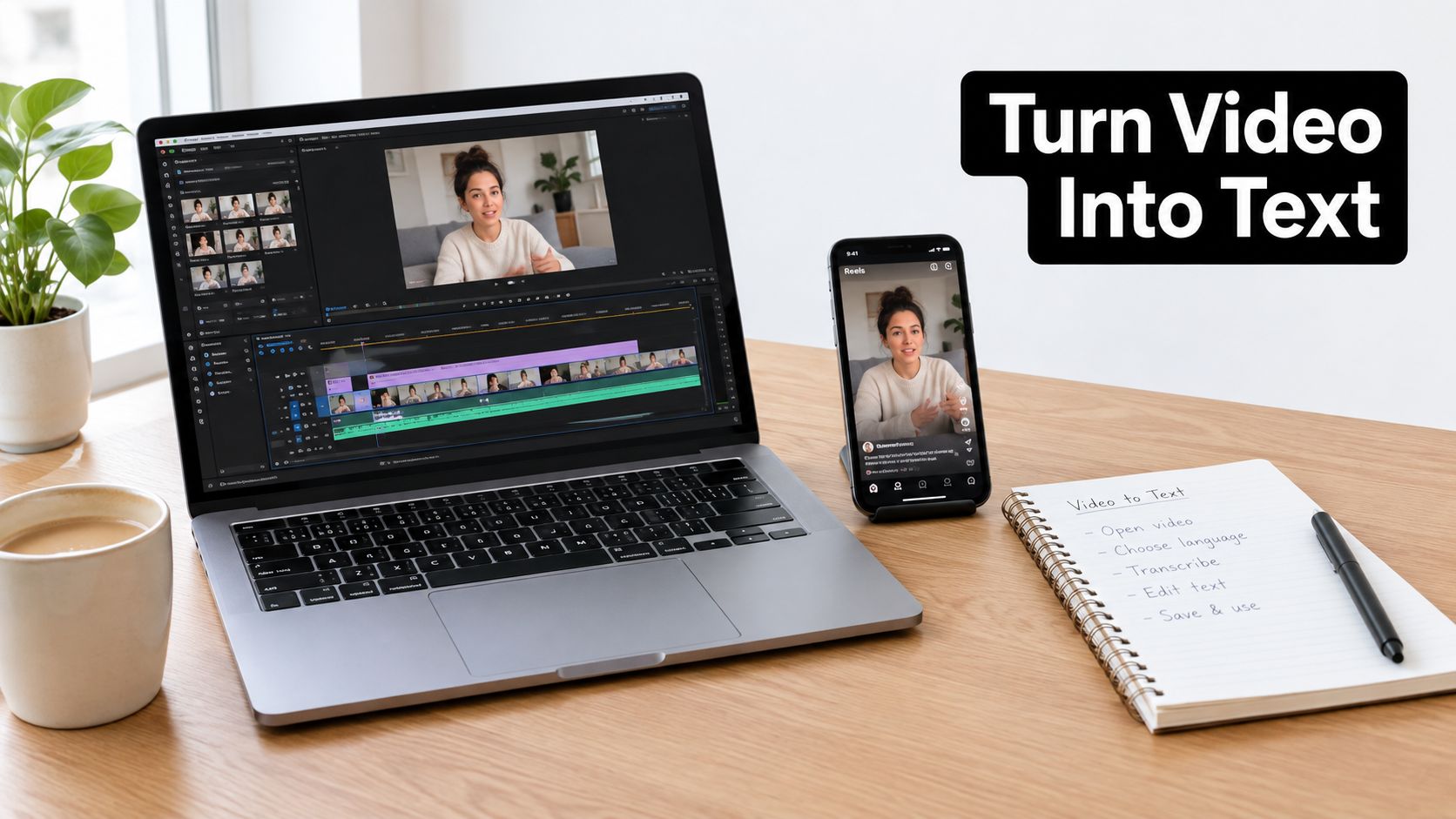
Accessibility needs more than text on screen
An on-video caption layer helps people who watch without sound, but an accessible publishing workflow may also require a transcript in an accessible location. University accessibility guidance recommends placing the full transcript in the post copy or another accessible location when burned-in captions are missing, and reviewing captions for transcription errors before publication. The Case Western Reserve University Instagram accessibility guidance provides that operational standard.
Alt text is a separate Instagram field. Instagram describes it as text read aloud by screen readers, and the field has a 1,000-character limit. A transcript therefore shouldn't be pasted into alt text indiscriminately. Use alt text to describe meaningful visual content, and place a readable transcript where users can access the spoken information.
Search and repurposing start with a clean source
A transcript gives editors searchable language instead of a video that must be watched from beginning to end. They can identify the main topic, recurring terminology, customer objections, instructions, and questions worth turning into supporting content.
The transcript can become:
- A blog outline: Extract the hook, explanation, example, and conclusion, then rewrite them into a reader-first structure.
- A newsletter draft: Preserve the central insight while removing conversational repetition and filler.
- An FAQ entry: Turn a spoken question and answer into a concise support article.
- A knowledge-base record: Store the source URL, author, language, duration, and timestamped statements alongside the text.
- A caption file: Use timecoded output when the video needs subtitles in another editing workflow.
Instagram's caption and post-copy limits make condensation important. A post caption supports up to 2,200 characters, roughly 350 to 400 words, and Instagram allows up to 20 @mentions. The Help Centre now caps hashtags at five, so a full transcript generally won't fit or perform well as a single caption. The overview of Instagram video transcription limits and workflows explains why creators need to prioritize clarity, keywords, and accessibility instead of publishing an unedited script.
Getting Transcripts from Instagram Captions
Start with Instagram's own captioning when you only need to verify what the speaker said or make a quick correction. It can be sufficient for a short internal check, but it usually breaks down when you need a downloadable, searchable, or structured file.
Check captions before choosing a tool
For a Story, create or edit the video and look for the Captions sticker among the available stickers. Instagram generates text from the spoken audio, lets you review mistakes, and places the result over the video. In May 2021, Instagram introduced that sticker for Stories in English and selected English-speaking markets, marking a shift from manual subtitle production toward transcript-based publishing inside the app. Later support extended to other video surfaces, but availability has varied by product, language, and market. The history and practical use of Instagram's caption strategy describes that progression and reports that captioned social videos can see 38% more engagement, while viewers can retain attention 31% longer.
For a Reel, open the publishing or editing controls and check whether an automatic captions option is available. The exact label and placement can change with the app version, account type, language, and region. If captions appear, watch the entire video while checking names, product terms, numbers, and punctuation.
Decide whether manual copying is enough
Native captions make sense when the output is needed once, the Reel is short, and the wording is easy to verify. You can pause the video, transcribe the important passage, and edit it into a post or internal note. That approach costs no additional tool setup, but it consumes attention and produces inconsistent formatting.
It isn't a reliable archive method. Instagram often doesn't provide speaker labels or a clean export, and existing videos may not receive a retroactive transcript in a form you can reuse. Native captions can also struggle with background music, fast speech, accents, jargon, and overlapping voices.
Practical rule: If someone else needs to search, edit, quote, translate, or import the text, treat the on-screen caption as a preview, not the final transcript.
A browser transcription workflow is more appropriate when the Reel is public and your team needs TXT, DOC, PDF, SRT, or VTT output. Copy the public Reel URL, paste it into the transcription service, choose the spoken language when the tool allows it, and review the rendered result. Vendor-documented workflows commonly return a transcript in 20 to 60 seconds, but timing depends on media access, audio quality, and service load. The documented Instagram transcription workflow also recommends a short proofread pass before publication.
The important distinction is simple. Captions are a viewing feature. A transcript is a reusable record. Choose the native option for a quick visual check, and move to an external workflow when the text needs to leave Instagram.
Automated Transcription Services and Tools
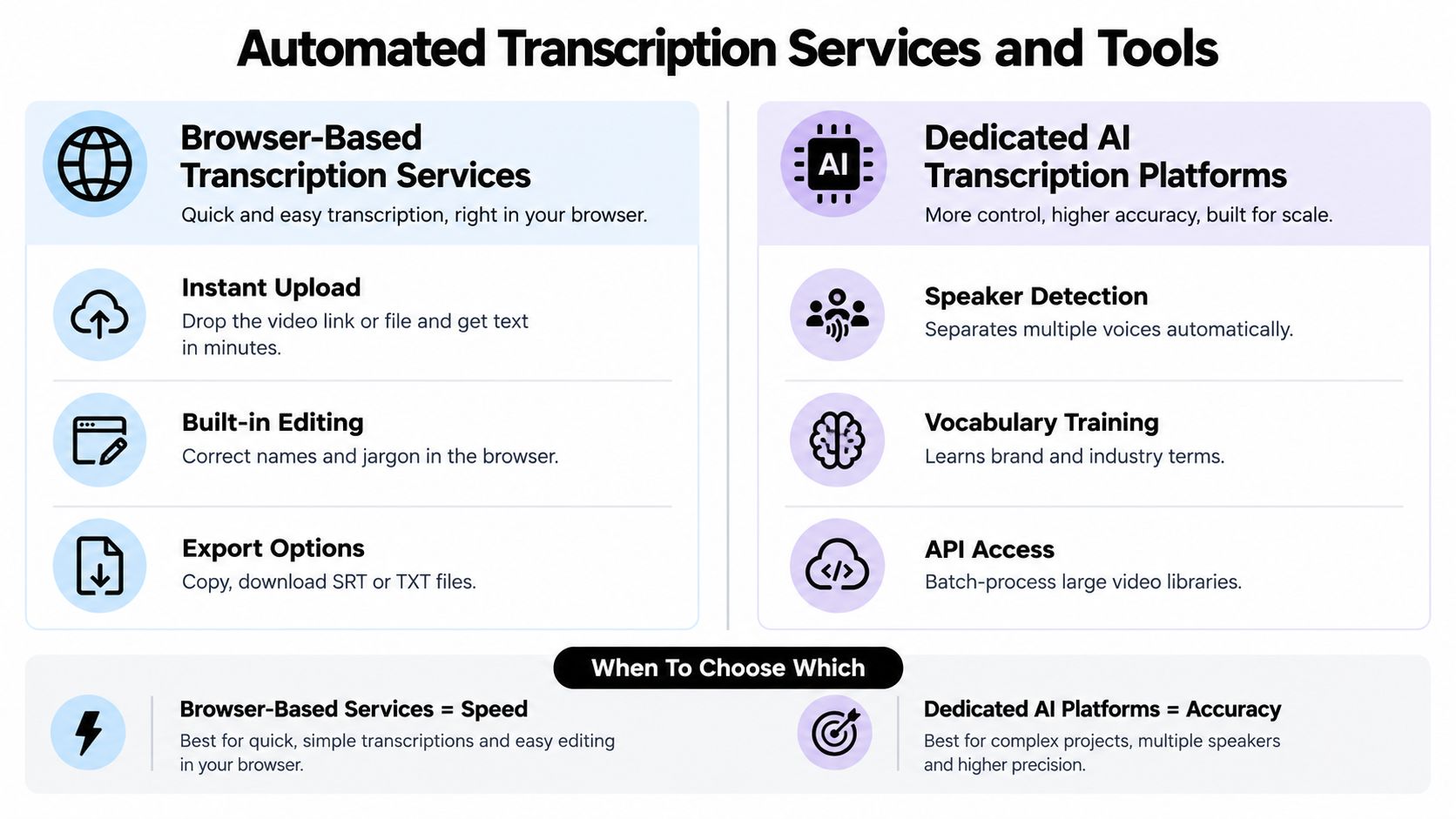
Browser-based tools and dedicated transcription platforms solve similar problems, but they suit different operating conditions. A browser service is convenient for occasional public Reels. A dedicated platform becomes more useful when a team needs editing, speaker separation, repeatable exports, or integration with a content system.
The practical starting point is usually URL-based extraction. Copy the public Reel URL, paste it into the service, select the language if available, and wait for the transcript. If the service can't access the Reel, download a permitted copy or use an original media file instead. Private, restricted, deleted, or login-protected content is where URL workflows commonly fail.
Compare the trade-offs
| Option | Best fit | Strengths | Limitations |
|---|---|---|---|
| Browser-based service | Occasional public Reels | Fast setup, URL input, browser editing, convenient text exports | Access can fail, quality varies, batch controls may be limited |
| Dedicated AI platform | Recurring editorial or media workflows | Speaker handling, vocabulary controls, structured outputs, integrations | Requires tool selection, account setup, and quality governance |
| Local or API pipeline | Developers processing a content library | Repeatability, custom metadata, internal storage, automation | Engineering effort, media access issues, model operations, review still required |
Accuracy depends more on the recording than on the label “AI.” Clean, single-speaker English is commonly reported at around 96% to 97%, while accented English or two-speaker duet Reels may fall to about 88% to 92%. Background music, room noise, rapid speech, and cross-talk can reduce performance further. These ranges and the recommendation for a three-minute proofread pass are documented in the Instagram transcript workflow guidance.
Match the output to the job
Plain TXT is useful for keyword review, notes, and quick repurposing. Markdown works well when the transcript feeds an editorial workspace. PDF can be convenient for review and sign-off, while SRT and VTT preserve timing for subtitle production.
Speaker labels matter when the Reel is an interview, duet, customer testimonial, or panel clip. A basic browser tool may merge voices into one paragraph. A platform with speaker detection can make the result easier to edit, but don't assume automatic labels are correct. Verify who is speaking, especially when the voices overlap.
The choice also depends on volume. One Reel a week doesn't justify a complex pipeline if a browser editor handles the job. A library of recurring brand videos benefits from consistent naming, metadata, review states, and exports that flow into a CMS or analytics store.
For developers researching adjacent tooling, this guide to AI-powered tools for audio and visual content is a useful starting point for comparing broader content workflows. The transcription tool itself should still be judged on access, output structure, correction controls, and how well it handles your actual recordings.
How Scribiz Can Help
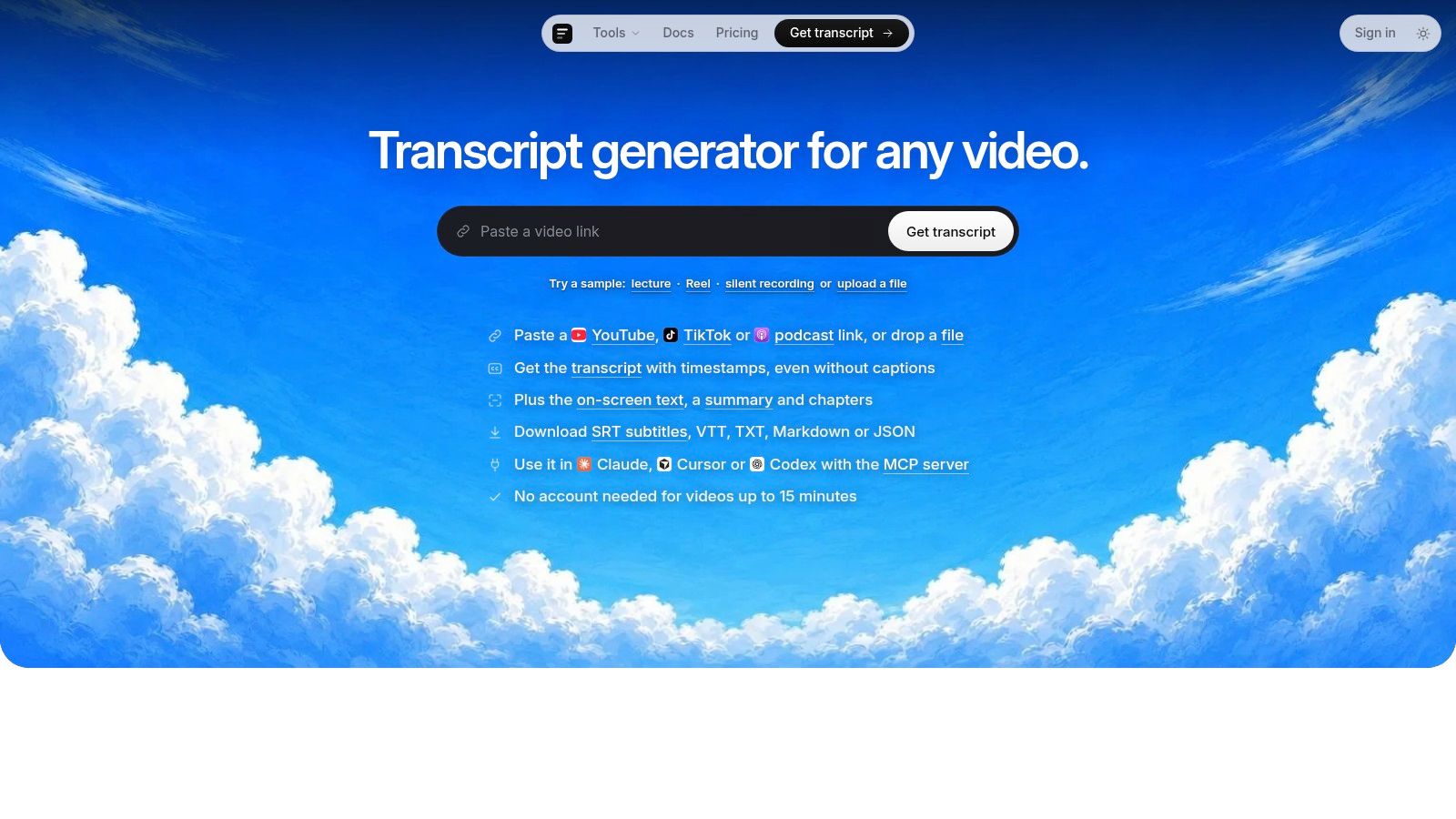
Scribiz is a web and Mac tool for extracting context from video and audio. For an Instagram workflow, it can generate a transcript from a Reel with or without existing captions, read relevant on-screen text, and produce summaries or chapter lists from supported links and uploaded files. That makes it useful when Instagram's visible captions aren't exportable or when a Reel contains slides, code, product screens, or other text that speech recognition alone will miss.
The output can be downloaded as SRT, VTT, TXT, Markdown, or JSON. The structured formats are useful for editorial review, subtitles, and downstream processing, while JSON can preserve a more machine-readable record. Scribiz also offers a CLI, API, MCP server, and Mac app, so it can fit both a solo creator's browser workflow and an engineering team's content pipeline.
Where it earns its place
Scribiz is a sensible choice when you need more than a paragraph of speech. It can label speakers in multi-person audio, attach timestamps to recognized on-screen text, generate a concise summary, and produce chapter lists linked to points in the media. Its Listen, Watch, Both, and Auto modes let you choose whether the job needs audio, visual analysis, or both.
The tool also addresses platform friction by accepting supported links, direct media links, and uploads. Its Mac app can avoid sending a full video upload in some workflows, with only audio or a small low-resolution copy leaving the device depending on the selected mode. Media is deleted when a job ends, while results expire after 24 hours, or 30 days with an account, according to the provided product information.
If you want a focused entry point, Scribiz's Instagram video transcript page is the relevant place to evaluate its Reel workflow. It's a better fit than a basic caption viewer when your output must be exported, timestamped, analyzed, or passed to another system.
A developer who prefers local processing can also use Scribiz as a quick comparison point before building a custom pipeline. For a small number of files, a ready-made workflow often saves more time than maintaining download logic, model dependencies, and quality checks yourself.
Scriptable Approaches for Developers
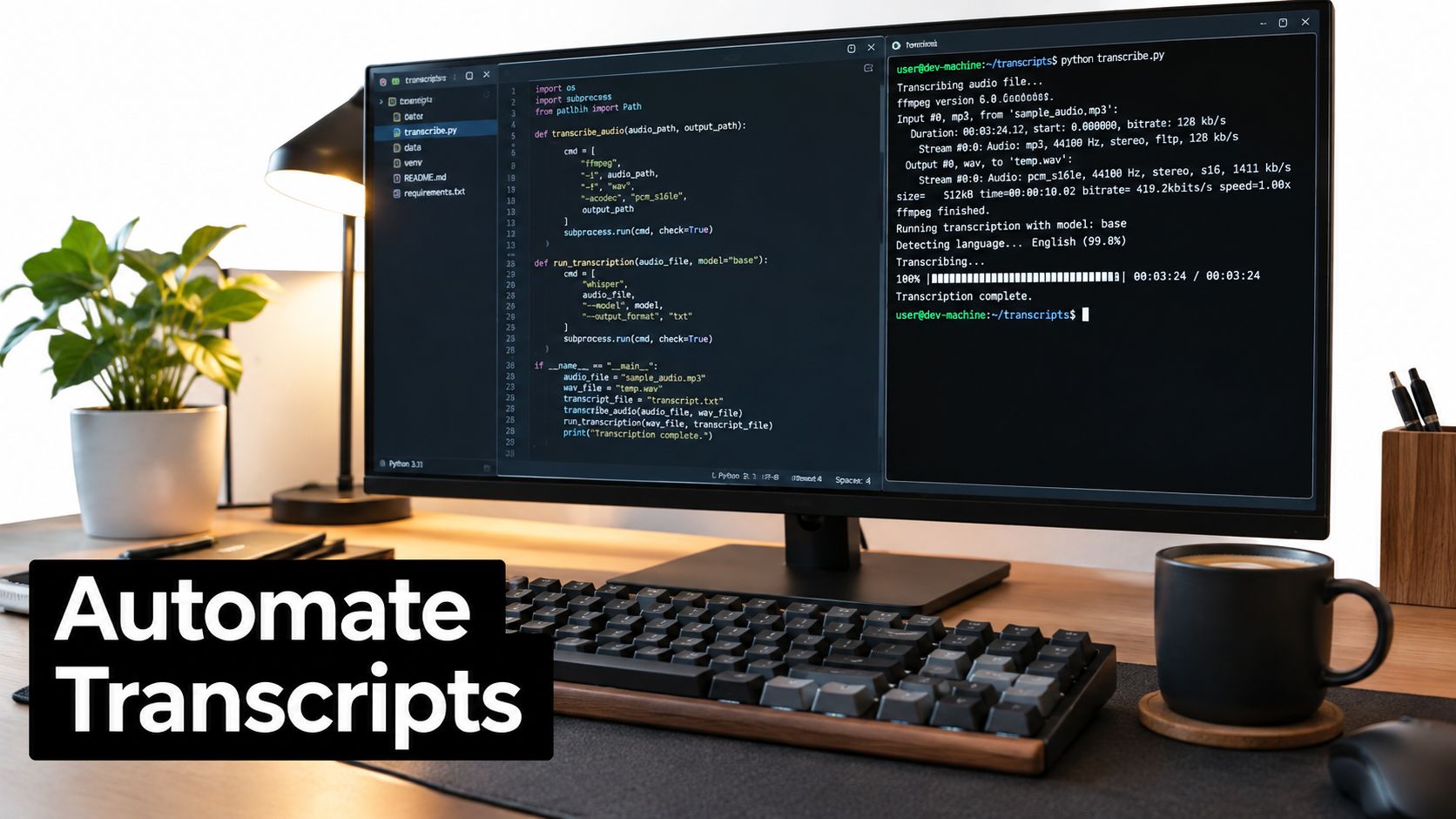
A scriptable Instagram transcript workflow has four separate jobs, and keeping them separate prevents debugging headaches:
- Acquire permitted media. Start with content your team owns or has permission to process. Public availability doesn't guarantee that automated downloading is allowed by platform rules or the creator's rights.
- Extract audio. Use
ffmpegto convert the source into a consistent audio format. Normalizing sample rate, channels, and loudness gives the speech-to-text model a predictable input. - Transcribe and timestamp. Run an open-source ASR model such as Whisper locally or through an internal service. Request segment or word timestamps when the output will become subtitles.
- Validate and store. Save the original URL, shortcode, media ID, author, duration, detected language, model version, review state, and transcript files together.
A typical batch worker watches an input folder or queue, checks the media manifest, extracts an audio file, runs ASR, writes JSON, and then renders SRT or VTT. It should preserve the source media identifier even when the transcript is edited. Without provenance, a corrected sentence can become impossible to trace back to the exact Reel.
A practical local pipeline
Use ffmpeg first to separate speech from video. If the source contains music, don't expect audio extraction alone to solve recognition problems. A denoising or vocal-isolation step may help, but aggressive processing can distort consonants and reduce accuracy, so keep the original audio for review.
Feed the resulting file to Whisper or another open-source ASR model. Select the language when you know it instead of relying entirely on detection, especially for short clips or multilingual speech. Store the raw model output before applying cleanup rules, then create a second reviewed version for publication.
Speaker diarization requires another layer. Basic ASR can produce excellent words while still merging two people. Add diarization only when the editorial workflow needs speaker identity, and manually inspect overlaps, interruptions, and very similar voices.
Engineering principle: Automate extraction and formatting first. Automate editorial judgment only after you understand the model's recurring errors on your own recordings.
For implementation patterns around model selection, confidence, and integration, see this speech-to-text API guide for accuracy and integration. Your internal record should distinguish machine-generated text from human-approved text, because the two states have different reliability.
A batch system also needs failure handling. Log inaccessible URLs, unsupported media, empty audio tracks, language mismatches, and jobs that exceed processing limits. Send those items to a review queue instead of writing empty transcripts without warning.
Formatting and Exporting Captions as SRT or VTT
Raw transcript text is useful for reading, but it lacks the timing needed for subtitles, video editing, and precise content references. SRT and VTT files connect words to moments in the video, which lets an editor find a statement quickly or import captions into a compatible player and CMS.
SRT uses numbered caption blocks, a start and end time, and the displayed text. VTT follows a similar timed-cue model but includes a WEBVTT header and supports additional web-oriented features. You don't need to hand-author every cue when your transcription tool already returns timestamps, but you should understand the structure well enough to inspect failures.
Build a clean caption file
A production workflow should:
- Preserve timing: Keep each cue aligned with the speech, not merely distributed evenly across the video.
- Segment for reading: Break long speech into short, natural units rather than creating dense blocks.
- Review punctuation: Correct sentence boundaries, names, product terms, and abbreviations.
- Check speaker labels: Confirm that every label matches the person speaking.
- Remove transcription debris: Delete false starts and repeated fragments only when the edited version still reflects the intended meaning.
- Test the export: Open the SRT or VTT in the target player and watch the full video.
A timestamped transcript is also more useful for repurposing. An editor can jump directly to a product explanation, export a clip, and attach the corresponding text to an editorial record. A plain transcript forces that editor to search by rough wording and then manually locate the moment.
For SEO, don't treat an SRT file as a substitute for a useful page. Put the cleaned transcript, summary, or adapted article in the appropriate CMS field, and retain the caption file for the video experience. The best output depends on the destination:
| Destination | Useful format | Editorial treatment |
|---|---|---|
| Blog or knowledge base | Markdown, TXT, JSON | Rewrite for scanning and search intent |
| Video editor | SRT, VTT | Check timing, segmentation, and names |
| Archive or database | JSON plus TXT | Preserve provenance and review status |
| Accessibility handoff | VTT plus readable transcript | Make both layers available where required |
The transcript should remain faithful to the recording, but the published article doesn't need to preserve every filler word. Separate transcription accuracy from editorial quality. First confirm what was said, then decide how the audience should read it.
Repurposing Instagram Transcripts for SEO and Content
A clean transcript is not automatically a good article. Spoken language often repeats context, relies on gestures, and assumes the viewer can see the original screen. Repurposing works when an editor uses the transcript as source material, not as a button that turns speech into publish-ready prose.
Start by marking the video's central question and answer. Then isolate the useful evidence, instructions, objections, examples, and terms that a reader might search for. Build a new structure around the reader's task, with a direct introduction, descriptive subheadings, concise paragraphs, and supporting context that the Reel didn't have room to provide.
A single transcript can feed several formats
A product demonstration can produce a comparison section, an FAQ, an email explanation, and a short social caption. A founder interview can provide a quote bank, a company knowledge-base entry, and topic ideas for future videos. A tutorial can become a step-by-step article, provided the written version includes every instruction a viewer would otherwise learn from the screen.
Use the transcript to identify language your audience already hears from your team or customers. That language can improve headings and internal links, but don't force exact spoken phrases into every paragraph. Search optimization still depends on usefulness, clarity, and satisfying the reader's intent.
Maintain the source URL and media ID in the CMS. Add the speaker, publication date, language, and review status if those fields matter to your operation. If an editor paraphrases the video, keep the original transcript available so another team member can distinguish a direct statement from an interpretation.
For teams using AI during repurposing, provide the transcript as reference material and require a human review. AI can remove useful caveats, merge speakers, invent connective details, or make a tentative statement sound definitive. A practical guide to paraphrasing tools in content creation is useful context, but no rewriting tool replaces source verification.
Respect the original content
Your own Reel is the easiest source to repurpose. You control the recording, can correct the transcript, and can publish adapted versions across your owned channels. Collaborated content needs a clearer agreement about who can edit, quote, translate, and distribute the words.
Third-party Reels require caution. A public URL lets you view content, but it doesn't automatically grant permission to reproduce the audio, transcript, screenshots, or ideas commercially. Credit alone may not resolve copyright or licensing concerns.
Use transcripts to analyze content you're allowed to study, and obtain permission before publishing substantial copied language or building marketing assets from someone else's video. Keep a record of the permission, scope, and approved channels before the transcript enters a client or campaign workflow.
Legal and Permission Considerations for Transcribing
Transcription is a technical process, but the rights question comes first. Converting audio into text doesn't remove copyright protection. The transcript can be another expression of the underlying creative work, especially when it reproduces the speaker's words closely.
Apply the right permission standard
For content your organization created, confirm that the organization owns or licenses the recording, music, visuals, guest contributions, and talent usage. A brand may own a Reel while still needing separate permissions for a guest's appearance, a licensed clip, or background audio.
For collaborations, put reuse rights in writing. Cover transcript creation, editing, translation, publication on a website, inclusion in email campaigns, internal search, and use in AI or analytics systems. A verbal agreement that permits a social post may not cover a long-form article or a searchable archive.
For third-party content, ask the creator or rights holder before copying substantial text or republishing it. If the purpose is research, criticism, reporting, accessibility, or internal analysis, document the purpose and limit distribution until a qualified rights professional confirms the position in your jurisdiction.
Build safeguards into the workflow
A responsible transcript record should include:
- Source ownership: Note whether the media belongs to your organization, a partner, or a third party.
- Permission status: Store the agreement or approval with the media record.
- Use limitation: Record where the transcript may appear and whether editing or translation is allowed.
- Attribution: Credit the speaker or creator where the permission requires it.
- Removal process: Define how your team will delete the transcript if rights expire or the creator withdraws permission.
Don't use a transcript to expose private information, identify people without authorization, or convert a restricted video into a public asset. Also review platform terms before automating access to Instagram media, particularly when a workflow downloads or processes content at scale.
The safest operating rule is straightforward: transcribe what you own, obtain permission for what you don't, and preserve the source and approval record for every published adaptation. If the rights are unclear, keep the transcript for limited internal review and ask qualified legal counsel before using it in a commercial campaign.
If you're building a repeatable Instagram content workflow, start with one public Reel and test the complete path, from URL or file intake through transcription, human review, SRT or VTT export, CMS storage, and repurposing. For developers who need automation components or content workflow tools, browse the curated catalog at Code Market, then document your permissions and quality checks before processing a larger library.
This article was inspired by Outrank.