WooCommerce Square Up Payment Gateway
Description



Introduction
WooCommerce Square up Payment Gateway is the ultimate payment plugin for receiving simple Square payments on your WooCommerce-powered website. The plugin’s functionality allows you to manage payments and refunds between WooCommerce and Square in real-time.
You can accept payments for your simple product via Square card checkout, Google Pay, Apple Pay, and Square Gift Card.
Keeping the testing phase in mind, we have integrated Sandbox support With the latest version of SQUARE V3.1 API to see test transactions in the Square’s dashboard.
Square card payment API support is currently available in the US, Republic of Ireland, Canada, UK, Australia, and Japan.
Features:
- Accept payments for bookable products like reservations, appointments, or rentals).
- Supports multiple payment options, including Google Pay, Apple Pay, and Square Gift Cards.
- Manage Woocommerce orders and refunds through Square application.
- Use Square to accept all major credit cards with WooCommerce.
- Tokenization: at the time of checkout users can save their payment information for future purchases.
- Sandbox support With the latest version of SQUARE V3.1 API.
IMPORTANT POINTS BEFORE CONSIDERING THE WOOCOMMERCE SQUARE UP PAYMENT GATEWAY PLUGIN
- Square card payment API support is currently available in the US, Canada, UK, Australia, and Japan only.
- On your checkout page, the SSL certificate must be activated for Square payments.
- At the moment, this Plugin does not support WordPress Multi-site.
- This Plugin does not synchronize your products between WooCommerce and Square. If you are interested in this feature, then WooSquare Pro is the right option for you, which includes the Square payment gateway as well.
WooCommerce Square Up Payment Gateway Plugin Requirements:
- WooCommerce 2.6.0+
- An SSL Certificate.
- Square account.
- WordPress 4.4+
- PHP version 5.5+
HOW WOOCOMMERCE SQUARE PAYMENT SETTINGS WORK (STEP BY STEP GUIDE)
FIRST PART: SETUP SANDBOX API FOR TEST TRANSACTION:
STEP #1: Setup Sandbox API for the test transaction; To access Sandbox and view tested transaction login with Squareup account.
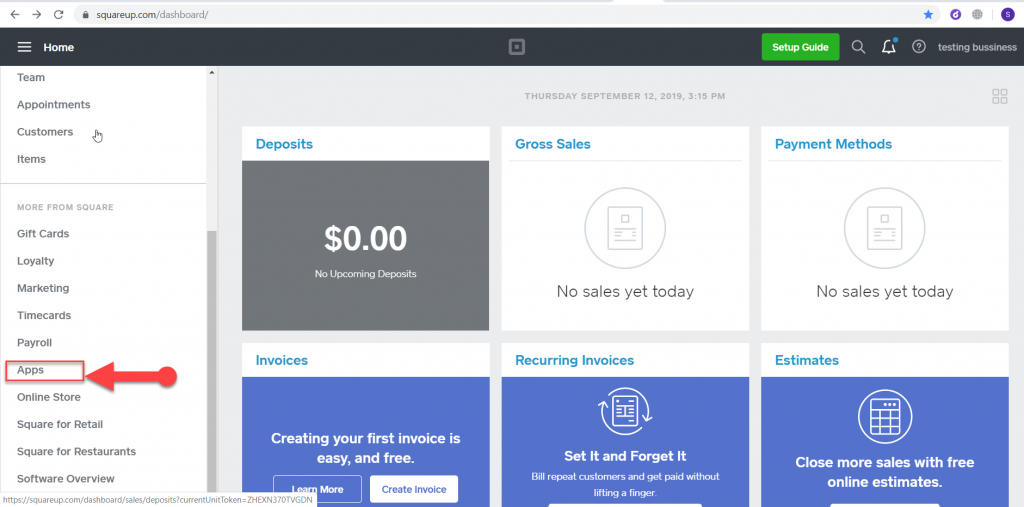
STEP #2: Go to My Apps.
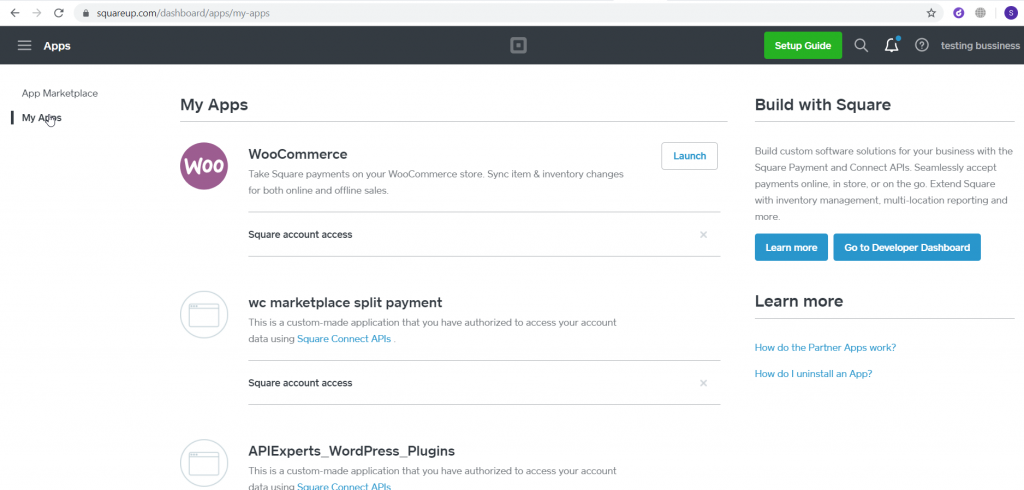
STEP #3: Click on “New Application” to create a new application.
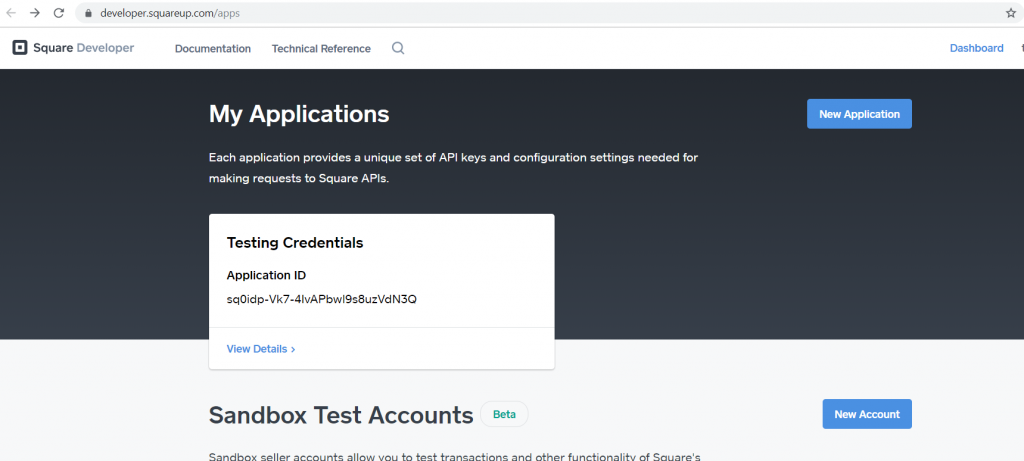
STEP #4: Insert your application name and click on the “Create Application” button.
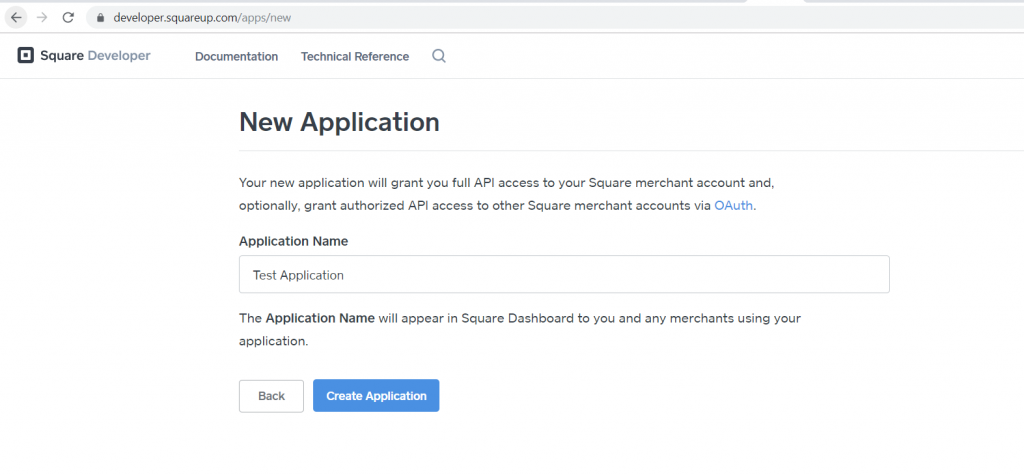
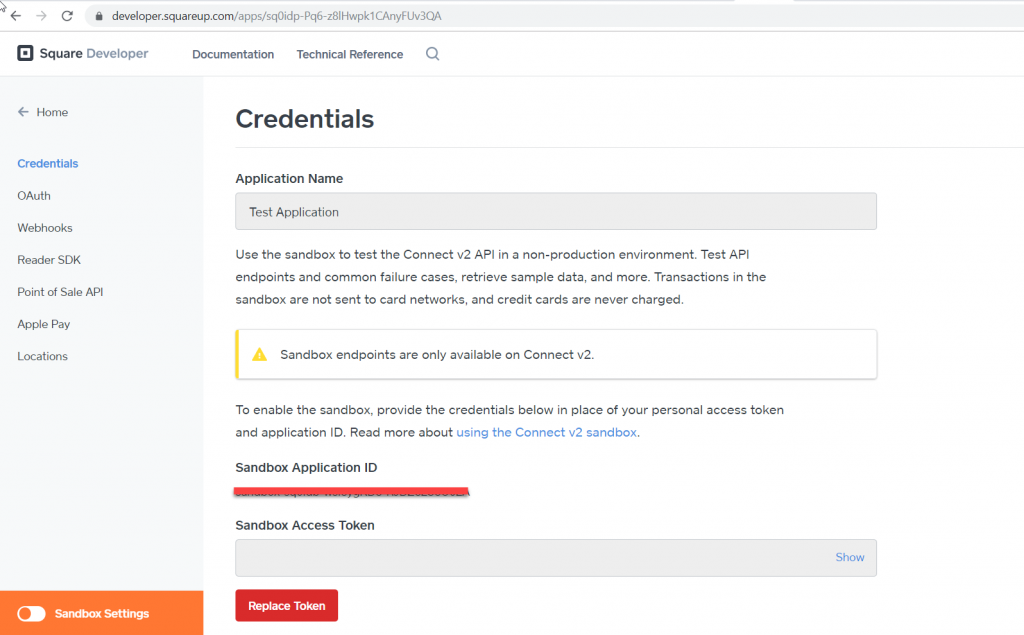
STEP #5: Now your sandbox mode is active. You can now copy the App id and Access token.
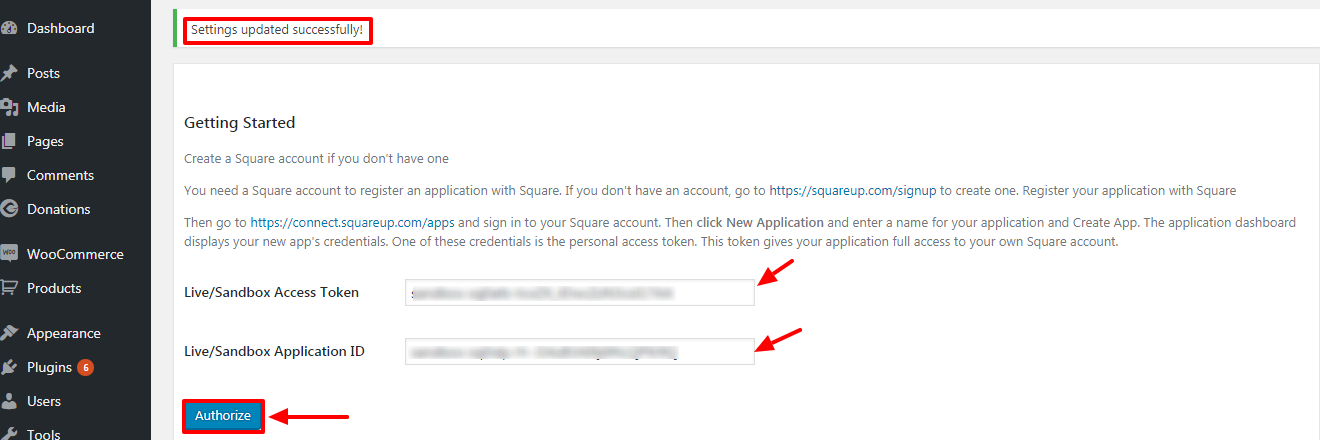
STEP #6: Now, you can simply insert the sandbox credentials of Square in WooSquare and click Authorize. After that, on the top left corner, you will see Setting updated successfully, as shown below.
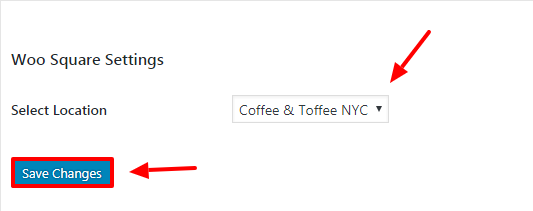
STEP #7: Select the location of your store and Save Changes, as shown below.
STEP #8: Now that WooCommerce is successfully connected with your Square Account, you can move over to the Square payment set up, In square settings.
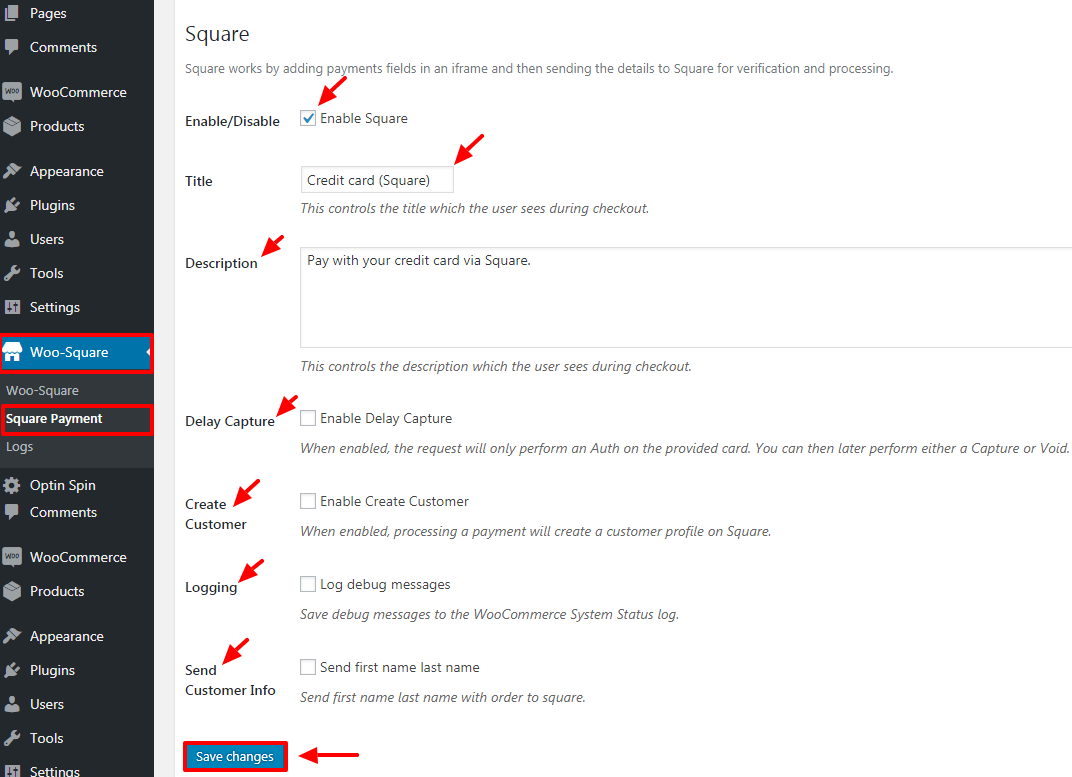
Enable/Disable: Check on Enable to use Square as a payment option.
Title: Display the title to customers during checkout.
Description: Write a description (e.g. Pay with your credit card via Square).
Delay Capture: Allows you to pre-authorize a charge and not capture it until later. It is useful if you are about to ship goods and then charge the payment after delivery. Capture an authorization by marking the order Processing or Completed OR void the authorization by canceling the order.
Create Customer: Create a customer profile on Square when a customer checks out on your WooCommerce store.
Log Debug Messages: Save debug messages to the WooCommerce System Status log.To see log Wp-admin menu > Status > Log > select payment log.
Send Customer Info: Sends first name and last name with order to Square and click Save changes. As shown below:
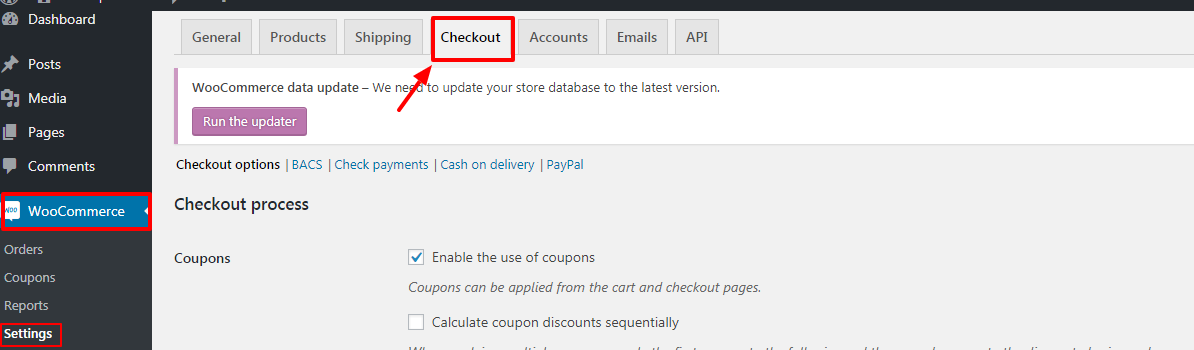
STEP #9: On your left side panel, click WooCommerce, select settings, and choose checkout, as shown below.
STEP #10: At the Checkout screen scroll down to payment gateways and verify that Credit card (Square) is enabled, click Save changes as shown below.
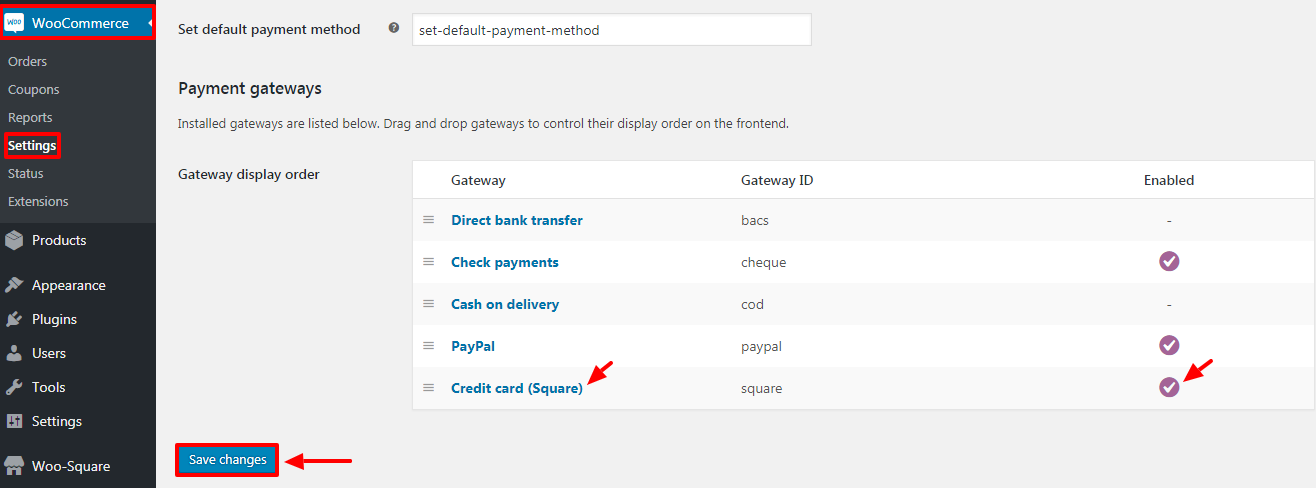
Note:As soon as you click Save changes, you will receive this message “Your settings have been saved.
THE FINAL STEP FOR FIRST PART:
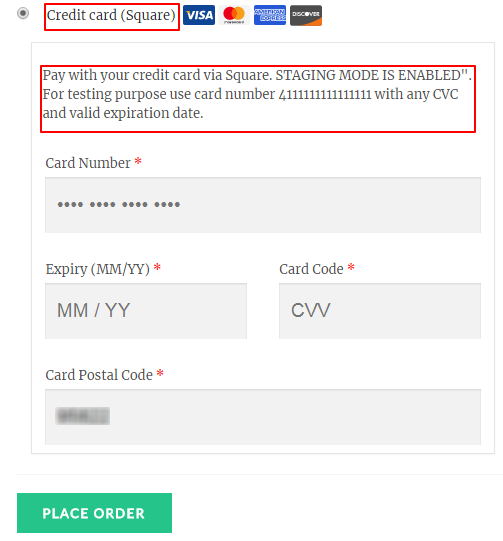
STEP #11: At this stage, open the website from frontend and choose any product from your website then add to cart; at the checkout, you will see payment method as a credit card (Square) as shown below.
SECOND PART: SANDBOX TRANSACTION
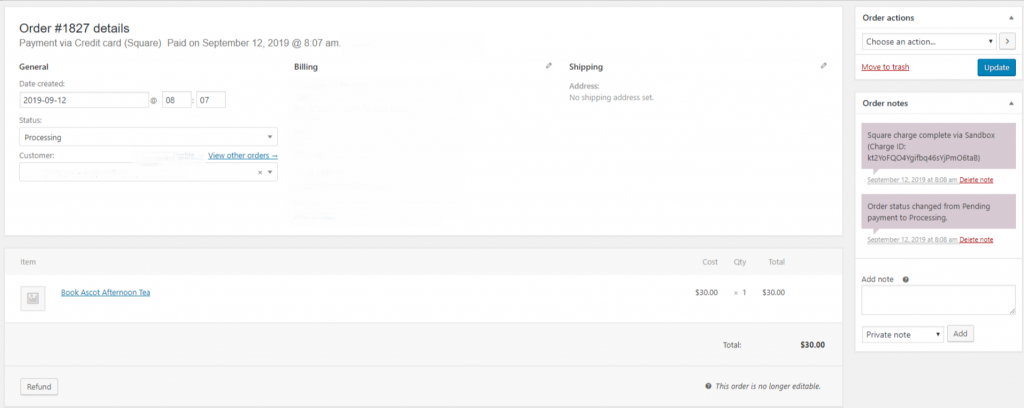
STEP #1: Below Are the details to Test Order In WooCommerce using Sandbox.
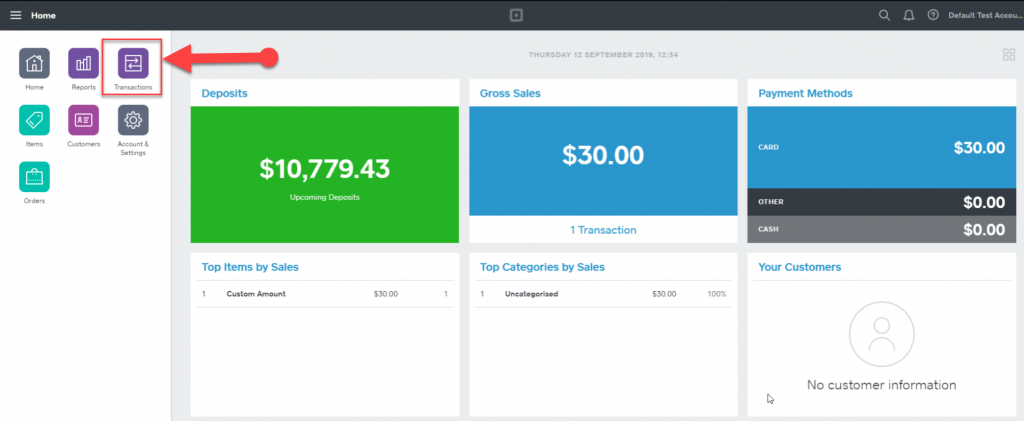
STEP #2: You can see the sandbox transaction appearing in Square Dashboard.
FINAL STEP OF SECOND PART
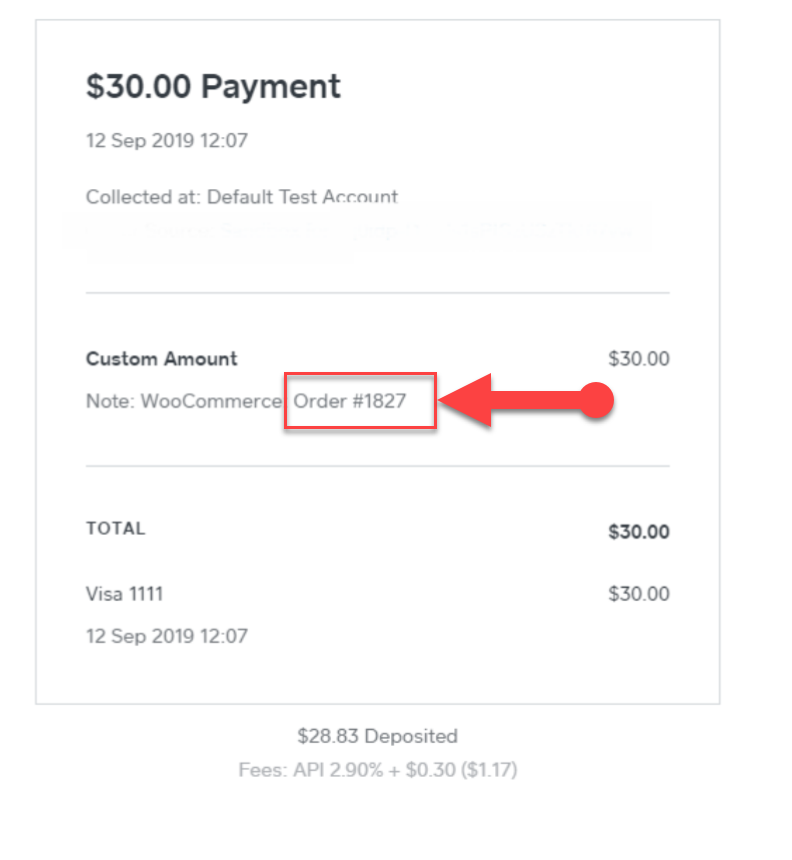
STEP #3: View your Order Receipt.

LINKS TO SOME MORE SQUARE INTEGRATIONS
- Square Recurring Payments For WooCommerce Subscriptions
- Square Payment Gateway For Caldera Forms
- Square Payment Gateway For Gravity Forms
- Square Payment Gateway For GiveWP
- Square Payment Gateway for Contact form 7
- Square Payment Gateway for WooCommerce
Changelogs
Version : 1.0
Date :  07/04/2017
intial release.
Version : 1.1
Date : 13/04/2017
* Feature - Added support for Uk for square payment gateway.
* Feature - Added compatibilty with woocommerce 3.0x .
* Bug fix - bug in checkout options enabled table.
Version : 1.2
Date : 04/05/2017
* Bug fix - error message started to appear after WooCommerce 3.0 fixes which was as following “Sorry, it seems that there are no available payment methods.
Version : 1.3
Date : 08/05/2017
* Update : Further updates for WooCommerce 3.0.5 compatibility.
Version : 1.4
Date : 11/05/2017
* Add - Payment Support for Japan market.
* Update - Tested with Wordpress 4.7.4
Version : 1.5
Date : 13/06/2017
* Added - once sale in woocommerce checkout via square payment gateway update item stock in square dashboard.
Version : 1.6.1
Date : 13/07/2017
* Added - Filtration with multiple square stores with CREDIT_CARD_PROCESSING possibilities.
Version : 1.7
Date : 13/08/2017
* Added -Send Customer info (First name and last name) option to the square order section.
Version : 1.7.1
Date : 15/11/2017
* Added - Fixed for transaction on delay capture.
Version : 1.8
Date : 28/12/2017
* Added - For sandbox testing user must be is an admin validation.
* Fixed - Refund transaction id updated with custom meta.
Version : 2.1
Date : 17/12/2017
* Enhancement – Added compatibility for Wordpress 5.0.1
* Enhancement – Added compatibility for WooCommerce 3.5.2
Version : 2.3
Date : 29/03/2019
* Added - Square Auth Connection
* Added - Square Sandbox Auth Connection for Payment only.
* Added - Square to WooCommerce order synchronization setting modification.
* Enhancement - Manage Stock management conditions according to processing and refund payment.
Version : 2.5
Date : 05/4/2019
* Fixed - Square obtain renew token.
Version : 2.6
Date : 11/09/2019
* Added - Replace depreciated api with new api endpoints.
* Added - Sandbox integration with Square v2 api.
* Added - SCA Integration.
Version : 2.7
Date: 118/09/2019
*  Fixed - location fetching fixed.
Version : 2.7.1
Date: 27/09/2019
* Fix - Selected payment location.
Version 2.8
Date: 09/04/2020
Added - Refresh token added to renew from off page.
Added - Code compatibility with API.
Version 2.9
Date: 11/06/2020
Fix - Round Amount figure value
Version 3.1
Date: 01/12/2021
* Added - Added new api request replaced with dept api.
* Added - new UI display.
* Added - Apple Pay Support Added.
* Added - Google Pay Support Added.
* Added - Gift Card Support Added.
* Fixed - Support fixes.
Disclaimer:
- WpExperts offer solutions as a third party service provider, we are NOT affiliated, associated, authorized, endorsed by, or in any way officially connected with Square, Inc. The name “Square” as well as related marks and images are registered trademarks of Square, Inc.
Categories
Tags
External listing. code.market does not sell this product and does not process payment for it. Pricing, payment, delivery, licensing, refunds, and support are handled by the third-party merchant on its own website. We may earn an affiliate commission from a referral. Details.
Products of the Week.
Submit#1

wanapi.app
Wan API is a developer platform for the Wan video model family. Compare Wan 3.0, Prime and Pro specifications and prices, then prepare a request in the preview playground.
Other · 7,378 views · 18 clicksOther · Week 42 · 7,378 views · 18 clicks
#2

wanapi.ai
Wan API is a developer platform for the Wan video model family. Compare Wan 3.0, Prime and Pro specifications and prices, then prepare a request in the preview playground.
Other · 6,812 views · 11 clicksOther · Week 42 · 6,812 views · 11 clicks
#3

yee.site
Your link in bio, but a real website. Start from beautiful templates and ready-made sections, then add a shop, bookings, a blog and as many pages as you need. Perfect for your link in bio, portfolio or personal site.
Other · 12,827 views · 20 clicksOther · Week 42 · 12,827 views · 20 clicks
#4

upvote.club
Free Social Media Engagement that Helps Boost Your Content. Upvote Club supports 19 social networks with 100+ engagement actions in one dashboard. Add links to your posts and get free engagement from real users.
SaaS · 33,734 views · 104 clicksSaaS · Week 42 · 33,734 views · 104 clicks
#5

Seenshot App
Free, Fast, MacOS Screenshot app. Make Screenshot cmd+shift+2 and send it via link
Desktop App · 22,233 views · 114 clicksDesktop App · Week 42 · 22,233 views · 114 clicks
#6

Conversational Backlinks for Busy Founders
Place Backlink Relevant Conversation for your domain across Forums and Conversations
Website · 34,015 views · 204 clicksWebsite · Week 42 · 34,015 views · 204 clicks
#7

Substack Posting API
Onboard your Agent to Substack. Write Publish on Substack via API
SaaS · 52,905 views · 190 clicksSaaS · Week 42 · 52,905 views · 190 clicks
#8

codester.com
SocialDesk+: Omnichannel Social Commerce & Business Management Platform This is stronger than simply “Social Commerce and Messaging” because it tells buyers this is a complete business platform, not just a messaging script. Turn Social Conversations Into Sales SocialDesk+ is a complete omnichannel social commerce and business management platform built for businesses that sell and communicate with customers through social media. Instead of switching between WhatsApp, Facebook, Instagram and TikTok, businesses can manage customer conversations, comments, products, leads, follow-ups, automation, teams and business reports from one professional workspace. And because the full source code is included, developers, agencies and entrepreneurs can customize, rebrand and launch SocialDesk+ as their own business solution or SaaS platform. 🚀 Build Your Own Social Commerce Business SocialDesk+ gives you the foundation to launch: - Your own SaaS platform - A white-label social CRM - A social-commerce management system - A customer communication platform - A business messaging solution - A custom solution for clients - A multi-business subscription platform 💬 Connect Your Customers Supported social channels include: WhatsApp • Facebook • Instagram • TikTok Bring supported conversations into one centralized workspace and help businesses respond faster without constantly switching between platforms. 🛍️ More Than a Messaging Platform SocialDesk+ combines communication with the tools businesses need to manage customer opportunities: Inbox Manage customer conversations from connected channels. Comments Monitor and respond to social-media comments. Customers & Leads Organize customer information and potential buyers. Products & Catalog Manage products and give your team quick access to product information. Follow-Ups Make sure potential customers don't get forgotten. Automation Automate repetitive customer questions and responses. AI Assistant Provide AI-assisted communication when configured. Team Management Give managers and staff access to the business workspace. Reports & Analytics Track activity using business reports and analytics. The current product listing already includes these capabilities. 🔥 Why Buyers Will Want It Launch Faster Start with an already-built business platform instead of developing the entire system from zero. Customize Everything The full source code is included, allowing developers to change branding, features, workflows and integrations. Build a SaaS Create multiple business workspaces and offer SocialDesk+ as a subscription-based service. Sell to Businesses Offer it to retailers, restaurants, service businesses, online sellers, agencies and other businesses that communicate with customers through social media. Mobile + Web + Backend This isn't just a mobile UI template. It includes: - Flutter mobile application - Python / FastAPI backend - Web interface - Administration tools - Database infrastructure - API-based architecture - SQLite / PostgreSQL support - Android and iOS project structure 💼 One Platform. Multiple Business Opportunities. For SaaS Entrepreneurs Launch your own subscription platform and allow multiple businesses to operate inside separate workspaces. For Software Agencies Customize and rebrand the platform for clients instead of building an omnichannel business system from scratch. For Developers Use the complete source code as a foundation for your own social-commerce or customer-management product. For Businesses Deploy a dedicated version for your own customer-service and social-commerce operations. 🧩 What's Included Mobile - Flutter / Dart - Android - iOS project Backend - Python - FastAPI - SQLAlchemy - Alembic Database - SQLite - PostgreSQL Web - HTML5 - CSS3 - JavaScript Deployment - Docker - Docker Compose - Production configuration Business Platform - Multi-workspace architecture - Authentication - Teams - Customers - Products - Messaging - Comments - Automation - Reports - Subscriptions - Administration The current listing also documents third-party integrations such as Meta, TikTok, Stripe, Firebase, SMTP and optional OpenAI configuration. ⚡ What Makes SocialDesk+ Different? You're not buying a simple: ❌ Chat UI ❌ WhatsApp clone ❌ Flutter template ❌ Admin dashboard ❌ Basic CRM You're getting a complete business platform foundation that can be customized, branded and commercialized. Connect. Automate. Manage. Grow. SocialDesk+ Omnichannel Social Commerce & Business Management Platform One important change I'd make to the current listing The current page starts with: “A simple guide to managing your social conversations, customers, products and business activity.”
Other · 20,286 views · 35 clicksOther · Week 42 · 20,286 views · 35 clicks
#9

sandbook.app
Sandbook reads EPUB, PDF, web pages and scanned pages aloud with Kokoro TTS, an open neural voice model that runs on your iPhone, free and offline. Choose from 41 natural voices in English, Spanish, French, Italian, Brazilian Portuguese and Hindi and follow each word as it is spoken. Try the same voices in your browser first with the free Kokoro TTS online demo.
Other · 20,211 views · 17 clicksOther · Week 42 · 20,211 views · 17 clicks