
WebExe - Script Convert Website to Desktop EXE
Description
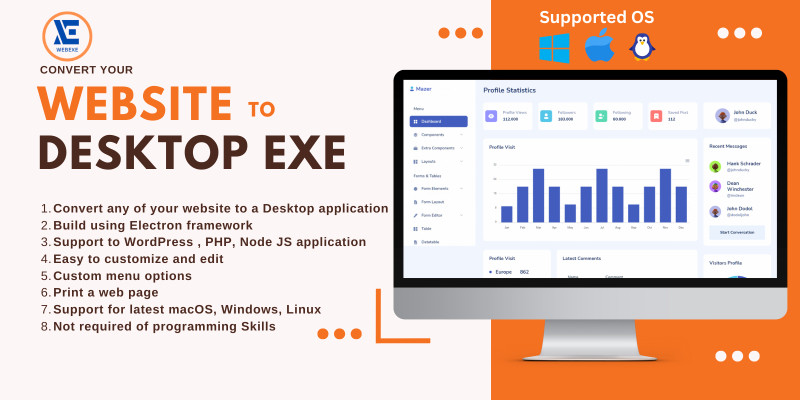
If you want to make your website available as a desktop application, you don’t need to build a new application from scratch. You can convert it to a desktop app with the help of the WEBEXE. It supports all the latest web technologies like HTML, PHP, Wordpress, Angular Js, and creates a base for your web application so that it can be executed as a desktop application.
There are multiple advantages when using WEBEXE:
- Cross-Platform: Desktop applications are mostly platform-specific, so you’ll need to create one for each platform. However, your Electron desktop application will be compatible with macOS, Windows, and Linux as it is built on node.js and Chromium.
- Open source: It is maintained in GitHub by an active community that supports its features.
- Automatic update:Enables automatic updates of the application on Mac and Windows. Any changes in your electron framework will be updated automatically via update-electron-app. This will ensure that your desktop application runs on the latest framework and platform version.
- Native desktop behavior: Your app will look and behave like a real desktop app with native menus and notifications.
- Crash Reporting: Reports crashes to the remote server.
- Content Tracing: Allows you to trace the data from Chromium or desktop applications in case the application experiences bottlenecks or slowed down operations.
- Windows installer: It provides an electron-winstaller that creates a windows installer to install your desktop application.
FAQ
Q1: Will my app work offline? A: If you want to make the app work offline you need to run your websites on a local server (WAMP, XAMPP). Q: Using which platform built with sites that WebToDesk supports? A: This supports Wordpress, Wix, Shopify, React, Angular, Vue, PHP.
Features
- Convert any of your website to a desktop application
- Build using Electron framework
- Support to WordPress, HTML, Node JS any Website application
- Easy to customize and edit
- Print a web page
- Easy to build an application for your preferred OS
- Not required of programming Skills
Requirements
- Visual Basic Studio (VsCode)
- The specific system required to export the file. Like, If you need to export in (.exe) file you have to use Windows operating system. For (.rpm) file you have to use Linux operating system, So on.
Instructions
WEBEXE installation process is very simple. Please install as step by step
- DOWNLOAD & INSTALL EDITOR You can download and install your suitable code editor. Here we install the VSCODE editor. Please watch the video and Install properly.
- EXTRACT THE PROJECT ZIP FILE
- Extract the downloaded file using WinRAR or other .zip file extractor.
- Import in VSCODE
- Import entire project in VSCODE editor
- NPM install
- NPM Start
- Create Executable File
| Author | somnathbaksi |
|---|---|
| Category | Scripts & Code / JavaScript / Miscellaneous |
| Price | $15 |
| Extended License | $45 |
| Likes | 11 |
| First Release | May 9, 2023 |
| Last Update | May 9, 2023 |
| Javascript framework | jQuery, Node.js |
Categories
Tags
External listing. code.market does not sell this product and does not process payment for it. Pricing, payment, delivery, licensing, refunds, and support are handled by the third-party merchant on its own website. We may earn an affiliate commission from a referral. Details.
Products of the Week.
Submit🥇
Perceptle
Perceptle is a daily browser-based game that challenges you to test your sensory intuition through five quick estimation and rhythm-based rounds.
Other · 3,957 views · 16 clicksOther · Week 47 · 3,957 views · 16 clicks
🥈

Free LinkedIn Likes From Real
Get free LinkedIn likes on your posts from real members who react by hand. No
SaaS · 4,075 views · 18 clicksSaaS · Week 47 · 4,075 views · 18 clicks
🥉

STOP GUESSING WHAT TO POST
AI that learns your brand voice and builds a month of consistent, on-brand social content: carousels, posts and hooks that sound like you, not like everyone else's AI.
SaaS · 11,557 views · 80 clicksSaaS · Week 47 · 11,557 views · 80 clicks
#4

aaas.market
407 reliable micro tools for solo founders, marketers and creators. They work in your browser
SaaS · 3,936 views · 7 clicksSaaS · Week 47 · 3,936 views · 7 clicks