
Smart Font Viewer - Organizing & Previewing Fonts
Description
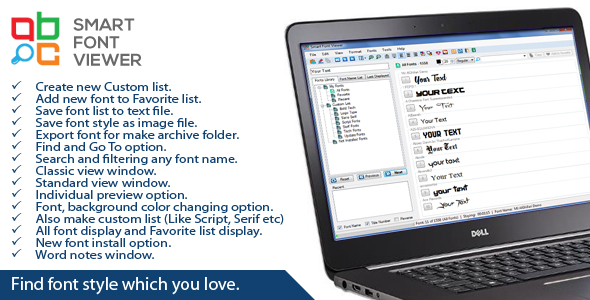
This software may you help to find font style which you love. Also Smart Font Viewer is user friendly and too easy to use. It has a lot of useful features, which is extremely easy to use. Do not spend your time looking for any of your favorite font styles. This is a very essential program for font management. The interface of this program is very attractive to see which you will be able to use. The project is written in vb.net 2010.


Features:
• Create new Custom list.
• Add new font to Favorite list.
• Save font list to text file.
• Save font style as image file.
• Export font for make archive folder.
• Find and Go To option.
• Search and filtering any font name.
• Classic view window.
• Standard view window.
• Individual preview option.
• Font, background color changing option.
• Also make custom list (Like Script, Serif etc)
• All font display and Favorite list display.
• New font install option.
• Word notes window.
User’s Benefits:
■ Open custom list for preview.
■ Open Not Installed fonts for preview.
■ Save font list to text file.
■ Save font style as image file.
■ Print current displayed style.
■ Export font for make archive folder.
■ Application usages history.
■ Auto saving recent list.
■ Recent list for preview and save as list.
■ Copy font name for uses.
■ Auto paste option.
■ Change Case option (Upper, Lower, Title)
■ Sort list for ascending-descending preview.
■ Find and Go To option.
■ Search and filtering any font name.
■ Classic view window.
■ Standard view window.
■ Individual preview option (Full Screen)
■ Toolbars, status bar.
■ Font name title and Number title show-hide option.
■ Full screen option.
■ Zoom in-Zoom out preview title
■ Font, background and title color changing option.
■ Reverse color and default color.
■ Alignment option (Left, Center, Right)
■ Text position (Top, Middle, Bottom)
■ Line spacing option for main title preview.
■ Can you make favorite list.
■ Also make custom list (Like Script, Serif, Sans Serif etc)
■ Load recent list for preview.
■ All font display and Favorite list display.
■ Create new custom list.
■ Add new font to Favorite list.
■ Font Library, Font name list, Current displayed list.
■ New font install option.
■ Word notes window.
■ Auto display option.
■ Run default and custom program.
■ Windows Char Map.
■ Open application folder location.
Menus:
FILE
Next: Preview next 10 font styles.
Shortcut: Ctrl+Down Arow, Press Enter, Mouse Scroll Down
Previous: Preview previous 10 font styles.
Shortcut: Ctrl+Up Arow, Mouse Scroll Up
Reset: Start to at first of the list.
Shortcut: Ctrl+Home.
Refresh: Refresh form and all component of the Application, Shortcut: F5
Open: Custom list open for preview to any location.
Shortcut: Ctrl+O
Open Not Install Fonts: For preview any custom font which is not installed.
Save As Current List: Possible to share your any list which you make. The file make by text file.
Shortcut: Ctrl+S.
Save As Image: Current displayed 10 font’s style you can save to PNG file. Which you share with your friends.
Shortcut: Ctrl+Shift+S.
Print: Current displayed 10 fonts style you can simply print.
Shortcut: Ctrl+P.
Export Font: You can export any of fonts for make archive folder.
History: The application opening Date and Time, using font name, Closing Date and Time, Duration of using the application.
Recent List: Load recently using fonts name to recent list.
Exit: Close the application.
EDIT
Copy: Copy the Selected Font Name.
Paste: You can paste the Preview text to text box from the clipboard.
Auto Paste: If you select this option then applications automatically paste text from clipboard.
Shortcut: Ctrl+Shift+P.
Clear: Clear the preview text box.
Change Case: You can change the case of text to Upper, Lower, Title
Upper Case: All text UPPER CASE. Shortcut: Shift+F3
Lower Case: All text in lower case. Shortcut: Shift+F4
Title Case: All text in Title Case. Shortcut: Shift+F5
Sort: List for (A-Z) Ascending (Z-A) Descending preview.
Find: Any of font name you can find. Just type the font name.
Shortcut: Ctrl+F.
Go To: You can go to the list item number. Just type the number.
Shortcut: Ctrl+G.
VIEW
Classic View: Preview the font style with classic style. You can make the custom list and add font name for make new list.
Shortcut: Ctrl+F12.
Standard View: Font name list view. You can make the custom list and add font name for make new list.
Shortcut: Ctrl+F7.
Individual Preview: Show the selected font with full screen and show it bigger. You can save the style as Image (PNG).
Toolbar: Show and hide the toolbar.
Status Bar: Show and hide the status bar.
Title Font: Show and hide the font name of style frame.
Shortcut: Ctrl+M.
Title Number: Show and hide the title number right side of style preview.
Shortcut: Ctrl+N.
Full Screen: Preview the list with full screen.
Zoom In: Show zooming in bigger.
Zoom Out: Show zooming in smaller.
FORMAT
Font Color: For change the displayed font color.
Background Color: For change the background color.
Title Text Color: For change the displayed frame font name text color.
Reverse Color: For Text and Background color reversed.
Shortcut: Ctrl+B
Default Color: If you select any font, background or title text color this option makes default
Black and White color.
Alignment: For change the Left, Centered and Right alignment.
Shortcut: For Left Alignment- Ctrl+L, For Centered Alignment- Ctrl+E, For Right Alignment- Ctrl+R
Text Position: For change the text position to Top Left or Middle Left or Bottom Left.
Line Spacing: Increase and Decrease the line spacing.
Shortcut: For Increase- Ctrl+Shift+OemPlus (+), For Decrease- Ctrl+Shift+OemMinus (-)
FONTS
All Fonts: Select all installed font for preview. Which is default. Shortcut: Ctrl+A
Favorite: Select Favorite list for preview. Shortcut: Ctrl+T
Create Custom List: For making the new custom list. Select the option and drag and drop them to the list for add new.
Favorite List: For add font to the favorite list. Select the option and drag and drop the font name for add new.
Fonts Library: For showing the Fonts Library tab.
Font Name List: For showing the Font Name List.
Current Displayed List: For showing the last displayed 10 font name list.
TOOLS
New Font Install: New font installation option. Select the font folder and show. Shortcut: Ctrl+I
Notes: You can create notes using by this window. There are some options for word processing. Shortcut: F8
Auto Display: If you want to display automatically then you can use this option. Just click start. Have a option for speed.
Run Program: Add some program list; you can use this option for opening the program. Also open any exe file using the browse.
Windows Char Map: This option just run Windows Character Map.
Open Installed Font Folder: For open setup fonts folder.
Application Location: You can see the application location. If you want to open the location just click ‘Yes’ button.
Files Included:
• Software File • Information file • Read Me file • Help File (PDF)
Watch video tutorial: https://youtu.be/yUnjO0s-FF0

If you need any help using the application or need special customizing please feel free to contact me via my codecanyon profile. If you have a moment, please rate this item, I’ll appreciate it very much!.... Regards.
| Type | .NET Script |
|---|---|
| Author | ShadinotaTech |
| Price | $12 |
| Sales | 2 |
| Rating | 0 (0) |
| Published | Sep 26, 2017 |
| Last Update | Oct 4, 2017 |
| Compatible Software | .NET 5.x |
| High Resolution | No |
| Source Files Included | Visual Basic VB |
| Video Preview Resolution | 1278x720 |
Categories
Tags
External listing. code.market does not sell this product and does not process payment for it. Pricing, payment, delivery, licensing, refunds, and support are handled by the third-party merchant on its own website. We may earn an affiliate commission from a referral. Details.
Products of the Week.
Submit🥇

STOP GUESSING WHAT TO POST
AI that learns your brand voice and builds a month of consistent, on-brand social content: carousels, posts and hooks that sound like you, not like everyone else's AI.
SaaS · 7,379 views · 67 clicksSaaS · Week 46 · 7,379 views · 67 clicks
🥈

Conversational Backlinks for Busy Founders
Place Backlink Relevant Conversation for your domain across Forums and Conversations
Website · 46,664 views · 232 clicksWebsite · Week 46 · 46,664 views · 232 clicks
🥉

upvote.club
Free Social Media Engagement that Helps Boost Your Content. Upvote Club supports 19 social networks with 100+ engagement actions in one dashboard. Add links to your posts and get free engagement from real users.
SaaS · 44,605 views · 127 clicksSaaS · Week 46 · 44,605 views · 127 clicks
#4

Substack Posting API
Onboard your Agent to Substack. Write Publish on Substack via API
SaaS · 63,491 views · 206 clicksSaaS · Week 46 · 63,491 views · 206 clicks
#5

Seenshot App
Free, Fast, MacOS Screenshot app. Make Screenshot cmd+shift+2 and send it via link
Desktop App · 32,739 views · 127 clicksDesktop App · Week 46 · 32,739 views · 127 clicks
#6

Hand-Placed Backlinks $9.99 per link. Flat rate.
Buy hand-placed forum, Q-A and directory backlinks. Flat $9.99 per link, no subscriptions — you only pay for approved listings.
Website · 8,358 views · 19 clicksWebsite · Week 46 · 8,358 views · 19 clicks
#7

Free Invoice Generator - PDF Invoices in Your Browser, No Sign-Up
A free invoice maker for freelancers and small businesses: fill in the invoice, check the live preview, and download a PDF that looks exactly like it. Any currency, tax per item, three templates, no sign-up, and nothing leaves your device.
6,986 views · 29 clicksWeek 46 · 6,986 views · 29 clicks
#8
Merge PDF Files Free - Combine PDFs in Your Browser, No Upload
A free PDF merger for office workers, students, and freelancers: combine PDFs and images into one file in the browser, reorder files and pages, pick page ranges, keep bookmarks, and open password-protected PDFs. Nothing is uploaded, no sign-up, no watermark.
6,464 views · 18 clicksWeek 46 · 6,464 views · 18 clicks