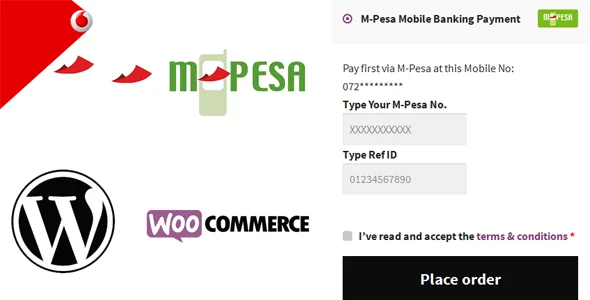
M-Pesa Mobile Payment for WooCommerce
Description
Add M-Pesa Mobile Banking Payment option as an extra E-Commerce Payment option in your WooCommerce website. M-Pesa allows users to deposit, withdraw, transfer money and pay for goods and services easily with an ordinary mobile device. Users are using the mobile phone no. as the bank account no. First launched in 2007 by Vodafone, now used by millions of people in Kenya, Tanzania, Mozambique, Lesotho, Egypt, Afghanistan, South Africa, India, Romania, Albania. The service will expand into Western Europe anytime soon. The service allows users to deposit money into an account stored on their cell phones, to send balances using PIN-secured SMS text messages to other users, including sellers of goods and services, and to redeem deposits for regular money. From now on Buyers will be able to buy products from WooCommerce website and pay via M-Pesa.
How it works? WooCommerce provides Direct Bank Transfer (Wire Transfer), Check Payment options. Just like that M-Pesa will be another extra option. The website will show Store-Owner’s Mobile no. (which is actually a Bank account no.) Buyer will pay using USSD code by own mobile and input the information (Buyer’s mobile no. and Ref ID) in form. After getting the order Store-Owner will check the Product purchase amount, Mobile no. (which is actually a Bank account no.), and Ref ID (Transaction ID, M-Pesa sends it to both sender’s and receiver’s mobile). If everything is fine, Store-Owner will start processing to complete the Order. Even you can take help of this YouTube video ( to know how to send money by M-Pesa
No risk of PIN Theft The PlugIn does not work on API or connect with the server of M-Pesa. It simply collects information and sends it to Store-Owner. As Buyer is not providing any PIN by this, so both parties are safe.
How to Install? This is a WooCommerce based plugin, so the WooCommerce PlugIn must be activated … NOW
- Upload the “M-Pesa Mobile Payment for WooCommerce” plugin files to the /wp-content/plugins/ directory, or install the plugin through the WordPress plugins screen directly.
- Then activate the plugin.
- Go to WooCommerce > Settings > Checkout > “M-Pesa Mobile Banking Payment” and setup your necessary customization.
Question?
Don’t hesitate to contact by email! Just go to profile page to send message
Disclaimers Tawhidur Rahman Dear or this Website (by Envato) or this specific Product (M-Pesa Mobile Payment for WooCommerce) does not have any relation with “WooCommerce” or “M-Pesa”. Logo of “M-Pesa” is used here under Fair Usage Policy or Nominative use only. Remember that, this Product is an Add-Ons for the “WooCommerce” or “M-Pesa” Subscribers or Customers to make life and business easier. Although this product helps “WooCommerce” or “M-Pesa” to engage or to get more Subscribers or Customers indirectly.Happy?
If you feel satisfied, make the product author happy too. You are requested to
- leave a 5 star positive review
- follow Envato profile to get latest update
Thank you
Categories
Tags
External listing. code.market does not sell this product and does not process payment for it. Pricing, payment, delivery, licensing, refunds, and support are handled by the third-party merchant on its own website. We may earn an affiliate commission from a referral. Details.
Products of the Week.
Submit🥇

STOP GUESSING WHAT TO POST
AI that learns your brand voice and builds a month of consistent, on-brand social content: carousels, posts and hooks that sound like you, not like everyone else's AI.
SaaS · 4,290 views · 38 clicksSaaS · Week 45 · 4,290 views · 38 clicks
🥈

Conversational Backlinks for Busy Founders
Place Backlink Relevant Conversation for your domain across Forums and Conversations
Website · 42,000 views · 223 clicksWebsite · Week 45 · 42,000 views · 223 clicks
🥉

upvote.club
Free Social Media Engagement that Helps Boost Your Content. Upvote Club supports 19 social networks with 100+ engagement actions in one dashboard. Add links to your posts and get free engagement from real users.
SaaS · 40,041 views · 117 clicksSaaS · Week 45 · 40,041 views · 117 clicks
#4

Substack Posting API
Onboard your Agent to Substack. Write Publish on Substack via API
SaaS · 59,051 views · 198 clicksSaaS · Week 45 · 59,051 views · 198 clicks
#5

Seenshot App
Free, Fast, MacOS Screenshot app. Make Screenshot cmd+shift+2 and send it via link
Desktop App · 28,425 views · 122 clicksDesktop App · Week 45 · 28,425 views · 122 clicks
#6

Hand-Placed Backlinks $9.99 per link. Flat rate.
Buy hand-placed forum, Q-A and directory backlinks. Flat $9.99 per link, no subscriptions — you only pay for approved listings.
Website · 4,260 views · 19 clicksWebsite · Week 45 · 4,260 views · 19 clicks
#7
Free Invoice Generator - PDF Invoices in Your Browser, No Sign-Up
A free invoice maker for freelancers and small businesses: fill in the invoice, check the live preview, and download a PDF that looks exactly like it. Any currency, tax per item, three templates, no sign-up, and nothing leaves your device.
2,936 views · 17 clicksWeek 45 · 2,936 views · 17 clicks
#8

Merge PDF Files Free - Combine PDFs in Your Browser, No Upload
A free PDF merger for office workers, students, and freelancers: combine PDFs and images into one file in the browser, reorder files and pages, pick page ranges, keep bookmarks, and open password-protected PDFs. Nothing is uploaded, no sign-up, no watermark.
2,712 views · 13 clicksWeek 45 · 2,712 views · 13 clicks