
Karenderia | Restaurant Self-Ordering Kiosk App
Description
Karenderia | Restaurant Self-Ordering Kiosk App
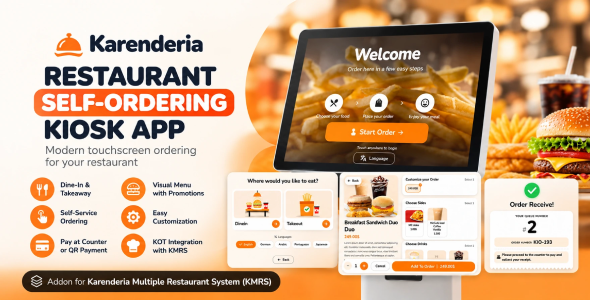
Transform your Karenderia restaurant into a modern self-service ordering experience with the Karenderia | Restaurant Self-Ordering Kiosk App.
Important: Karenderia Multi Restaurant System (KMRS) Is Required
Required KMRS Version: Karenderia Multiple Restaurant System version 2.0.9 or newer.
Karenderia | Restaurant Self-Ordering Kiosk App is an addon for Karenderia Multi Restaurant System (KMRS). It is not a standalone restaurant ordering system and will not work without the main KMRS product.
You must already own, or separately purchase and install, a valid copy of Karenderia Multi Restaurant System before using this Kiosk addon. The KMRS license is not included with the purchase of this Kiosk addon.
Main KMRS product: Karenderia Multiple Restaurant System
Demo Instructions
Use the links and demo credentials below to test the Kiosk application and its related Karenderia backend.
Kiosk Live Demo
Demo URL: https://kiosk.bastisapp.com
No login is required to use the customer-facing Kiosk demo.
Merchant Backend Demo
URL:
https://demo.bastisapp.com/backoffice/merchant
Username: mcuser
Password: mcuser
Administrator Backend Demo
URL:
https://demo.bastisapp.com/backoffice/admin/
Username: admin
Password: admin
Note: The demo accounts are provided for testing purposes only. Some settings or administrative actions may be restricted in the demo environment.
Video Demonstrations
Third-Party Services and Additional Costs
This product may use or work with third-party services depending on your Karenderia configuration, such as payment gateways, hosting/domain services, and other external services supported by KMRS.
Some third-party providers may charge transaction fees, usage fees, subscription fees, account fees, or other charges. These external costs are not included with the purchase of this item and are the responsibility of the buyer.
Third-party service availability, requirements, pricing, and fees are controlled by their respective providers and may change independently of this product.
Supported Platforms: Android, iOS and SPA
The kiosk is built with modern web technologies and supports the following deployment options:
- Android kiosk / tablet devices using the native Android application
- iPhone and iPad devices using the native iOS application
- SPA (Single-Page Application) web deployment
The mobile applications are built with Quasar and Capacitor. Android builds are managed using Android Studio, while iOS builds require macOS and Xcode.
Thermal Printing Support
Thermal printing support in this release is intended for supported Android kiosk devices.
Native thermal/TCP printer support is not included in the iOS version of this release.
Thermal printer hardware is not included with this product and must be purchased separately. Printer compatibility depends on the device, printer model, connection method, and supported Android configuration.
Designed for restaurants, cafés, fast-food businesses, food courts, and other food service establishments, this addon allows customers to browse the menu, customize their order, choose their order type, and place orders directly from a self-service kiosk.
The kiosk works together with your existing Karenderia Multi Restaurant System, helping restaurants reduce queues, speed up ordering, improve order accuracy, and provide customers with a modern ordering experience.
Modern Self-Service Ordering for Karenderia
Customers can place their own orders directly from the kiosk without waiting for restaurant staff.
The kiosk provides a clean, touch-friendly interface designed for large screens and Android kiosk devices. It is also available as an SPA web deployment. iOS is not supported.
Customers can:
- Browse food categories
- View menu items with images
- Choose item sizes and addons
- Customize their order
- Select Dine-In or Takeout
- Review their cart
- Place their order
- Receive their order or queue number
- View payment confirmation and receipt information
Orders are connected directly to your existing Karenderia system.
Key Features
Self-Service Ordering
Give customers the ability to create their own orders using an easy-to-use touchscreen interface.
The kiosk guides customers through the complete ordering process from menu browsing to checkout.
Dine-In and Takeout Ordering
Restaurants can allow customers to choose between supported order types such as:
- Dine-In
- Takeout / Pickup
Available order types can be configured by the merchant.
Beautiful Touch-Friendly Menu
The kiosk interface is optimized for self-service screens with:
- Large product images
- Easy-to-read category navigation
- Touch-friendly buttons
- Product customization
- Fast category switching
- Responsive menu layout
Customers can quickly browse the menu without navigating through complicated pages.
Multiple Menu Layouts
Merchants can choose how the kiosk menu is displayed.
Standard Layout
Traditional category navigation with products displayed in a clear grid.
Visual Layout
Larger product images designed for restaurants that want a more visual menu experience.
Compact Layout
Displays more menu items on the screen for restaurants with larger menus.
Category-First Ordering
Restaurants can optionally use a category-first ordering flow.
Customers can start by selecting a category such as:
- Pizza
- Breakfast
- Rice Bowls
- Desserts
- Drinks
- Group Meals
before viewing products.
This provides a simple and familiar kiosk experience similar to modern restaurant self-ordering systems.
Promotional Banners
Display promotional banners directly inside the kiosk.
Restaurants can highlight:
- Special offers
- Featured meals
- New menu items
- Limited-time promotions
- Combo meals
- Seasonal campaigns
Promotional banners can help restaurants increase customer engagement and upselling opportunities.
Custom Welcome Screen
Create a branded welcome screen before customers start ordering.
The welcome screen can display:
- Restaurant image
- Promotional image
- Welcome video
- Custom button text
- Restaurant branding
This gives every merchant the ability to create their own kiosk experience.
Kiosk Idle Timeout
The kiosk can automatically detect inactivity.
When a customer leaves the kiosk without completing the order, the system can display an inactivity confirmation such as:
Are you still there?
If there is no response, the kiosk can automatically return to the configured starting screen.
This helps prepare the kiosk for the next customer while protecting unfinished customer orders.
Product Customization
Customers can configure products before adding them to their cart.
Depending on the existing Karenderia menu configuration, customers can select:
- Item size
- Addons
- Cooking options
- Ingredients
- Quantity
- Special selections
The kiosk uses the restaurant’s existing Karenderia menu data.
Order Cart
Customers can review their complete order before checkout.
The cart allows customers to:
- Increase quantity
- Decrease quantity
- Remove items
- Review addons and selections
- Review subtotal
- Review applicable fees
- Review total amount
Order Queue Number
After successfully placing an order, customers can receive an easy-to-read queue or order number.
Example: KIO-025
The queue number makes it easier for restaurant staff to identify and prepare kiosk orders.
Order Confirmation Screen
After checkout, customers receive a clear confirmation screen showing that their order has been received.
Payment received. Please wait for your order.
Customers can then return the kiosk to the home screen for the next customer.
Payment Options
The kiosk can support different payment workflows depending on your Karenderia configuration.
Pay at Counter
Customers can complete their order on the kiosk and pay directly at the restaurant counter.
The order is sent to Karenderia so restaurant staff can process the payment.
QR Pay by Phone
The kiosk can support a convenient QR payment workflow where customers scan a QR code using their own smartphone.
The payment flow can be completed on the customer’s mobile device while the kiosk waits for payment confirmation.
After successful payment, the kiosk automatically confirms the order.
This allows restaurants to offer digital payment without requiring the customer to enter sensitive payment information directly on the kiosk.
Payment availability depends on the payment gateways and configuration supported by your Karenderia installation.
Kiosk Device Management
Merchants can manage registered kiosk devices from their Karenderia merchant panel.
Device management can include:
- Device name
- Device identifier
- Device status
- Active / inactive status
This makes it easier for restaurants with multiple kiosk terminals to manage their devices.
Merchant Kiosk Settings
A dedicated kiosk management section allows merchants to configure their self-service experience.
Configuration options can include:
- Welcome screen
- Menu layout
- Promotional banners
- Order types
- Idle timeout
- Automatic return screen
- Kiosk devices
- Kiosk behavior
Merchants can customize the kiosk without modifying application source code.
Promotional Banner Management
Create and manage kiosk-specific promotional banners directly from the merchant panel.
Use banners to promote:
- Best sellers
- Special discounts
- Featured meals
- New products
- Seasonal offers
- Restaurant campaigns
Fast Menu Experience
The kiosk is designed to provide a smooth menu browsing experience.
Menu information can be stored locally after it has been loaded, reducing unnecessary repeated requests while customers switch between categories.
Images can also take advantage of local or browser caching depending on the platform.
This helps improve kiosk responsiveness, especially for menus containing many images.
Designed for Large Touchscreens
Unlike a traditional restaurant website, the kiosk user interface is specifically designed for touchscreen ordering.
The interface uses:
- Large buttons
- Large menu images
- Clear navigation
- Large typography
- Simple checkout steps
- Touch-friendly controls
making it suitable for self-service restaurant terminals.
Works with Karenderia Multi Restaurant System
The kiosk is built as an addon for Karenderia Multi Restaurant System.
It uses the existing Karenderia restaurant, menu, item, addon, order, and merchant data.
This means restaurant owners do not need to maintain a completely separate menu for their kiosk.
Changes made to the restaurant menu can be reflected in the kiosk according to the configured synchronization and cache behavior.
KMRS Required
This addon requires the main Karenderia Multi Restaurant System. It will not
work as a standalone product.
Purchase KMRS here:
https://codecanyon.net/item/karenderia-multiple-restaurant-system/9118694
Centralized Restaurant Operations
Orders created from the kiosk become part of the existing Karenderia order ecosystem.
This allows restaurants to manage different ordering channels from the same system, including:
- Website orders
- Mobile app orders
- POS orders
- QR Table orders
- Kiosk orders
The kiosk provides an additional sales channel without requiring restaurants to operate a separate ordering platform.
Why Use Self-Service Kiosks?
Self-service ordering can help restaurants:
- Reduce waiting lines
- Reduce pressure on front-counter staff
- Improve order accuracy
- Handle more customers during busy periods
- Encourage customers to explore the menu
- Promote featured products
- Increase upselling opportunities
- Provide a modern restaurant experience
- Reduce manual order entry
Perfect For
- Fast-food restaurants
- Quick-service restaurants
- Cafés
- Coffee shops
- Burger restaurants
- Pizza restaurants
- Food courts
- Bakeries
- Dessert shops
- Bubble tea shops
- Casual restaurants
- Takeaway restaurants
- Multi-restaurant platforms
Easy Setup
After installing and configuring the addon, merchants can manage their kiosk directly from the Karenderia merchant panel.
- Configure kiosk settings.
- Register the kiosk device.
- Configure the welcome screen.
- Select available order types.
- Configure promotional banners.
- Choose the preferred menu layout.
- Launch the kiosk application.
- Start accepting self-service orders.
AI-Assisted Development Disclosure
AI-assisted development tools were used during parts of the development process, including code assistance, code review, documentation, and development workflow support.
All application functionality, integrations, testing, packaging, and final implementation were reviewed and maintained by the author.
This product does not include AI-powered features for end users.
Built for the Karenderia Ecosystem
If you are already using Karenderia Multi Restaurant System, the Karenderia | Restaurant Self-Ordering Kiosk App provides a powerful additional ordering channel for your restaurants.
Instead of building and maintaining a completely separate kiosk platform, restaurants can continue using their existing Karenderia menu and order management system.
Bring a modern self-service ordering experience to your Karenderia restaurants with the Karenderia | Restaurant Self-Ordering Kiosk App.
Requirement: Karenderia Multi Restaurant System (KMRS) is required and must be purchased separately. This Kiosk addon is not a standalone product, and the KMRS license is not included.
| Author | bastikikang |
|---|---|
| Price | $29 |
| Sales | 6 |
| Rating | 0 (0) |
| Published | Oct 13, 2026 |
| Last Update | Oct 13, 2026 |
| Compatible Software | PHP 8.2.x, iOS 15, Android 15.0 |
| Demo Url | https://kiosk.bastisapp.com |
| Mobile Files Included | JavaScript JSON, JavaScript JS, CSS, PHP, HTML |
Categories
Tags
External listing. code.market does not sell this product and does not process payment for it. Pricing, payment, delivery, licensing, refunds, and support are handled by the third-party merchant on its own website. We may earn an affiliate commission from a referral. Details.
Products of the Week.
Submit🥇

STOP GUESSING WHAT TO POST
AI that learns your brand voice and builds a month of consistent, on-brand social content: carousels, posts and hooks that sound like you, not like everyone else's AI.
SaaS · 7,340 views · 67 clicksSaaS · Week 46 · 7,340 views · 67 clicks
🥈

Conversational Backlinks for Busy Founders
Place Backlink Relevant Conversation for your domain across Forums and Conversations
Website · 46,612 views · 232 clicksWebsite · Week 46 · 46,612 views · 232 clicks
🥉

upvote.club
Free Social Media Engagement that Helps Boost Your Content. Upvote Club supports 19 social networks with 100+ engagement actions in one dashboard. Add links to your posts and get free engagement from real users.
SaaS · 44,554 views · 127 clicksSaaS · Week 46 · 44,554 views · 127 clicks
#4

Substack Posting API
Onboard your Agent to Substack. Write Publish on Substack via API
SaaS · 63,439 views · 206 clicksSaaS · Week 46 · 63,439 views · 206 clicks
#5

Seenshot App
Free, Fast, MacOS Screenshot app. Make Screenshot cmd+shift+2 and send it via link
Desktop App · 32,688 views · 127 clicksDesktop App · Week 46 · 32,688 views · 127 clicks
#6

Hand-Placed Backlinks $9.99 per link. Flat rate.
Buy hand-placed forum, Q-A and directory backlinks. Flat $9.99 per link, no subscriptions — you only pay for approved listings.
Website · 8,312 views · 19 clicksWebsite · Week 46 · 8,312 views · 19 clicks
#7
Free Invoice Generator - PDF Invoices in Your Browser, No Sign-Up
A free invoice maker for freelancers and small businesses: fill in the invoice, check the live preview, and download a PDF that looks exactly like it. Any currency, tax per item, three templates, no sign-up, and nothing leaves your device.
6,939 views · 29 clicksWeek 46 · 6,939 views · 29 clicks
#8
Merge PDF Files Free - Combine PDFs in Your Browser, No Upload
A free PDF merger for office workers, students, and freelancers: combine PDFs and images into one file in the browser, reorder files and pages, pick page ranges, keep bookmarks, and open password-protected PDFs. Nothing is uploaded, no sign-up, no watermark.
6,421 views · 18 clicksWeek 46 · 6,421 views · 18 clicks