
Imprex | Point of Sale Flask Application
Description
Imprex | Point of Sale Flask Application
Version: 2.0.0 | Last updated: 2026
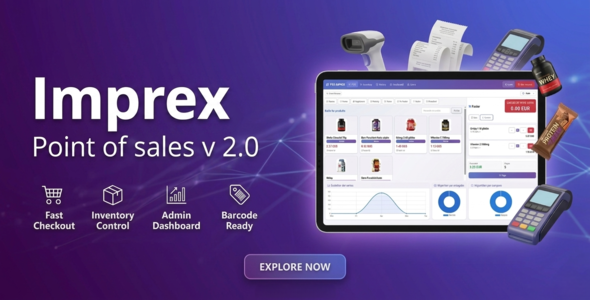
Imprex is a complete, ready-to-deploy point-of-sale system built with Flask (Python). Designed for small and medium businesses, it offers a touch-friendly cashier interface, real-time inventory tracking, multi-currency support, and an admin dashboard with sales analytics.
Live Preview Click to access the live demo at the link above.Table of Contents
- Requirements
- Installation
- Configuration
- Usage
- Features
- Demo Credentials
- Deployment (Production Server)
- File Structure
- Troubleshooting
Requirements
- Python 3.8 or higher
- pip (Python package manager)
Installation
First-time Setup on a New PC (Windows Local)
- Extract the ZIP file to your desired location.
- Double-click
runnewpc.bat— it will:- Check that Python is installed
- Create a virtual environment (venv)
- Install all dependencies
- Create
.envfrom.env.examplewith a generatedSECRET_KEY(first run only) - Start the application automatically
- Open your browser and go to:
http://127.0.0.1:5000
Daily Launch (after installation)
- Double-click
start.batto start the application.
runnewpc.bat and start.bat automatically create .env from .env.example with a securely generated SECRET_KEY the first time they run. No manual configuration is required to get started.
Manual Method (macOS/Linux Local or Command Line)
- Open a terminal in the project folder.
- Create and activate a virtual environment:
python -m venv venv # Windows: venv\Scripts\activate # macOS / Linux: source venv/bin/activate - Install dependencies:
pip install -r requirements.txt - Copy the environment configuration template:
# Windows: copy .env.example .env # macOS / Linux: cp .env.example .env - Launch the application:
python run.py - Open your browser and go to
http://localhost:5000and log in withadmin / admin.
admin / admin and user / user) — no manual database setup required.
Configuration
The application is configured via the .env file. Available settings:
| Variable | Description | Default Value |
|---|---|---|
SECRET_KEY | Flask secret key for session encryption. Auto-generated by start.bat / runnewpc.bat on first run. | Auto-generated (change for production) |
DATABASE_URL | Database connection string | sqlite:///instance/pos.db |
ADMIN_USERNAME | Default admin username | admin |
ADMIN_PASSWORD | Default admin password | admin |
CASHIER_USERNAME | Default cashier username | user |
CASHIER_PASSWORD | Default cashier password | user |
SEED_DEMO_USERS | Auto-create demo accounts on first launch (set to false after initial setup in production) | true |
STORE_NAME | Store name displayed on receipts and the UI | Imprex POS |
STORE_ADDRESS | Store address displayed on receipts | Your Address Here |
CURRENCY | Default currency code | MAD |
SECRET_KEY and all passwords via environment variables before deploying to production.
Usage
Admin Dashboard
The admin dashboard provides:
- Real-time sales statistics and revenue overview
- Interactive charts for sales trends
- Low stock alerts
- User management (add, edit, delete)
- Complete product and category management (CRUD)
- Transaction history with CSV export
- Receipt reprint
POS (Point of Sale) Interface
The POS interface offers:
- Touch-optimized product grid for tablets and touchscreens
- Category filtering
- Real-time cart management with quantity controls
- Product search and barcode scanning
- Multiple payment methods: Cash, Card, Mobile
- Automatic change calculation
- Receipt printing
- Multi-currency support with live exchange rates
Features
POS Interface
- Touch-optimized layout for tablets and touchscreens
- Real-time cart management with add/remove/quantity controls
- Product search and barcode scanning support
- Cash, bank card, and mobile payment
- Automatic change calculation
- Receipt printing
Inventory & Stock
- Full CRUD (Create, Read, Update, Delete) for products
- Customizable categories with icons
- Stock movement tracking
- Low stock alerts
- Inventory adjustments
Multi-Currency Support
- 10 supported currencies
- Live exchange rates via external API
- Currency selector on the POS screen
- Dynamic amount conversion
User Management
- Administrator and Cashier roles
- Cashier linked to receipts for traceability
- Secure authentication with session management
Admin Dashboard
- Real-time sales statistics
- Interactive charts (Chart.js)
- Low stock warnings
- Revenue overview
Sales & Reports
- Complete transaction logs
- Filtering by date, cashier, or payment method
- CSV data export
- Receipt reprint
Demo Credentials
To test the live application online before installing it locally, use the credentials below:
| Role | Username | Password | Access |
|---|---|---|---|
| Admin | admin | admin | Full access: dashboard, products, users, reports |
| Cashier | user | user | POS interface only |
Deployment (Production Server)
Production Server Installation via cPanel SSH Terminal
Unlike a local installation where .bat files handle setup automatically, a production environment (such as cPanel Shared Hosting) requires explicit steps to isolate the environment and generate seed users over restrictive environments. Follow these commands in order via your cPanel Browser Terminal or direct SSH client (like PuTTY):
- Navigate to your production folder:
cd public_html/imprex-pos - Create an isolated Python Virtual Environment:
Shared hosts usually disable
ensurepipnatively. We safely create thevenvwithout pip and activate it first:python3 -m venv venv --without-pip source venv/bin/activateCheck: You should now see
(venv)prepended to your terminal line. - Bootstrap Pip manually for your specific Python version (e.g., Python 3.9):
curl https://bootstrap.pypa.io/pip/3.9/get-pip.py -o get-pip.py python3 get-pip.py rm get-pip.py - Install your dependencies cleanly inside the environment:
pip install -r requirements.txt - Initialize your Environment file:
cp .env.example .envTip: You can now access your
.envinside cPanel File Manager to change production settings like your live database URL or store details. - Force Database Table Generation and Create Admin User:
Execute this unified script to securely create your tables (`instance/pos.db`) and seed your default administrative user safely across production factory patterns:
python3 -c " from app import create_app, db import sys sys.path.append('.') try: import models except ImportError: from app import models app = create_app() with app.app_context(): db.create_all() UserModel = None if hasattr(models, 'User'): UserModel = models.User elif hasattr(sys.modules['app'], 'models') and hasattr(sys.modules['app'].models, 'User'): UserModel = sys.modules['app'].models.User if UserModel and not UserModel.query.filter_by(username='admin').first(): admin_user = UserModel(username='admin', role='admin') admin_user.set_password('admin') db.session.add(admin_user) db.session.commit() print('SUCCESS: Database created and admin user seeded!') else: print('INFO: Admin already exists or DB ready.') " - Recycle and Restart the Production Application Server:
Shared hosting Passenger WSGI layers cache the server processes. Run this to force cPanel to immediately read your new active database updates and configurations:
mkdir -p tmp
touch tmp/restart.txt
Ctrl + F5) to clean up old session cache, and log in securely with admin / admin.
Production Recommendations
- Use a production WSGI server like Gunicorn or Waitress instead of Flask’s built-in server.
- Set
debug=Falsein production. - Use a strong, randomly generated
SECRET_KEY. - Consider using PostgreSQL or MySQL instead of SQLite for high-traffic deployments.
- Enable HTTPS for all production deployments.
File Structure
imprex-pos/
    app.py                  # Main Flask application
    config.py               # Configuration settings
    models.py               # Database models (SQLAlchemy)
    run.py                  # Application entry point
    hardware.py             # Optional hardware drivers (printer, cash drawer, VFD)
    requirements.txt        # Python dependencies
    passenger_wsgi.py       # WSGI entry point for cPanel
    start.bat               # Windows daily-launch script (auto-creates .env on first run)
    runnewpc.bat            # Windows first-install script
    .env.example            # Environment configuration template (copy to .env)
    documentation/          # Documentation folder
        index.html          # This documentation file
    instance/               # SQLite database (auto-generated)
    static/
        css/
            pos.css         # Custom CSS styles
        js/
            app.js          # Common JavaScript utilities
            pos.js          # POS interface JavaScript
    templates/
        base.html           # Base layout template
        dashboard.html      # Admin dashboard
        history.html        # Transaction history
        index.html          # Home page
        inventory.html      # Product inventory management
        login.html          # Login page
        pos.html            # Main POS (cashier) interface
        product_form.html   # Add/edit product form
        category_form.html  # Add/edit category form
        sale_detail.html    # Detailed sale view
        scan.html           # Barcode scanning
        stock_adjustment.html # Stock adjustment form
        users.html          # User management
        user_form.html      # Add/edit user form
    uploads/                # Uploaded product images
Troubleshooting
Cannot Log In (admin/admin not working)
This usually means a pre-seeded database exists. Delete the instance/pos.db file (or the entire instance/ folder) and restart — the application will re-seed fresh accounts matching your .env credentials.
Database Errors
If you encounter database errors, delete the instance/ folder and restart the application. The database will be recreated automatically with demo data.
Port Already in Use
If port 5000 is already in use, you can change the port by setting PORT=5001 (or any free port) in your .env file.
Dependencies Won’t Install
Make sure you are using the correct Python version (3.8+). Try upgrading pip first:
pip install --upgrade pipThermal Printer / Cash Drawer Not Working
Hardware peripherals are optional. If the python-escpos package cannot load (missing USB drivers, unsupported OS, etc.), the application continues to run normally — printer and cash drawer features are simply disabled. Check the server log for a warning message like “python-escpos unavailable”. To enable hardware support, install the USB drivers for your printer and ensure python-escpos>=3.1.0 is installed.
Images Not Displaying
Make sure the uploads/ folder exists and is writable. Product images are stored locally in this folder.
| Author | elecspot1 |
|---|---|
| Price | $23 |
| Sales | 1 |
| Rating | 0 (0) |
| Published | Jul 2, 2026 |
| Last Update | Jul 2, 2026 |
| Application Runtime | Native |
| Demo Url | https://elecspot.ma/login |
| High Resolution | Yes |
| Operating System Versions | Windows 11, Windows 10 |
Categories
Tags
External listing. code.market does not sell this product and does not process payment for it. Pricing, payment, delivery, licensing, refunds, and support are handled by the third-party merchant on its own website. We may earn an affiliate commission from a referral. Details.
Products of the Week.
Submit🥇

STOP GUESSING WHAT TO POST
AI that learns your brand voice and builds a month of consistent, on-brand social content: carousels, posts and hooks that sound like you, not like everyone else's AI.
SaaS · 7,369 views · 67 clicksSaaS · Week 46 · 7,369 views · 67 clicks
🥈

Conversational Backlinks for Busy Founders
Place Backlink Relevant Conversation for your domain across Forums and Conversations
Website · 46,653 views · 232 clicksWebsite · Week 46 · 46,653 views · 232 clicks
🥉

upvote.club
Free Social Media Engagement that Helps Boost Your Content. Upvote Club supports 19 social networks with 100+ engagement actions in one dashboard. Add links to your posts and get free engagement from real users.
SaaS · 44,593 views · 127 clicksSaaS · Week 46 · 44,593 views · 127 clicks
#4

Substack Posting API
Onboard your Agent to Substack. Write Publish on Substack via API
SaaS · 63,480 views · 206 clicksSaaS · Week 46 · 63,480 views · 206 clicks
#5

Seenshot App
Free, Fast, MacOS Screenshot app. Make Screenshot cmd+shift+2 and send it via link
Desktop App · 32,730 views · 127 clicksDesktop App · Week 46 · 32,730 views · 127 clicks
#6

Hand-Placed Backlinks $9.99 per link. Flat rate.
Buy hand-placed forum, Q-A and directory backlinks. Flat $9.99 per link, no subscriptions — you only pay for approved listings.
Website · 8,349 views · 19 clicksWebsite · Week 46 · 8,349 views · 19 clicks
#7

Free Invoice Generator - PDF Invoices in Your Browser, No Sign-Up
A free invoice maker for freelancers and small businesses: fill in the invoice, check the live preview, and download a PDF that looks exactly like it. Any currency, tax per item, three templates, no sign-up, and nothing leaves your device.
6,977 views · 29 clicksWeek 46 · 6,977 views · 29 clicks
#8

Merge PDF Files Free - Combine PDFs in Your Browser, No Upload
A free PDF merger for office workers, students, and freelancers: combine PDFs and images into one file in the browser, reorder files and pages, pick page ranges, keep bookmarks, and open password-protected PDFs. Nothing is uploaded, no sign-up, no watermark.
6,458 views · 18 clicksWeek 46 · 6,458 views · 18 clicks