Gravity Forms Autocomplete (+address field)
Description
Gravity Forms Autocomplete (+address field)
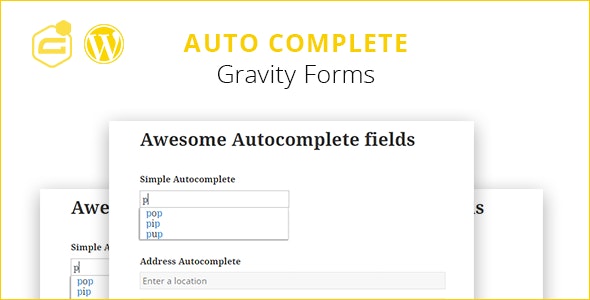
This plugin is an add-on for Gravity Forms that enables an autocomplete field feature. So it suggests possible completions for the field that the user has started typing in. Autocomplete simplifies and speeds up a form filling process and make your users save time by finding necessary data with suggestions.
Please note, you can choose a source for suggestions. And currently it supports several source’s types: ‘WordPress’, ‘ URL ’, ‘Manually’ and ‘Address’. Please fill free to advise us new source type and it’ll be added in a next release.
Please check the plugin demo here: GF Auto Complete Demo
How it works?
For example there is a form called “Test” and you’re going to add an autocomplete field to this form. You need just put the autocomplete field on the form.
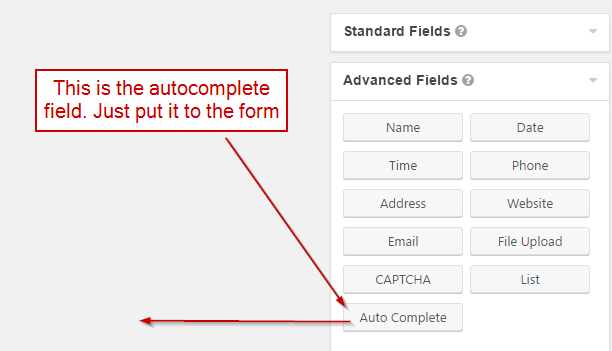
When the field will be added, make double click on it to show the field’s settings. Choose “Manually” for “Where to Get Options?” setting and then a new setting “Enter Data for Autocomplete” will be shown. Lets put some data into it like on a screenshot below.
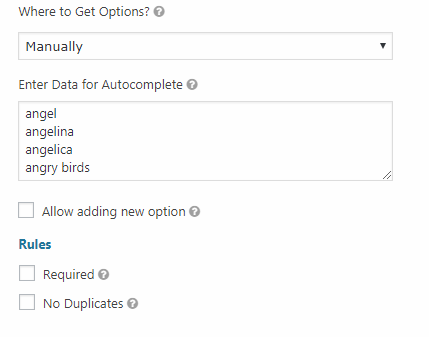
Please note, there is a checkbox “Allow adding new option”, tick it to let users adding new options to Autocomplete data on the frontend.
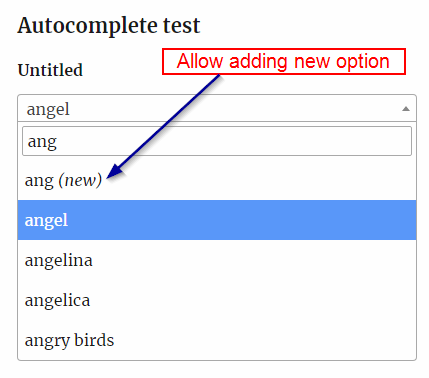
To save the new field in the form settings just press an “update form” button. After that the new field will appear on the frontend.
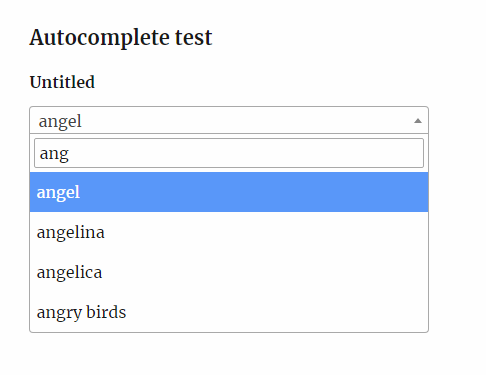
Please note, the new field has an “untitled” label because this is a default field label in Gravity Form. It can be changed easily in the field’s settings. Also the form should be added to some wordpress page like in a example above otherwise it will not be displayed on your website.
Where To Get Options?
Use this setting to set a source of the options (suggestions). Please note there are several types of source: ‘WordPress’, ‘URL (json)’ and ‘Manually’. Below each one will be described.
- The ‘Manually’ option is used when it’s required to set the options manually (like in an example above).
- The ‘WordPress’ option is for using of the different WordPress sources such as: users, pages, posts, categories and etc.
- The ‘URL (json)’ gets options for autocomplete using AJAX from an url which returns data in json format (like: value1, value2, value2 and etc.).
- The ‘Address’ gets options for autocomplete using the Google Places suggest API.
Please look at the screenshots where these options are in the setting.
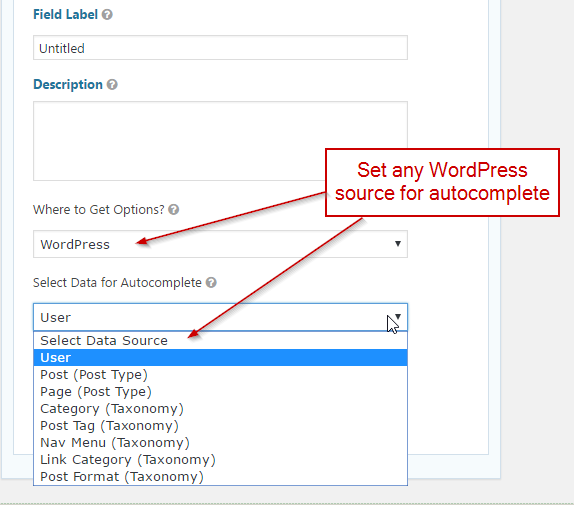
If you choose the “WordPress” as source for your options, then the post title is used in the suggestion list. Please note: the post ID is saved in the entry data. If you want to save another post attribute instead (for example: post_title, post_name, etc. or save the a custom post field), it can be done using special plugin addon. Contact our support center to purchase that addon.
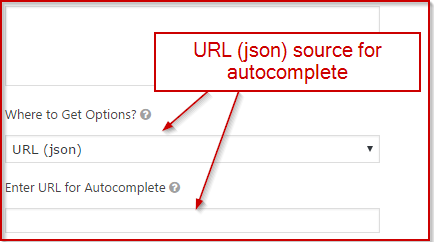
Also, check an example of JSON file:
{“1” : “value1”, “2” : “value2”, “3”: “value3”, “4” : “value4”, “5” : “value5”, “6” : “value6”, “7” : “value7”, “8” : “value8”}
By default, the suggestion list includes the values: “value1”, “value2”, “value3” etc.
In case if you want to use the keys instead (“1”, “2”, “3” etc), then please activate the “Use JSON keys as field value” option
How to activate the address autocomplete?
You need set the source for the suggestions to ‘Address’.
In certain cases google browser API key may be required. In that case please obtain the google browser API key from and add it to the settings
Please ensure you enable the following APIs in the Google:
Check the form on the frontend. Your address field should be turned to Autocomplete.
Method 1:
Method 2:
Thank you so much for reviewing this item. We’d be glad to help you if you have any questions relating to this item. Also do rate the plugin if you like it
Change Log
Version 1.0.0 - 22 Dec 2016
### Initial release

Version 1.0.1 - 13 Jan 2017
### New feature letting the user store the value that not in the autosuggest list.  The function is applicable for a manually created autosuggest list.

Version 1.0.3 - 07 Mar 2017
### New feature letting the user to helping your users to enter their address with the Google Places suggest API.
### A lot of bugs fixed

Version 1.0.6 - 07 July 2017
### Fixed a multiple address fields bug
### Fixed a placeholder bug, updated an autocomplete javascript
### Fixed minor bugs with address autocomplete feature
### Moved the javascript to the footer

Version 1.0.8 - 18 Aug 2017
### Added ajax method for getting values for auto-complete field's suggestions. Now it's possible to use large data as an autocomplete field source.
### Fixed minor bugs

Version 1.0.9 - 18 Dec 2017
### Improved json file supporting. Now it's possible to use external url to JSON-file for suggestions
### Updated js autocomplete library. The plugin has been switched to select2 library (  )
### Fixed minor bugs

Version 1.1.4 - 30 Apr 2018
### Added multi-value mode
### Fixed a bug occurring when several auto-complete address fields are placed on the same page of the form
### Switched to CDN versions of select2 libraries
### Added new routing field types "autocomplete"
### Fixed a bug occuring when user source type has been chosen  for the autocomplete field
### Added a little rate limiting (250ms) between ajax calls;
### Added the search terms to the JSON request
### Fixed minor bugs

Version 1.5.5 - 15 Dec 2018
### Fixed bug with the placeholder option
### Fixed format for address autocomplete field; Now address number goes before the street name
### Fixed the conditional logic for auto-complete field
### Fixed the bug with the city field; it was not populated with appropriate value in address-autocomplete mode
### Fixed the bug with multiple values of autocomplete field; now entry contains all values and it's possible to edit them on Entry edit page.
### Fixed a bug related with WMPL compatibility
### Fixed a compatibility bug with Gravity View plugin
### Fixed minor bugs

Version 1.5.9 - 5 Apr 2019
### Fixed the bug with gform_field_value filter
### Fixed a bug with l35 js array
### Fixed a bug with required state for address autocomplete field
### Fixed the compatibility bug with new GF version 2.4
### Fixed minor bugs

Version 1.6.1 - 20 Jul 2019
### Added an ability to add a new option for auto-complete sources types and fixed a bug with js
### Fixed a bug with nested forms
### Fixed a bug with the dropdown parent select2 option
### Added the autocomplete field messages to a language file
### Improved and optimized the plugin code
### Fixed minor bugs

Version 1.6.5 - 11 Jan 2020
### Improved a function looking for matches in suggestions for the autocomplete field with the JSON data source.
### Added an ability to use a JSON key as a value for an autocomplete field when JSON is set as the autocomplete source.
### Fixed BOM symbol bug in some plugin files
### Added a feature to test the connection to given JSON URL right in edit autocomplete field interface.
### Fixed minor bugs

Version 1.6.8 - 19 Mar 2020
### Fix json bug
### Fix the bug occurring when several autocomplete fields with the same data source are added on the same page
### Fix minor bugs

Version 1.7.2 - 04 July 2020
###  Added a new two inputs (address name, address street number) for the address autocomplete mode; both input values are available in the entry data
### Added the field_use_first_char option for JSON source type. It changes the comparing method in searching for user input through JSON suggestions list.
###  Added some hooks in the plugin code:
- gfautocomplete_field_input_value_html
- gfautocomplete_inline_js_on_page_render
- gfautocomplete_load_fields_settings
- gfautocomplete_add_custom_settings
### Fixed a bug with autocomplete field width
### Fixed minor bugs

Version 1.7.3 - 19 July 2020
###  Fixed a bug in javascript code (comma-js-bug)
### Fixed a bug with manual autocomplete field
### Added an ability to make a search in JSON keys instead of values
###  Added a new hook in the plugin code:
- gfautocomplete_address_parts_after

Version 1.7.6 - 21 Sept 2020
###  Fixed a bug when entry value is not saved
### Added the German translation
### Added the field_min_input_len option to the field settings

Version 1.8.2 - 21 Jan 2021
### Updated JavaScript select2 library to the newest version
### Code refactoring and integration with new select2 library
### Fixed issues with placeholder
### Fixed minor bugs

Version 1.8.3 - 29 May 2021
### Fixed a rare bug occurring with the curl module

Version 1.8.4 - 6 June 2021
### Fixed bug: re-init google map script for the address autocomplete field if it's loaded in a form using shortcode with ajax parameter

Version 1.8.6 - 20 December 2021
### Added new option to set the maximum number of items which can be selected in a multi-value mode. If the value of this option is less than 1, the number of selected items will not be limited.
### Refactor of the field settings page
### Updated select2 library to the latest version. Old version of the library caused the conflicts with Elementor.

Version 1.8.8 - 18 March 2022
### Fixed quotes handling in the manual data source
### Fixed bug: Now if you enable "Allow adding new option" and choose WordPress as autocomplete data source, a new post is created on form submission
Categories
Tags
External listing. code.market does not sell this product and does not process payment for it. Pricing, payment, delivery, licensing, refunds, and support are handled by the third-party merchant on its own website. We may earn an affiliate commission from a referral. Details.
Products of the Week.
Submit#1

wanapi.app
Wan API is a developer platform for the Wan video model family. Compare Wan 3.0, Prime and Pro specifications and prices, then prepare a request in the preview playground.
Other · 8,794 views · 23 clicksOther · Week 42 · 8,794 views · 23 clicks
#2

wanapi.ai
Wan API is a developer platform for the Wan video model family. Compare Wan 3.0, Prime and Pro specifications and prices, then prepare a request in the preview playground.
Other · 8,142 views · 14 clicksOther · Week 42 · 8,142 views · 14 clicks
#3

yee.site
Your link in bio, but a real website. Start from beautiful templates and ready-made sections, then add a shop, bookings, a blog and as many pages as you need. Perfect for your link in bio, portfolio or personal site.
Other · 14,302 views · 24 clicksOther · Week 42 · 14,302 views · 24 clicks
#4

upvote.club
Free Social Media Engagement that Helps Boost Your Content. Upvote Club supports 19 social networks with 100+ engagement actions in one dashboard. Add links to your posts and get free engagement from real users.
SaaS · 35,192 views · 104 clicksSaaS · Week 42 · 35,192 views · 104 clicks
#5

Seenshot App
Free, Fast, MacOS Screenshot app. Make Screenshot cmd+shift+2 and send it via link
Desktop App · 23,679 views · 115 clicksDesktop App · Week 42 · 23,679 views · 115 clicks
#6

Conversational Backlinks for Busy Founders
Place Backlink Relevant Conversation for your domain across Forums and Conversations
Website · 35,442 views · 206 clicksWebsite · Week 42 · 35,442 views · 206 clicks
#7

Substack Posting API
Onboard your Agent to Substack. Write Publish on Substack via API
SaaS · 54,293 views · 190 clicksSaaS · Week 42 · 54,293 views · 190 clicks
#8

codester.com
SocialDesk+: Omnichannel Social Commerce & Business Management Platform This is stronger than simply “Social Commerce and Messaging” because it tells buyers this is a complete business platform, not just a messaging script. Turn Social Conversations Into Sales SocialDesk+ is a complete omnichannel social commerce and business management platform built for businesses that sell and communicate with customers through social media. Instead of switching between WhatsApp, Facebook, Instagram and TikTok, businesses can manage customer conversations, comments, products, leads, follow-ups, automation, teams and business reports from one professional workspace. And because the full source code is included, developers, agencies and entrepreneurs can customize, rebrand and launch SocialDesk+ as their own business solution or SaaS platform. 🚀 Build Your Own Social Commerce Business SocialDesk+ gives you the foundation to launch: - Your own SaaS platform - A white-label social CRM - A social-commerce management system - A customer communication platform - A business messaging solution - A custom solution for clients - A multi-business subscription platform 💬 Connect Your Customers Supported social channels include: WhatsApp • Facebook • Instagram • TikTok Bring supported conversations into one centralized workspace and help businesses respond faster without constantly switching between platforms. 🛍️ More Than a Messaging Platform SocialDesk+ combines communication with the tools businesses need to manage customer opportunities: Inbox Manage customer conversations from connected channels. Comments Monitor and respond to social-media comments. Customers & Leads Organize customer information and potential buyers. Products & Catalog Manage products and give your team quick access to product information. Follow-Ups Make sure potential customers don't get forgotten. Automation Automate repetitive customer questions and responses. AI Assistant Provide AI-assisted communication when configured. Team Management Give managers and staff access to the business workspace. Reports & Analytics Track activity using business reports and analytics. The current product listing already includes these capabilities. 🔥 Why Buyers Will Want It Launch Faster Start with an already-built business platform instead of developing the entire system from zero. Customize Everything The full source code is included, allowing developers to change branding, features, workflows and integrations. Build a SaaS Create multiple business workspaces and offer SocialDesk+ as a subscription-based service. Sell to Businesses Offer it to retailers, restaurants, service businesses, online sellers, agencies and other businesses that communicate with customers through social media. Mobile + Web + Backend This isn't just a mobile UI template. It includes: - Flutter mobile application - Python / FastAPI backend - Web interface - Administration tools - Database infrastructure - API-based architecture - SQLite / PostgreSQL support - Android and iOS project structure 💼 One Platform. Multiple Business Opportunities. For SaaS Entrepreneurs Launch your own subscription platform and allow multiple businesses to operate inside separate workspaces. For Software Agencies Customize and rebrand the platform for clients instead of building an omnichannel business system from scratch. For Developers Use the complete source code as a foundation for your own social-commerce or customer-management product. For Businesses Deploy a dedicated version for your own customer-service and social-commerce operations. 🧩 What's Included Mobile - Flutter / Dart - Android - iOS project Backend - Python - FastAPI - SQLAlchemy - Alembic Database - SQLite - PostgreSQL Web - HTML5 - CSS3 - JavaScript Deployment - Docker - Docker Compose - Production configuration Business Platform - Multi-workspace architecture - Authentication - Teams - Customers - Products - Messaging - Comments - Automation - Reports - Subscriptions - Administration The current listing also documents third-party integrations such as Meta, TikTok, Stripe, Firebase, SMTP and optional OpenAI configuration. ⚡ What Makes SocialDesk+ Different? You're not buying a simple: ❌ Chat UI ❌ WhatsApp clone ❌ Flutter template ❌ Admin dashboard ❌ Basic CRM You're getting a complete business platform foundation that can be customized, branded and commercialized. Connect. Automate. Manage. Grow. SocialDesk+ Omnichannel Social Commerce & Business Management Platform One important change I'd make to the current listing The current page starts with: “A simple guide to managing your social conversations, customers, products and business activity.”
Other · 21,650 views · 35 clicksOther · Week 42 · 21,650 views · 35 clicks
#9

sandbook.app
Sandbook reads EPUB, PDF, web pages and scanned pages aloud with Kokoro TTS, an open neural voice model that runs on your iPhone, free and offline. Choose from 41 natural voices in English, Spanish, French, Italian, Brazilian Portuguese and Hindi and follow each word as it is spoken. Try the same voices in your browser first with the free Kokoro TTS online demo.
Other · 21,540 views · 18 clicksOther · Week 42 · 21,540 views · 18 clicks