
Google Wallet Addon GoBiz – vCard SaaS Digital Business Card Script

Description
Google Wallet Addon for GoBiz – vCard SaaS Digital Business Card Builder | vCard SAAS
Note: This is an addon for GoBiz vCard SaaS and not a standalone script. You must have the main script installed to use this addon.
GoBiz – vCard SaaS Digital Business Card Builder | vCard SAAS

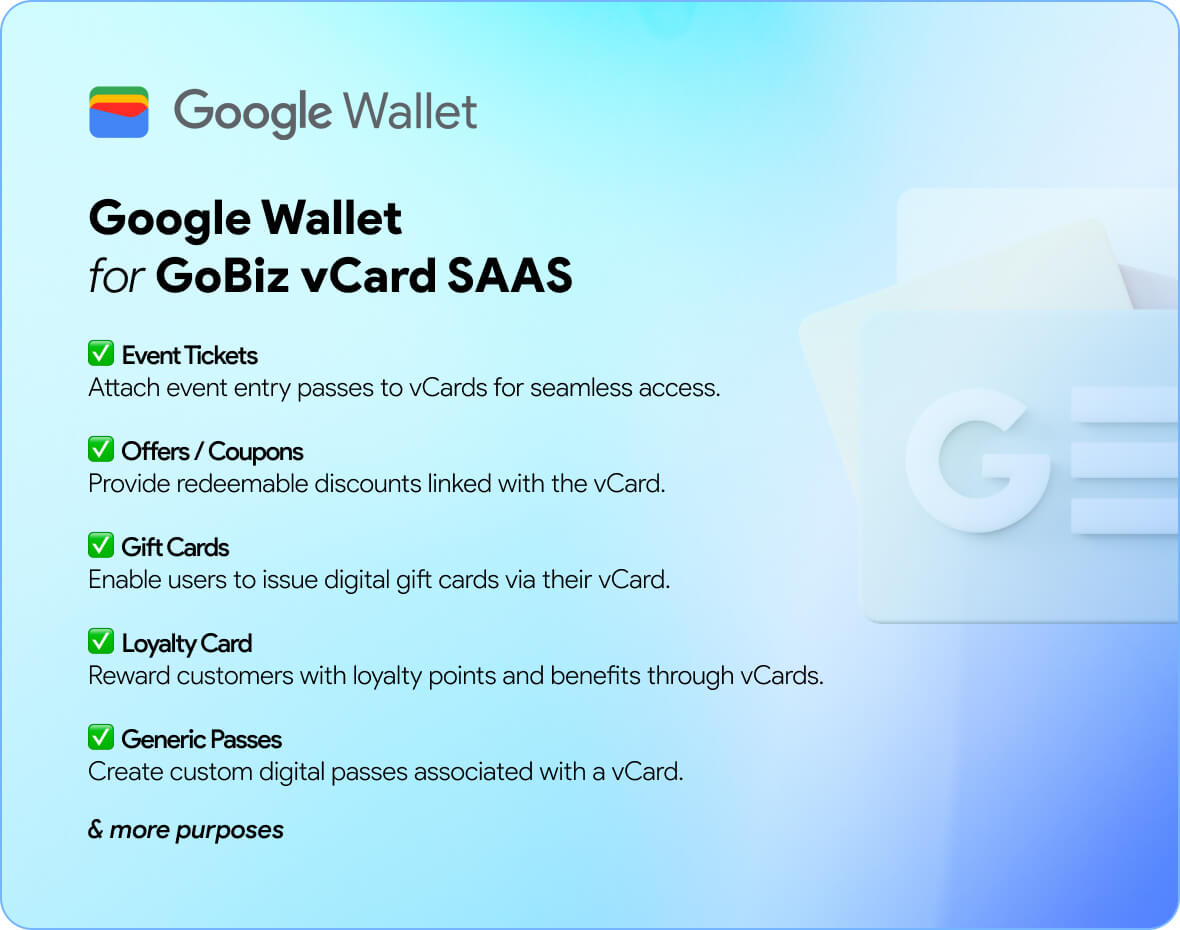
Enhance your GoBiz vCard SaaS platform with Google Wallet integration! This addon allows users to save and manage their vCards, coupons, gift cards, and passes directly in Google Wallet. With just a few clicks, digital assets are transferred seamlessly, giving users quick, secure, and convenient access on their devices.
Key Features
- Direct integration with Google Wallet API
- Save vCards, coupons, gift cards, and passes with one click
- “Save to Google Wallet” button embedded on vCards
- Secure and convenient digital storage
- Instant access for users on Android devices
Benefits
- Boosts user trust with Google’s secure ecosystem
- Encourages repeated engagement with your vCards and offers
- Creates a modern, mobile-first user experience

Installation & Compatibility on vCard SaaS GoBiz
Compatible With: vCard SaaS GoBiz v19.0.0 and later
Requirements:
- Google Cloud Console project with Wallet API enabled
- Google Wallet API credentials (Service Account Key)
- Configured Issuer ID and Class IDs for Wallet objects
- vCard SaaS GoBiz installed and running
Need help with setup? Check out the installation guide and configuration guide.
How to Configure on vCard SaaS GoBiz
Set up your Google Wallet Addon in just a few steps:
- Create a Google Cloud project and enable the Google Wallet API.
- Generate a Service Account and download the credentials JSON file.
- Access your GoBiz Admin Panel.
- Navigate to Plugins → Google Wallet and click on the Settings icon.
- Upload your Google Wallet credentials JSON file and configure Issuer ID.
- Enable the “Save to Google Wallet” option for vCards, coupons, or passes.
- Click Save to apply your settings.
Change log:
25-Sep-2026 – v1.4.0- Improved & Fixed: Some minor bugs and UI adjustments for a smoother user experience.09-Dec-2025 – v1.1.0
- Improved & Fixed: Some minor bugs and UI adjustments for a smoother user experience.30-Sept-2025 – v1.0.0
- Initial release
| Type | PHP Script |
|---|---|
| Author | NativeCode |
| Category | Php Scripts / Add Ons |
| Price | $39 |
| Sales | 21 |
| Published | Sep 30, 2025 |
| Last Update | Oct 15, 2026 |
| Compatible Browsers | IE11, Firefox, Safari, Opera, Chrome, Edge |
| Compatible Software | PHP 8.x, MySQL 5.x |
| Software Framework | Laravel |
| Source Files Included | JavaScript JS, JavaScript JSON, HTML, CSS, PHP, SQL |
Categories
Tags
External listing. code.market does not sell this product and does not process payment for it. Pricing, payment, delivery, licensing, refunds, and support are handled by the third-party merchant on its own website. We may earn an affiliate commission from a referral. Details.
Products of the Week.
Submit🥇

Perceptle
Perceptle is a daily browser-based game that challenges you to test your sensory intuition through five quick estimation and rhythm-based rounds.
Other · 1,489 views · 9 clicksOther · Week 47 · 1,489 views · 9 clicks
🥈

Free LinkedIn Likes From Real
Get free LinkedIn likes on your posts from real members who react by hand. No
SaaS · 1,632 views · 10 clicksSaaS · Week 47 · 1,632 views · 10 clicks
🥉

STOP GUESSING WHAT TO POST
AI that learns your brand voice and builds a month of consistent, on-brand social content: carousels, posts and hooks that sound like you, not like everyone else's AI.
SaaS · 9,176 views · 75 clicksSaaS · Week 47 · 9,176 views · 75 clicks
#4

aaas.market
407 reliable micro tools for solo founders, marketers and creators. They work in your browser
SaaS · 1,597 views · 5 clicksSaaS · Week 47 · 1,597 views · 5 clicks