
Flower World - Flower Shop and Florist WordPress
Description
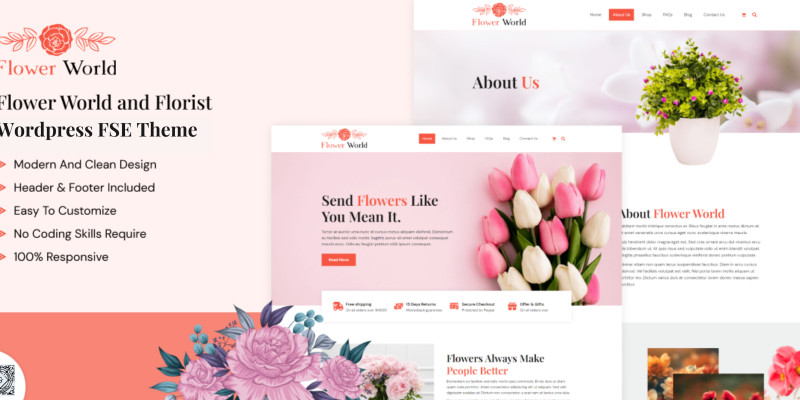
Do you find it difficult to locate the best website for online shopping? Flower World – Flower Shop and Florist WordPress FSE Theme is now available. Every feature you’ll need for your e-commerce website design is included in this amazing WordPress Theme. Flower World is a design that doesn’t require any coding knowledge to change completely. The Flower World WordPress Theme includes more than twelve inner pages and an amazing and creative homepage design. Every font and color in this theme is controlled by the global setting of the Full Site Editor. Consequently, acquire your Flower World gear immediately!
Features
- Beautiful and Elegant Home Page
- Ready made Header & Footer
- Fully WooCommerce Compatible
- 12+ Creative Design Pages
- No Coding Skills Required
- One-click Setup or Configuration
- 100% Responsive
- Cross-Browser Compatible
Requirements
Included Templates
- Home Page
- About Us Page
- Contact Page
- Blog Page
- Blog Details
- Shop Page
- Product Single
- Cart Page
- Account Page
- Checkout Page
- 404 Page
- Coming Soon Page
Required plugins
- Gutenverse (free)
- Contact Form 7
- WooCommerce (free)
Instructions
How to Import a WordPress FSE Theme
- Download your theme’s main zip file – unzip this primary folder, and you should see folders for Documentation, Media, and OneClickImport.
- Do not unzip the demo content zip file located within the main folder (often labeled “demo-content.zip”).
- Go to your WordPress Dashboard – Appearance – Import Demo Data.
- Click “Import Demo Data” or “One Click Demo Import” to start the import process.
- Drag and drop the demo content zip file to import.
- You may be prompted to install and activate any required plugins. Follow the instructions to install these plugins for proper theme functionality.
- After plugins are installed, return to the “Import Demo Data” section and click “Import.”
- Select which content to import; for a complete site import, ensure all content types are selected. Click Import.
Once complete, your FSE theme should be set up with demo content and required plugins installed.
Tips After Importing:
- Survey our documentation record – this gives establishment, setup, and update data and instructional exercise recordings.
- Once imported – add your site logo to the global Site Settings.
- Add another menu for use in the header and a different (or the same) menu for the footer.
- We offer complete documentation on the demo page as well
Image Licensing:
All images, icons, and assets are included with the final downloadable zip file that you will receive on purchase. We highly recommend to replace it with your own assets or contents. If you choose to use our images, icons, and assets then first, please ensure they’re properly licensed. By default all our images are used with CC0 (Creative Commons Zero) License.
| Author | Tokomob |
|---|---|
| Category | Themes / WooCommerce / Miscellaneous |
| Price | $59 |
| Extended License | $177 |
| First Release | Dec 3, 2024 |
| Last Update | Dec 3, 2024 |
| Supported cms | WordPress 4.4, WordPress 4.3, WordPress 4.2, WordPress 4.0, WooCommerce 2.5.x, WooCommerce 2.6.x, WordPress 4.5, WordPress 4.6, WordPress 4.7, WooCommerce 2.7.x, WooCommerce 3.0.x, WooCommerce 2.8.x, WooCommerce 2.9.x, WordPress 4.8, WordPress 4.9, WordPress 5.0, WooCommerce 4.x, WooCommerce 5.x, WooCommerce 6.x, WordPress 5.8, WordPress 5.9, WooCommerce 7.x, WooCommerce 8.x, WordPress 6.0, WordPress 6.1, WordPress 6.2, WordPress 6.3, WordPress 6.4, WordPress 6.5, WooCommerce 9.x |
| Files included | .php, .css, .html, JavaScript .js |
Categories
Tags
External listing. code.market does not sell this product and does not process payment for it. Pricing, payment, delivery, licensing, refunds, and support are handled by the third-party merchant on its own website. We may earn an affiliate commission from a referral. Details.
Products of the Week.
Submit🥇

Perceptle
Perceptle is a daily browser-based game that challenges you to test your sensory intuition through five quick estimation and rhythm-based rounds.
Other · 1,489 views · 9 clicksOther · Week 47 · 1,489 views · 9 clicks
🥈

Free LinkedIn Likes From Real
Get free LinkedIn likes on your posts from real members who react by hand. No
SaaS · 1,632 views · 10 clicksSaaS · Week 47 · 1,632 views · 10 clicks
🥉

STOP GUESSING WHAT TO POST
AI that learns your brand voice and builds a month of consistent, on-brand social content: carousels, posts and hooks that sound like you, not like everyone else's AI.
SaaS · 9,176 views · 75 clicksSaaS · Week 47 · 9,176 views · 75 clicks
#4

aaas.market
407 reliable micro tools for solo founders, marketers and creators. They work in your browser
SaaS · 1,597 views · 5 clicksSaaS · Week 47 · 1,597 views · 5 clicks