
Amazing HRM & Payroll

Description
 This application based on new Latest Laravel 7.0 Framework. Human Resource Management system(HRM) & Payroll has become one of the most important tools for any corporate environment. It’s very easy for any kind of businesses and helps to keep the HR & Payroll department clean and clear. Amazing HRM & Payroll software is not just a visualize it’s now become an essential software for maintaining every corporate office. Any company can use it for their regular tasks, employee workforce management and account management.
Amazing HRM & Payroll is designed latest security Technology and it is ready for high availability web application.
Documentation
For documentation Go here: Documentation
This application based on new Latest Laravel 7.0 Framework. Human Resource Management system(HRM) & Payroll has become one of the most important tools for any corporate environment. It’s very easy for any kind of businesses and helps to keep the HR & Payroll department clean and clear. Amazing HRM & Payroll software is not just a visualize it’s now become an essential software for maintaining every corporate office. Any company can use it for their regular tasks, employee workforce management and account management.
Amazing HRM & Payroll is designed latest security Technology and it is ready for high availability web application.
Documentation
For documentation Go here: Documentation
 You can view a demo installation by following this link: Installation Demo
You can view a demo by following this link: Live Demo
Admin:
ID: admin@mail.com
Password: demo
Admin Live Demo
Employee:
ID: employee@mail.com
Password: demo
Employee Live Demo
Features:
You can view a demo installation by following this link: Installation Demo
You can view a demo by following this link: Live Demo
Admin:
ID: admin@mail.com
Password: demo
Admin Live Demo
Employee:
ID: employee@mail.com
Password: demo
Employee Live Demo
Features:
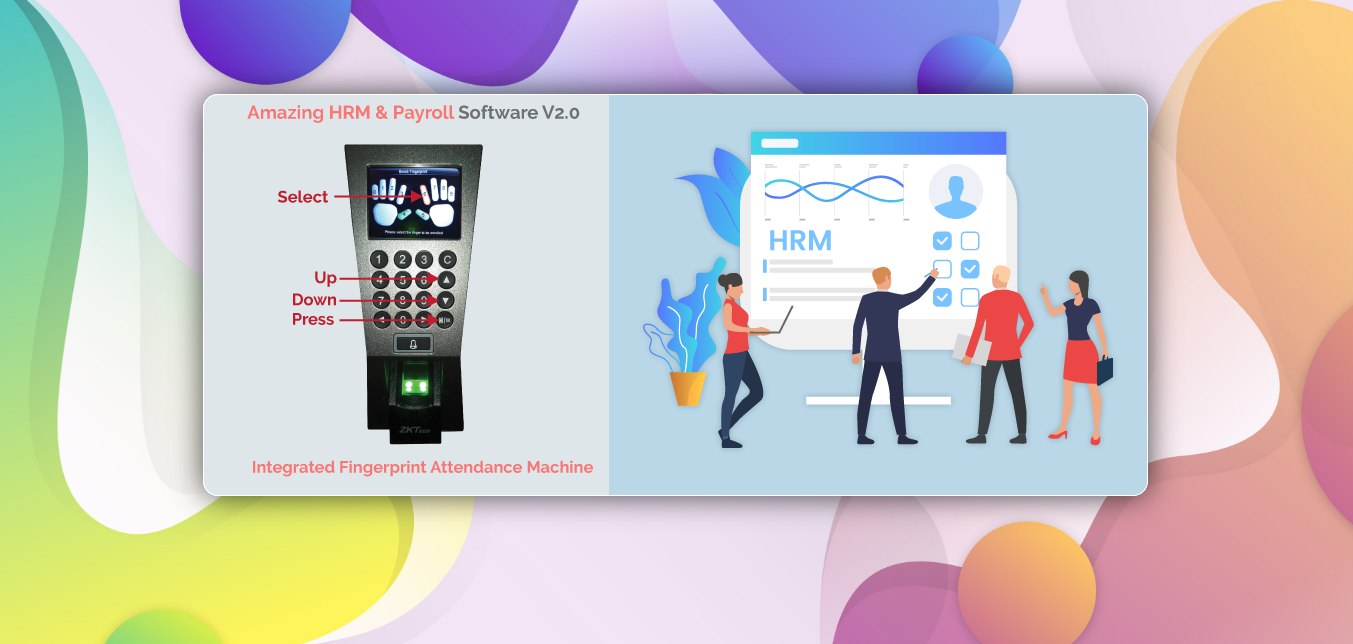
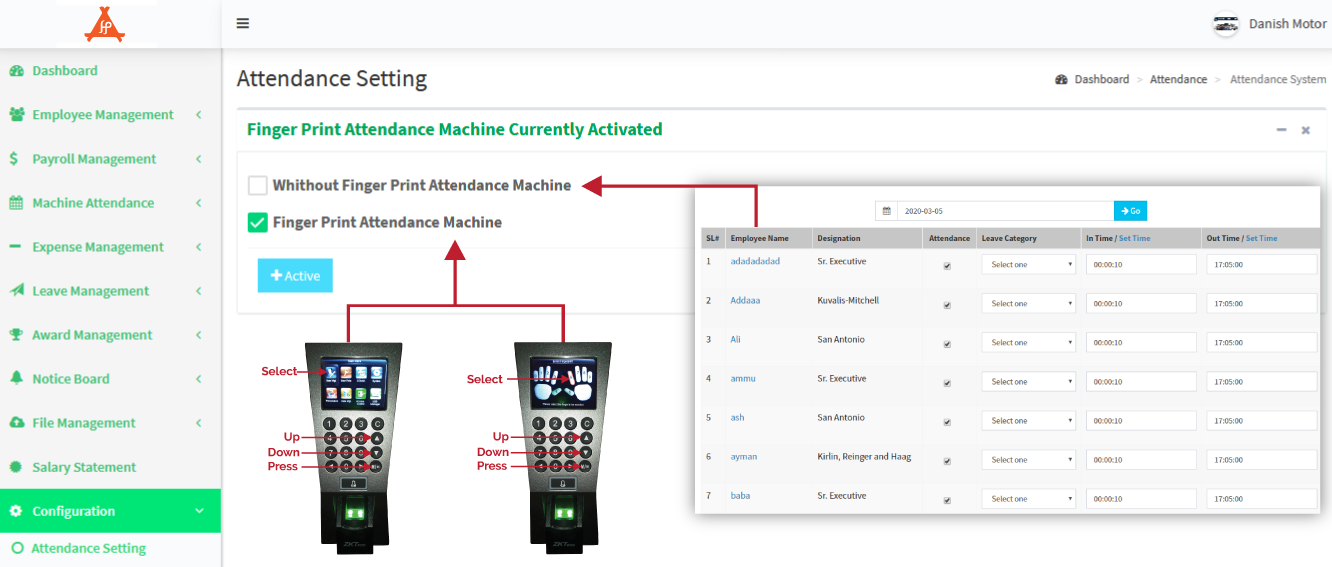
- Integrated the Finger Print Attendance Machine
- Import/Export the Finger Print Attendance File
- Salary Sheet
- Bonus, Credit Facility, Salary Deduction and provident fund management
- Employee management
- Attendance management with report
- Employee Attendance report
- Customize salary Statement
- Complete payroll management with report
- Award management
- Leave management with report
- Employee role management
- Notice board management
- Holiday management
- Complete expanse management with report
- Fully HRM Management
- Fully Payroll Management
- Create Salary Template monthly
- Employee Clock Attendance
- Manage Time Change Requests
- Attendance Reports
- Create Leave Category
- Set Leave Quota
- Approve / Reject Leave Applications
- Create/Delete Department
- Create/Delete Designation as required
- Employees Add, Update, Delete or Block
- Set Employee Access Roles
- Employee Awards
- Award Money
- Give Gift Itemst
- Employee Get Notified
- Easy User Interface
- Beautiful Dashboard
- Very Easy Setup and Installation
- Easy Tab Interface And Many More
- Team management
- Informative dashboard
- File sharing and team conversation
- Task management
- Beautiful file preview and comments
- Invoice management
- Save PDF any report
- Expense payments report
- Custom permissions for team members
- Event calendar
- Private notes
- Leave management
- Employee details view
- Announcement/notice management
- Report printing and export
- Easily accessible UI
- NOC
- Leave Application
- Experience Certificate
- Expense Slip
Step 01: Open and start the Attendance Machine Software
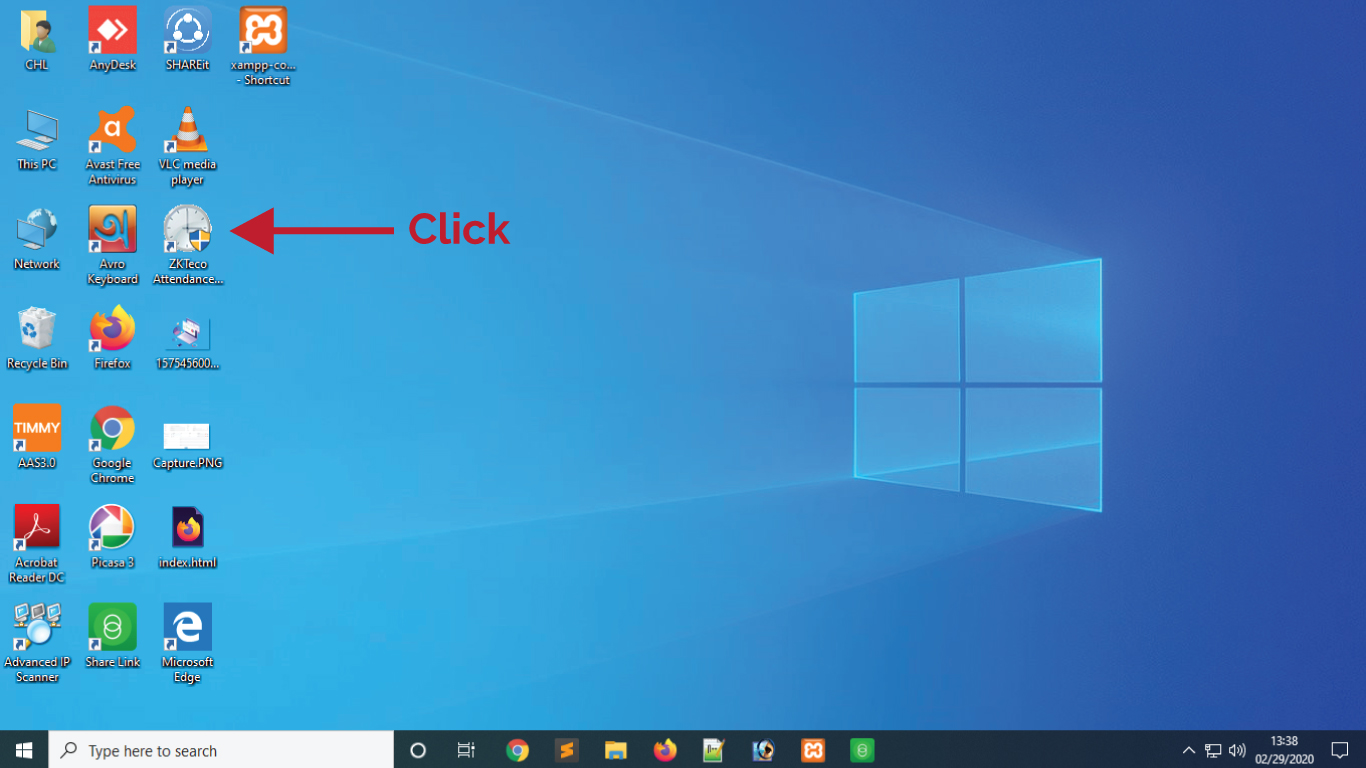
Step 02: Click the OK Button

Step 03: Select the Device and Click the Connect in the software

Step 04: Create All Employee Records like Enrollment or Registration
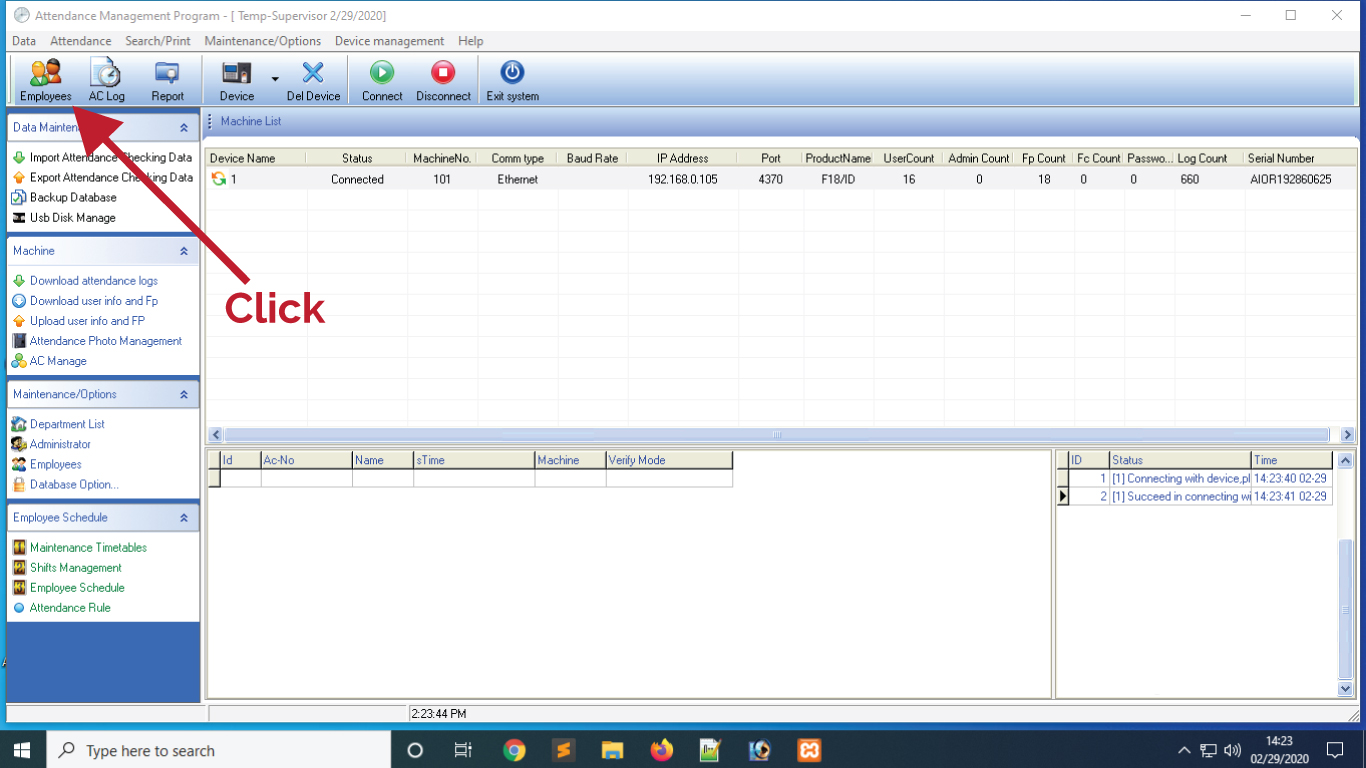
Step 05: After recorded, must be Upload and Download from left Button
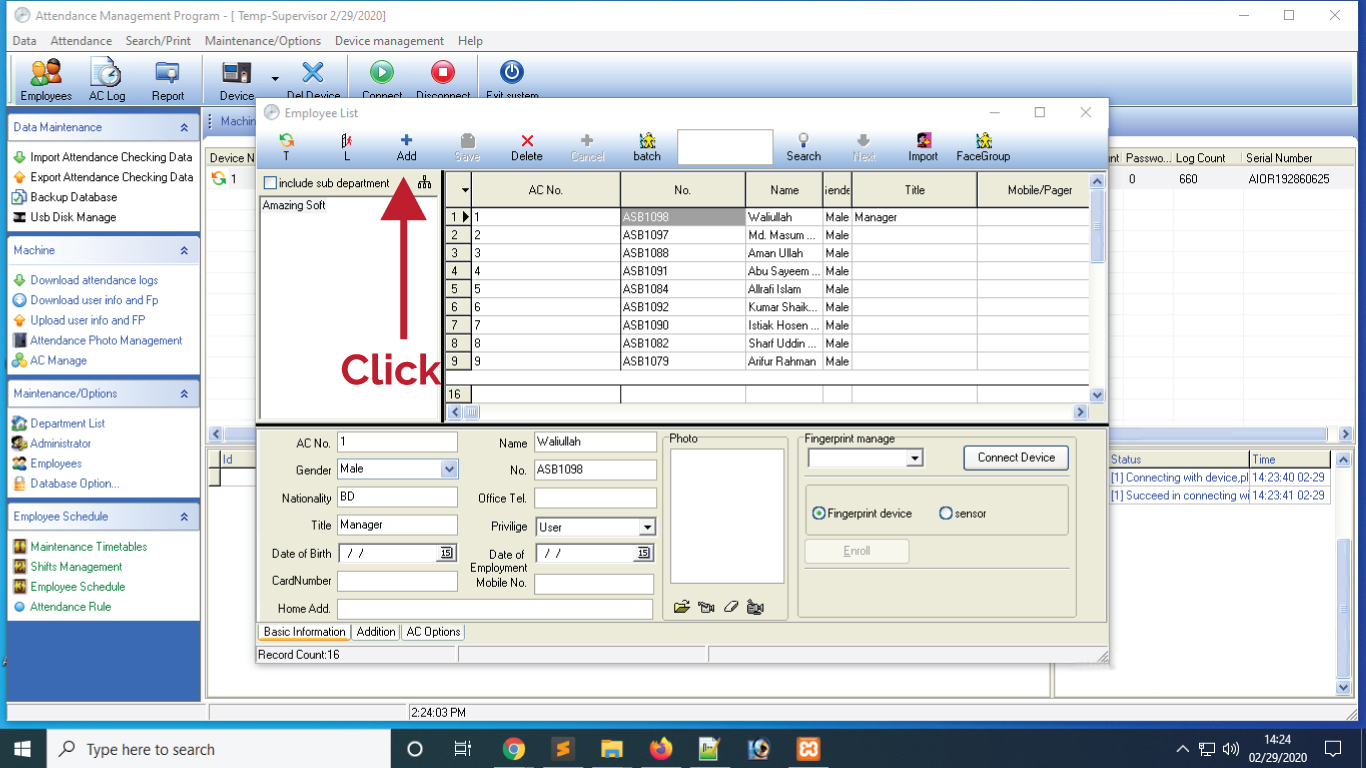
Step 06: Select the report for calculatation by date wise.
 Step 07: View the attendance reports by the dates
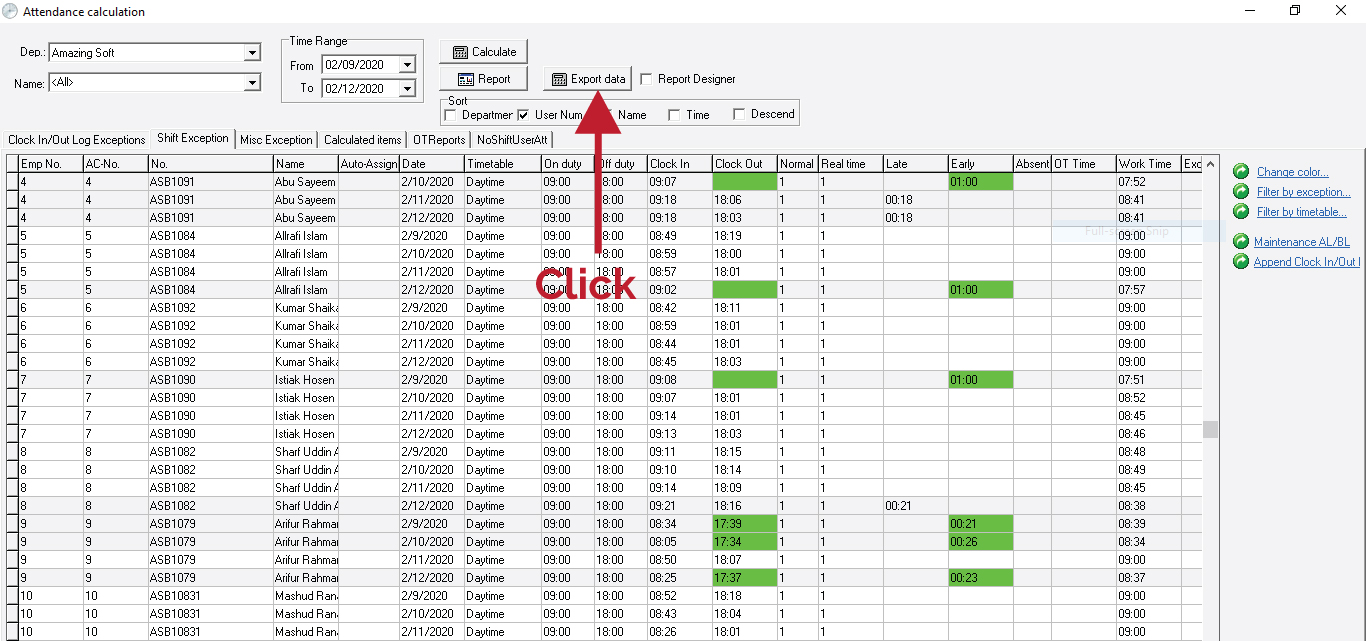
Step 08: Export the Attendance Report

Step 09: Save the Attendance Report in your PC

Step 10: Export the Attendance Report in your HRM Software
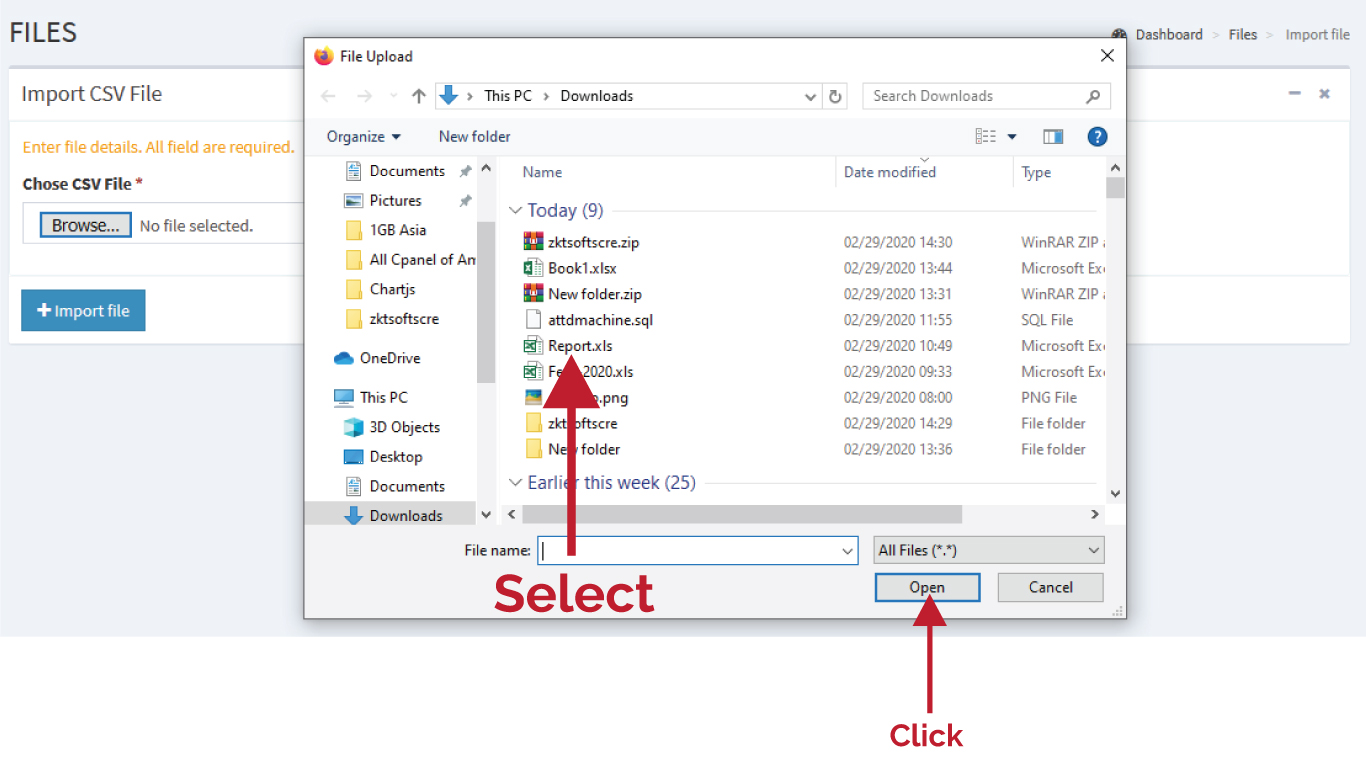
Manage the Device of Attendance Machine
Step 01: Setup the Attendance Machine by IP


Step 02: Select the User Management in the Machine
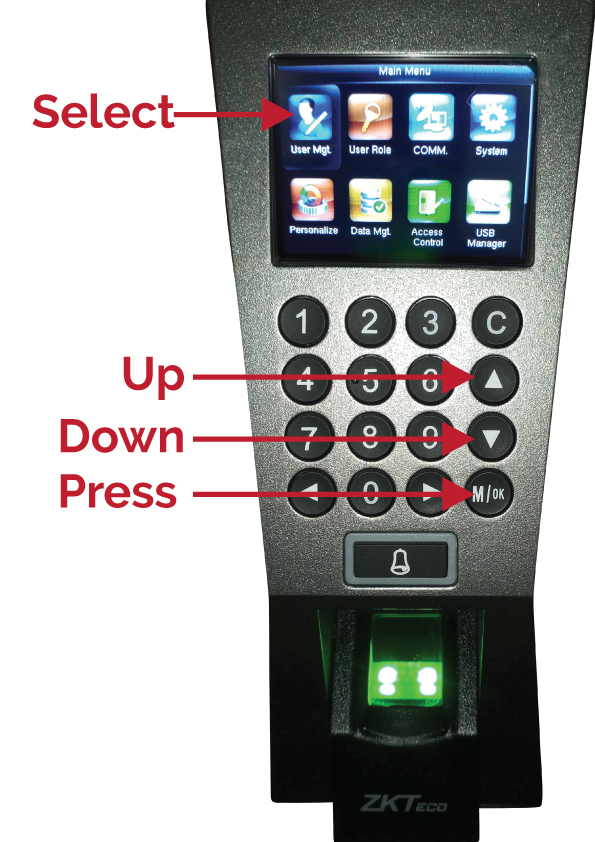
Step 03: Go to the All User Management
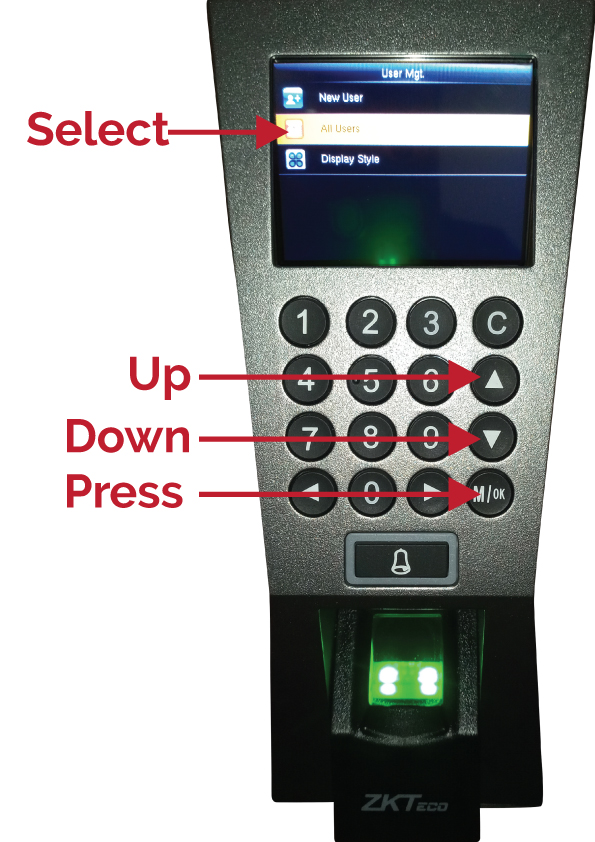
Step 04: Select the One User and go

Step 05: Select the finger for print by the user

| Type | PHP Script |
|---|---|
| Author | amazing-soft |
| Category | Php Scripts / Miscellaneous |
| Price | $51 |
| Sales | 90 |
| Rating | 3.55 from 11 ratings |
| Published | Sep 26, 2019 |
| Last Update | Jan 25, 2021 |
| Compatible Browsers | Firefox, Safari, Opera, Chrome, Edge |
| Compatible Software | PHP 7.x |
| Software Framework | Laravel |
| Source Files Included | JavaScript JS, HTML, CSS, PHP, SQL, Layered PNG |
Categories
Tags
External listing. code.market does not sell this product and does not process payment for it. Pricing, payment, delivery, licensing, refunds, and support are handled by the third-party merchant on its own website. We may earn an affiliate commission from a referral. Details.
Products of the Week.
Submit🥇

STOP GUESSING WHAT TO POST
AI that learns your brand voice and builds a month of consistent, on-brand social content: carousels, posts and hooks that sound like you, not like everyone else's AI.
SaaS · 4,318 views · 38 clicksSaaS · Week 45 · 4,318 views · 38 clicks
🥈

Conversational Backlinks for Busy Founders
Place Backlink Relevant Conversation for your domain across Forums and Conversations
Website · 42,054 views · 223 clicksWebsite · Week 45 · 42,054 views · 223 clicks
🥉

upvote.club
Free Social Media Engagement that Helps Boost Your Content. Upvote Club supports 19 social networks with 100+ engagement actions in one dashboard. Add links to your posts and get free engagement from real users.
SaaS · 40,099 views · 117 clicksSaaS · Week 45 · 40,099 views · 117 clicks
#4

Substack Posting API
Onboard your Agent to Substack. Write Publish on Substack via API
SaaS · 59,103 views · 198 clicksSaaS · Week 45 · 59,103 views · 198 clicks
#5

Seenshot App
Free, Fast, MacOS Screenshot app. Make Screenshot cmd+shift+2 and send it via link
Desktop App · 28,477 views · 122 clicksDesktop App · Week 45 · 28,477 views · 122 clicks
#6

Hand-Placed Backlinks $9.99 per link. Flat rate.
Buy hand-placed forum, Q-A and directory backlinks. Flat $9.99 per link, no subscriptions — you only pay for approved listings.
Website · 4,310 views · 19 clicksWebsite · Week 45 · 4,310 views · 19 clicks
#7
Free Invoice Generator - PDF Invoices in Your Browser, No Sign-Up
A free invoice maker for freelancers and small businesses: fill in the invoice, check the live preview, and download a PDF that looks exactly like it. Any currency, tax per item, three templates, no sign-up, and nothing leaves your device.
2,984 views · 17 clicksWeek 45 · 2,984 views · 17 clicks
#8
Merge PDF Files Free - Combine PDFs in Your Browser, No Upload
A free PDF merger for office workers, students, and freelancers: combine PDFs and images into one file in the browser, reorder files and pages, pick page ranges, keep bookmarks, and open password-protected PDFs. Nothing is uploaded, no sign-up, no watermark.
2,755 views · 13 clicksWeek 45 · 2,755 views · 13 clicks