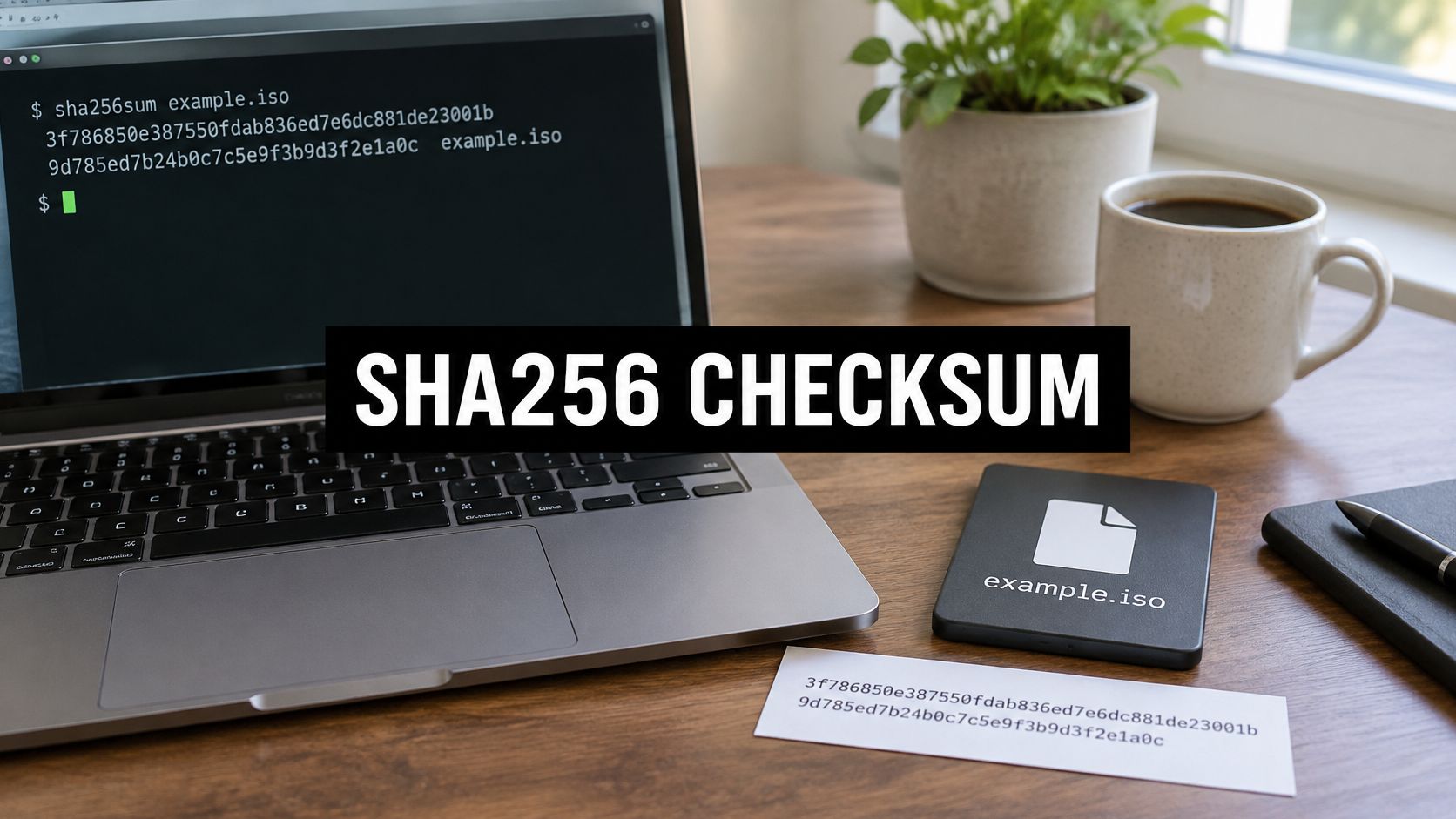
A 40 MB starter template lands in your downloads folder from a mirror rather than the seller's own release page, and next to the download button sits a block of 64 characters. You want to know whether the archive you're holding is the one the developer built, and that string is the only thing that can tell you.
The string is a SHA256 checksum, and it behaves like a fingerprint for bytes. You don't need a paid tool to work with it, and you don't need to understand the mathematics inside it. You need to know what it proves, where the reference value has to come from, and what to do when the two values don't line up.
Table of Contents
- What a SHA-256 Checksum Actually Tells You
- Generate a SHA-256 Checksum on Each Operating System
- How to Compare Your Hash With the Published One
- Generating Random Passwords for Protected Archives With Strong Password Generator
- Reading a Match or Mismatch Result
- Where to Find a Trustworthy Reference Hash
- What a Matching Checksum Cannot Prove
- Edge Cases That Make a Correct File Look Wrong
What a SHA-256 Checksum Actually Tells You
SHA-256 reads a file of any size and returns a fixed 256-bit value, printed as 64 hexadecimal characters. Hash the four-letter word test and you get 9f86d081884c7d659a2feaa0c55ad015a3bf4f1b2b0b822cd15d6c15b0f00a08. Hash a 4 GB game build and you still get 64 characters. The length never changes, and neither does the format.
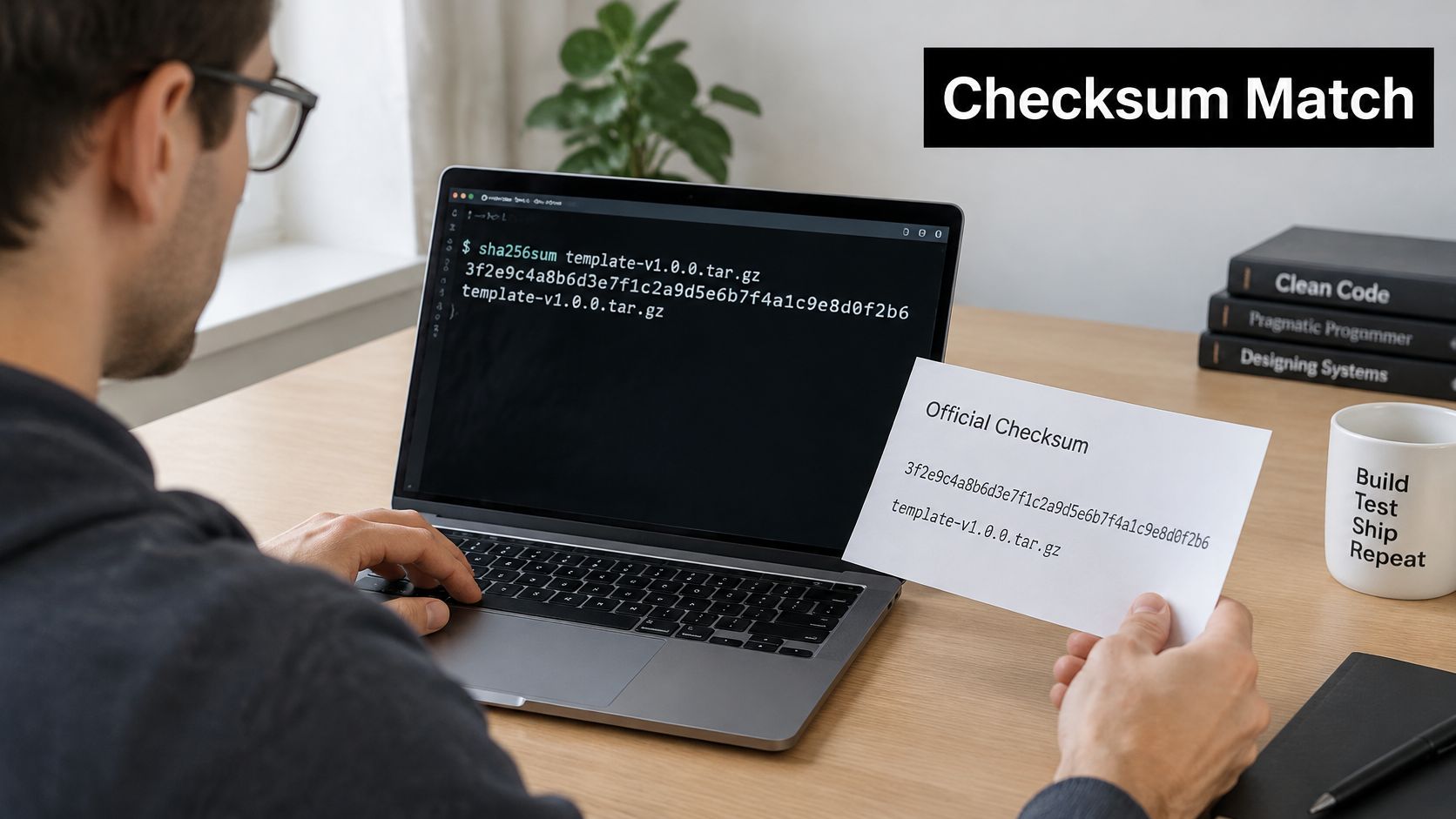
Think of it as the tamper strip on a parcel. If the strip is intact, the contents very likely match what was packed. If it's torn or replaced, something changed between the packer and you. The seal says nothing about whether the box contains something dangerous, only that the box is the same box.
Three properties carry all the practical value.
- Deterministic: the same file produces the same digest on any machine, in any operating system, this year or in five.
- Avalanche sensitive: change one bit and you get a completely different 64-character value, not a slightly edited one.
- One way: a digest can't be reversed into the original file, so publishing a hash doesn't leak the content.
The practical promise is narrow and useful: a checksum lets you confirm that two copies are identical. When you've downloaded the same template from two mirrors, or restored a backup and want to know it survived intact, that's the question you're really asking.
Generate a SHA-256 Checksum on Each Operating System
Open a terminal in the folder that holds the file. The hashing step itself is short: copy one command, run it, and read the printed digest like a parcel label. The label tells you what the file is made of, while the sender of that label decides whether it means anything.
| System | Command | What It Prints |
|---|---|---|
| Windows PowerShell | Get-FileHash -Algorithm SHA256 .\file.zip |
64-character hash followed by the file path |
| Windows Command Prompt | certutil -hashfile file.zip SHA256 |
Hash on the second line, sometimes with spaces |
| macOS Terminal | shasum -a 256 file.zip |
64-character hash and file name |
| Linux Terminal | sha256sum file.zip |
64-character hash and file name |
| Any system with OpenSSL | openssl dgst -sha256 file.zip |
Algorithm label followed by the hash |
Use the row for the system in front of you. PowerShell and Command Prompt both work on Windows, but they print the result in slightly different shapes. PowerShell gives you the hash with a path. Command Prompt puts the hash on the second line and may include spaces, so treat the output as text to clean up before comparing.
The detail that trips people up is location. Run the command from the folder that holds the file, or give the full path. Names with spaces need quotes, so sha256sum "my theme.zip" works while the unquoted version fails with a confusing "no such file" message that looks like a missing download rather than a quoting error. Long paths do the same thing when one folder name is abbreviated or copied incorrectly.
Path rule: if the terminal says it can't find the file but you can see it in Explorer or Finder, you're in a different directory. Type
pwdon macOS or Linux, orGet-Locationin PowerShell, and compare that to where the file actually sits.
SHA-256 is fast on modern processors, especially those with hardware acceleration, so hashing a multi-gigabyte archive typically takes only seconds and is rarely the bottleneck. The slow part is usually finding the file, copying the right reference value, or reading the output carefully. A long digest can make the command feel more mysterious than it is.
When the output appears, read it carefully. Each tool prints the 64-character hash plus extra text for convenience, such as the file name or path. Copy only the hash. Pasting the file name into a comparison field is one of the most common reasons a perfectly good download gets flagged as wrong.
Keep the command output beside the published value until you have compared them. A local hash answers one narrow question: this file, at this moment, has this digest. It cannot tell you who published the reference digest or whether that source was trustworthy, so the next check is to compare the two values without adding stray spaces, line breaks, or characters from the file name.
How to Compare Your Hash With the Published One
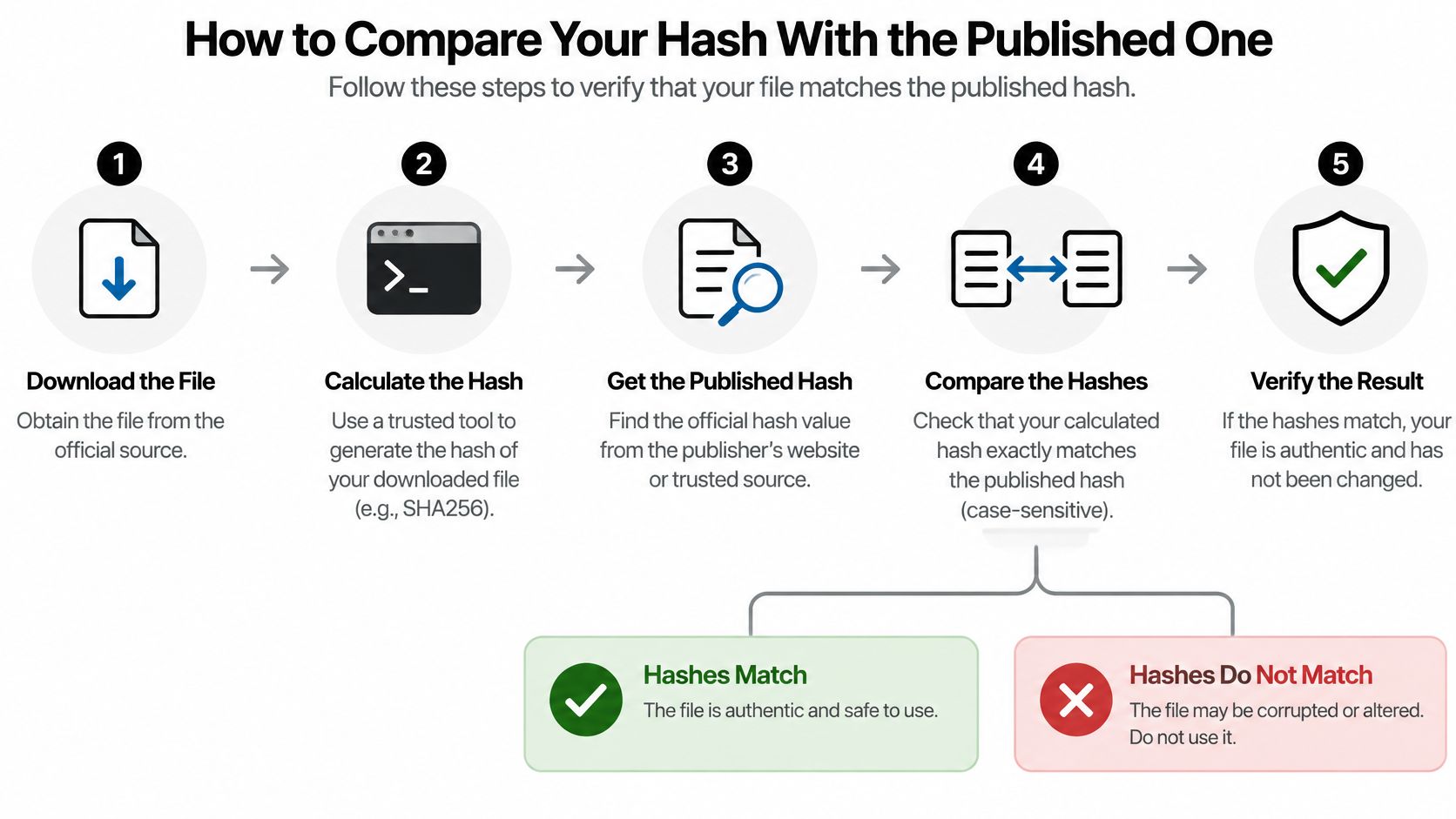
Comparison is where most verification fails, and almost never because the file is bad. Work through these five steps in order.
- Copy the reference digest from the publisher's page, a signed checksum file, or another channel you trust. Copy the whole value including the end, not the visible start.
- Generate your local digest with the command for your system and let the tool finish. Don't interrupt a large file; a partial run gives a partial answer.
- Normalise both values. Strip spaces and line breaks. Hex is case-insensitive, so upper and lower case represent the same number.
- Compare all 64 characters. Mismatches hide at the tail, where two hashes can differ in the final character and still describe different files.
- Record the verdict. A match means move on to the next check. A mismatch means stop and re-download rather than "trying it anyway."
Step 4 deserves an example. Say the published value ends in ...5b0f00a08 and yours ends in ...5b0f00a09. Those are not near-misses, not rounding, and not a formatting quirk. They are two different files, and the second one is not the artifact you meant to install.
Linux and macOS users get a shortcut. If the publisher ships a .sha256 or CHECKSUM file next to the download, run sha256sum -c file.zip.sha256 from the same folder and read the OK or FAILED line. On macOS, shasum -a 256 -c does the same job.
Windows users can skip the eyeballing entirely inside PowerShell:
(Get-FileHash -Algorithm SHA256 .\file.zip).Hash -eq 'PASTE THE PUBLISHED HASH HERE'
The answer is True or False, and nothing else. The -eq operator ignores letter case, which fixes the uppercase-versus-lowercase confusion for you. Keep the quotes around the published hash.
Generating Random Passwords for Protected Archives With Strong Password Generator
Checksums and passwords solve two different problems on the same download. A digest confirms the archive is unchanged; a password is what stops the archive from being opened if it's intercepted or leaked from a shared folder. When you're packaging a client build for delivery, or setting up an encrypted backup you'll re-download and verify later, the password is the part you can't afford to improvise.
Strong Password Generator is a free browser tool built for that job, with a set of companion utilities that happen to overlap with the verification work in this guide.
Generation controls that matter. You set the length, choose uppercase, lowercase, numbers and symbols, and pick how many passwords to produce at once. The advanced panel goes further than most generators: fixed quantities per character type, required keywords, a preferred starting character, exclusion of visually similar characters (so l, 1 and I stop being a coin flip when you retype a password on a phone), and a toggle to prevent duplicate characters.
The problems it solves. Weak or reused credentials are the classic failure, and a random string you've never used before fixes it in one click. Strict composition rules are the second: some archive tools and hosting panels refuse certain symbol sets or demand a digit in a specific position, and the per-type quantity settings let you hit those requirements without hand-editing. Manual entry is the third. Generated passwords can be shown as a QR code and scanned from your phone, which beats typing 40 characters from a desktop screen.
Companion tools in the same place. A password strength checker, an email hack checker that looks for your address in known leaks, a random PIN generator, and hash generators for MD5, SHA-1, SHA-256 and SHA-512. That last one is handy when you need a quick SHA-256 digest of a short string during a build or an API signature check, rather than a whole file.
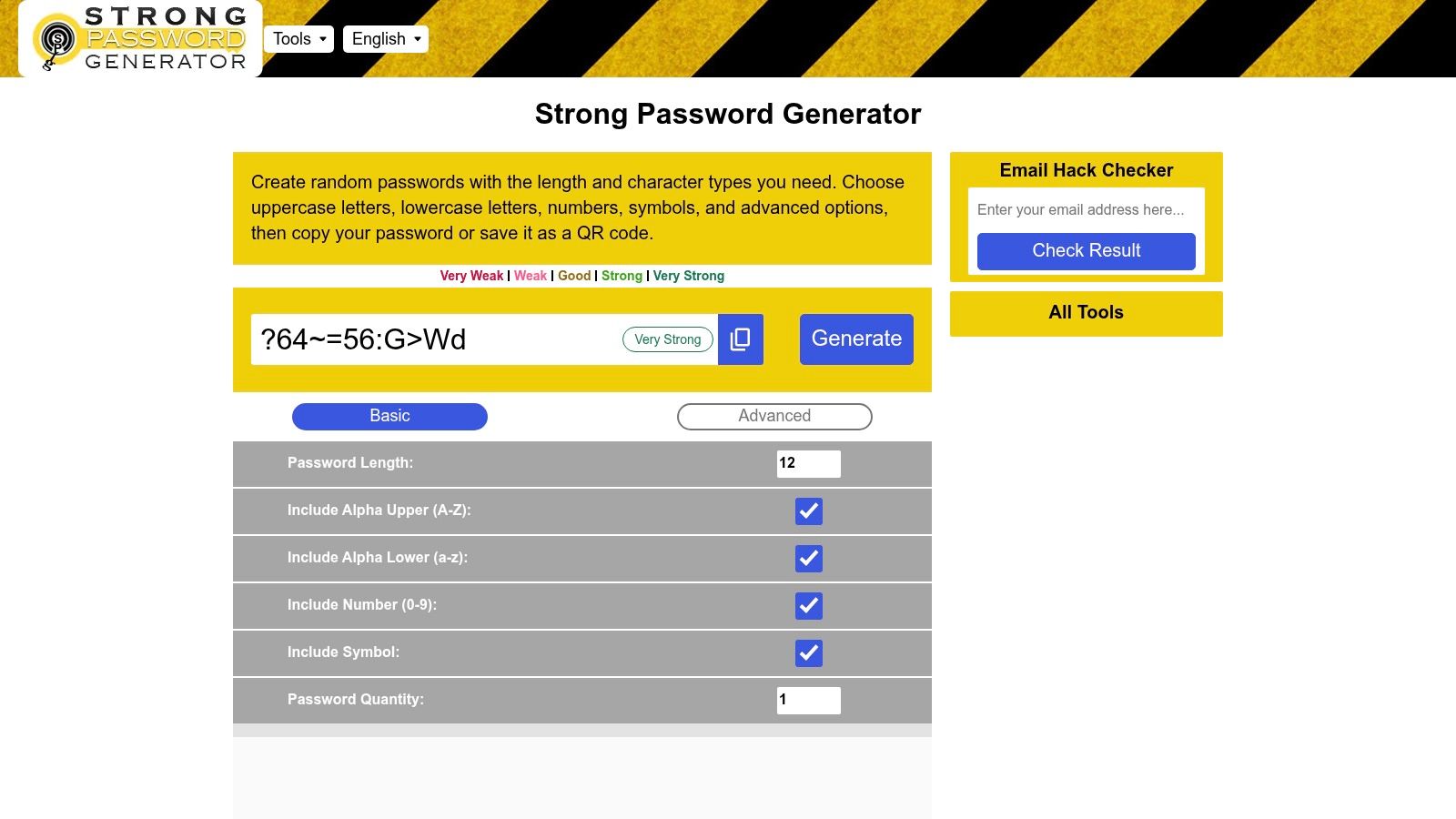
Privacy and fit. Passwords are generated in the page itself, and the site states that generated passwords aren't saved by the service. Nothing is transmitted to a server to be generated and handed back, so the tool is a reasonable choice for archive passwords, client credentials and anything you'll store in a password manager afterwards. It's also available in many languages, including English, French, German, Spanish, Japanese and Chinese. It isn't the right tool for verifying a 40 MB file; keep the terminal for that and use this for the secret that protects the container.
Reading a Match or Mismatch Result
A mismatch is the most useful outcome you can get, because it stops you before you install something. The trick is separating the four or five different causes so you fix the right one instead of concluding the download is cursed.
| Result | What It Means | What to Do |
|---|---|---|
| Full 64-character match | Local file is byte-identical to the reference | Proceed, after confirming the reference came from a trusted source |
| Completely different hash | File changed, is an incomplete download or is the wrong version | Re-download from the original source and compare again |
| Only a few characters differ | Usually a corrupted transfer or truncated copy | Re-download; if it repeats, try another network or source |
| Hash shorter or longer than 64 characters | Different algorithm, or the copied digest was cut off | Check the algorithm label and copy the full value |
| No reference hash published | Nothing to compare against | Ask the publisher, or don't treat the file as verified |
| Match but unknown source | Integrity holds, authenticity does not | Check signatures or an independent channel before installing |
Notice how rarely "the file is malicious" appears in that list. A truncated download over a flaky connection, a reseller who re-zipped the archive after adding a licence file, and a page that published the SHA-1 instead of the SHA-256 all produce a mismatch on an honest file.
There's one pattern worth memorising. If you download twice from the original source and both attempts fail against the published digest, stop blaming your copy. Either the publisher's page is stale, a mirror is serving an older build, or something is rewriting the transfer between you and the server. Try a different network, then contact the publisher with both digests in hand.
Where to Find a Trustworthy Reference Hash
Here's the assumption worth challenging: that a matching hash means you're safe. It doesn't, and the reason sits in where the hash came from. When the checksum lives on the same page as the download, anyone who can swap the file can swap the checksum in the same edit, and your comparison passes because both sides of it were replaced.
Rank your sources before you trust a green result.
- Weakest, a hash beside the download link on the same page. Fine for spotting a corrupted transfer, useless against a deliberate swap.
- Better, the publisher's own release page, reached by an address you typed or a bookmark you saved, not by a link from a forum post.
- Stronger, a digest sent through a separate channel. A seller's email, a support ticket reply, a message from an account you already deal with. Two channels are harder to compromise than one.
- Strongest, a signed checksum file whose signature you verify. The signature binds the digest to a key you've authenticated, so a stolen file host can't rewrite it.
Picture a freelancer who receives a plugin zip and a .txt with the checksum in the same download folder. That arrangement proves almost nothing. The same freelancer emails the seller, asks for the digest, gets a reply with a matching value, and now has two independent paths agreeing. That's a meaningful result, and it costs one message.
Habit worth building: write down where the reference came from and when you checked. Six weeks later, when a client asks why you approved a build, "the hash matched" is a weak answer and "the hash matched a value the vendor confirmed by email on 14 March" is a defensible one.
If no digest is published at all, ask for one. A publisher who can't produce a SHA-256 for a release is telling you something about their release process, and a silent source is a risk you're choosing to accept rather than one you've measured.
The full workflow, once, so you can apply it to every download:
- Obtain the digest through an independently authenticated channel.
- Verify a signed checksum or release signature where the project provides one.
- Calculate SHA-256 locally and compare all 64 characters.
What a Matching Checksum Cannot Prove
The gap the industry keeps rediscovering is the one between integrity and authenticity. A match proves your copy is byte-for-byte identical to a referenced artifact. It says nothing about whether the publisher, the website or the download channel deserves your trust, and the CISA software acquisition guide makes exactly that point: a SHA-256 digest can't establish that a publisher is trustworthy, and if an attacker replaces both the file and its checksum on the same page, the comparison still succeeds. CISA's recommendation is to pair hashes with signatures, certificates or an out-of-band verification method rather than treating a checksum as standalone proof.
Take a WordPress site owner installing a plugin bought from a reseller. The archive matches the digest printed on the reseller's product page, so the check passes. The archive could still contain a backdoor the reseller added, an obfuscated licence checker that phones home, or a bundled library with a known vulnerability. The checksum is accurate and the file is still unsafe.
Three things a matching hash can't tell you:
- Whether the code is clean. Malware, hidden backdoors and unwanted behaviour all hash perfectly.
- Whether the dependencies are safe. A bundled library can be months out of date and still match its digest.
- Whether the publisher is who they claim to be. That's the job of a signature or a second channel, not a digest.
This is why the ordering in the previous workflow matters. Obtain the digest independently, verify a signature if one exists, and only then hash the file. Do those three steps and a match means something specific: the artifact you hold is the one the publisher signed and published, and the next task is code review, not celebration.
Decision rule: a verified match from a trusted source means proceed to reading the code. A match from an unverified source means find a second channel first. A mismatch means stop, every time, with no exceptions for convenience.
Edge Cases That Make a Correct File Look Wrong
The most common false alarm is case. A publisher's README shows the digest in uppercase, your Linux tool prints lowercase, and the two strings look different at a glance while representing the same number. Hex is case-insensitive, so normalise before you compare. On PowerShell, -eq handles it automatically.
The rest are subtler, and each one has fooled an experienced developer at least once.
- Invisible characters. Copying from a web page can drag in a non-breaking space, a line break or the file name that followed the digest. Paste into a plain text editor first and keep only the 64 characters.
- Line endings in checksum files. A
.sha256file authored on Windows may end its lines with\r\n, and some tools read the extra carriage return as part of the file name. Ifsha256sum -creports a missing file that plainly exists, that's usually why. - Re-zipped archives. Two archives can hold identical content and produce different digests, because compression level, timestamps and file order all affect the bytes. A repackaged copy has a new hash even when nothing inside changed.
- Folders. A directory has no built-in digest. If a publisher lists a hash for a folder, they've packed it into an archive or a tarball, and you need the same packing method to reproduce the value.
- Wrong algorithm. MD5 produces 32 characters and SHA-1 produces 40, so a 32-character value is never a SHA-256 digest. Neither of those older algorithms belongs in a download check today.
Before you declare a file bad, run the checklist: confirm the algorithm name, confirm the length is 64, confirm you pasted the digest and not the file name, and confirm the file name matches exactly, including extension. Four checks, thirty seconds, and most "corrupted downloads" turn out to be a copy-paste artefact.
The next zip you download, open the release page before you open the archive, copy the 64 characters, and run one command. If the value came from an address you trust and the digest matches, you've earned the right to move on to reading the code. If it came from the same folder as the file, send the seller one message asking for the digest through a second channel. Directories that index third-party builds, such as Code Market's software catalog, make it quick to find starter code, and the checksum habit is what keeps that speed from costing you a backdoor.
This article was inspired by Outrank.