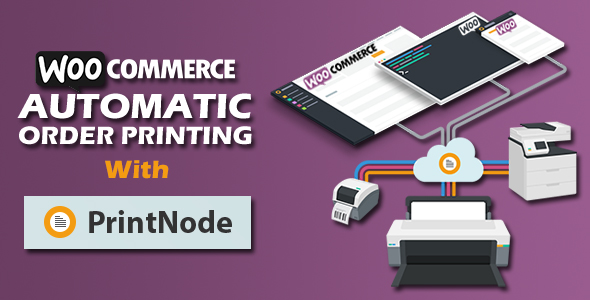
Woocommerce Automatic Order Printing | ( Formerly WooCommerce Google Cloud Print)
Description
Note : As per Google “After 31 December 2020, Google Cloud Print will no longer be supported”. Printnode providing a perfect replacement for Google Cloud Print API. It’s the easiest & best API for automated printing tasks. Thats why, we have integrated PrintNode with our plugin.
What is it
WooCommerce Automatic Order Printing allows store admin to print order invoices, packing slips automatically using PrintNode.
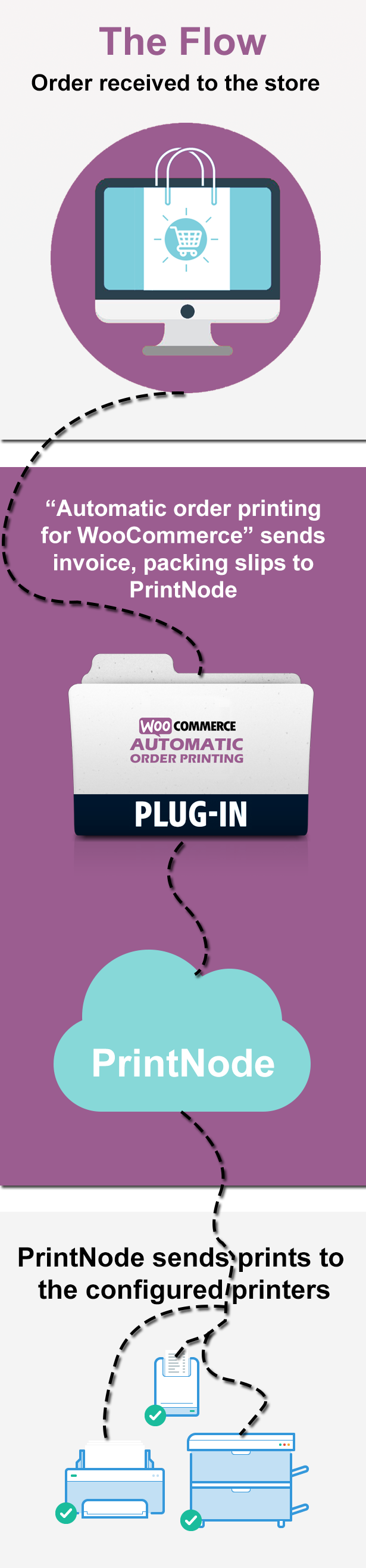
Normally when an order is received, store admin will open the order and manually prints invoices, packing slips etc.. Doing it manually for multiple orders is time taking. This WooCommerce Automatic Order Printing makes this process automated.
How it works:
This plugin sends the configured packing slips, invoices to PrintNode automatically for each and every order which is placed in the WooCommerce store. Then PrintNode sends those prints to configured printers to print.
Supported Printers:
PrintNode works on all major brands of printers and scales, including
- Canon
- Dymo
- Brother
- HP
- Epson
- Mettler Toledo
- Stamps
- Zebra
- Oki
- and manymore listed here
Features:
Admin Settings
General Options
You can configure your general options here such as Shop name, address, print size, orientation etc…
- Use PrintNode : Check this to enable print node for automatic order printing.
- Paper Size : Choose the paper size to print.
- Paper Orientation : Choose your print orientation.
- Only Print After Payment : Select Payment gateways (these payment gateway orders will print after payment complete. remaining orders will print when order placed) leave blank if you need to print every order when order placed.
- Sample Order : Select sample order to print.
- Header Logo : Set your header logo.
- Shop Name : input your shop name.
- Shop Address : Input your shop address.
- Footer : Input your footer content such as terms & conditions, policies etc…
- Enable/Disable : Enable or disable the printing logs.
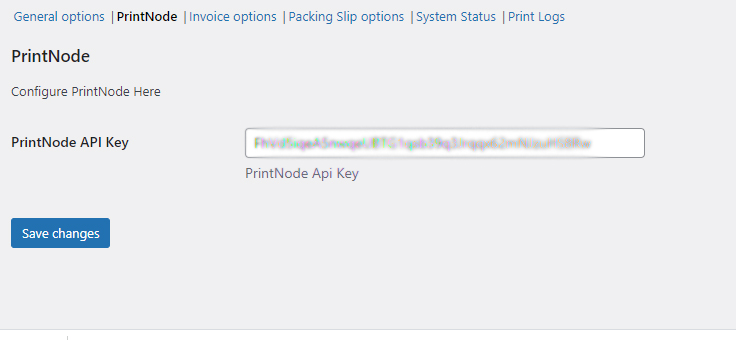
PrintNode
You can input the printnode api key here
- PrintNode API Key : Input your printnode api key.
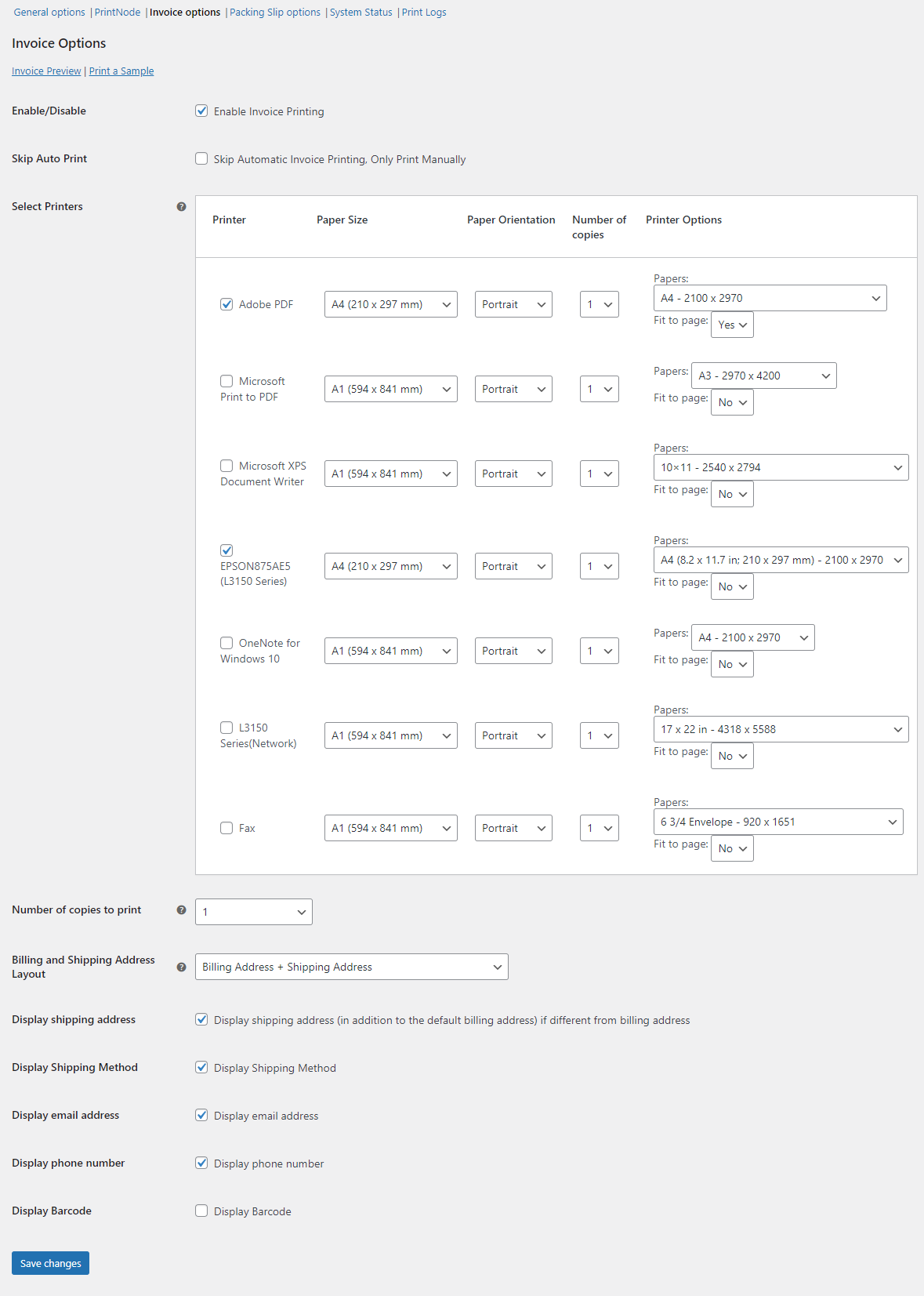
Invoice Options
You can configure your invoice options here such as, number of copies to print, billing & shipping address layout etc…
- Enable/Disable : Enable or disable invoice printing.
- Skip Auto Print : Check this to disable auto print of the invoice.
- Select Printers : Choose your printers. You can choose multiple printers here.
- Number of copies to print : Input number of copies to print.
- Billing and Shipping Address Layout : Choose your billling / shipping address layouts.
- Display shipping address : Choose to display shipping address or not.
- Display Shipping Method : Choose to display shipping method or not.
- Display email address : Choose to display email address or not.
- Display phone number : Choose to display phone number or not.
- Display Barcode : Choose to display barcode or not.
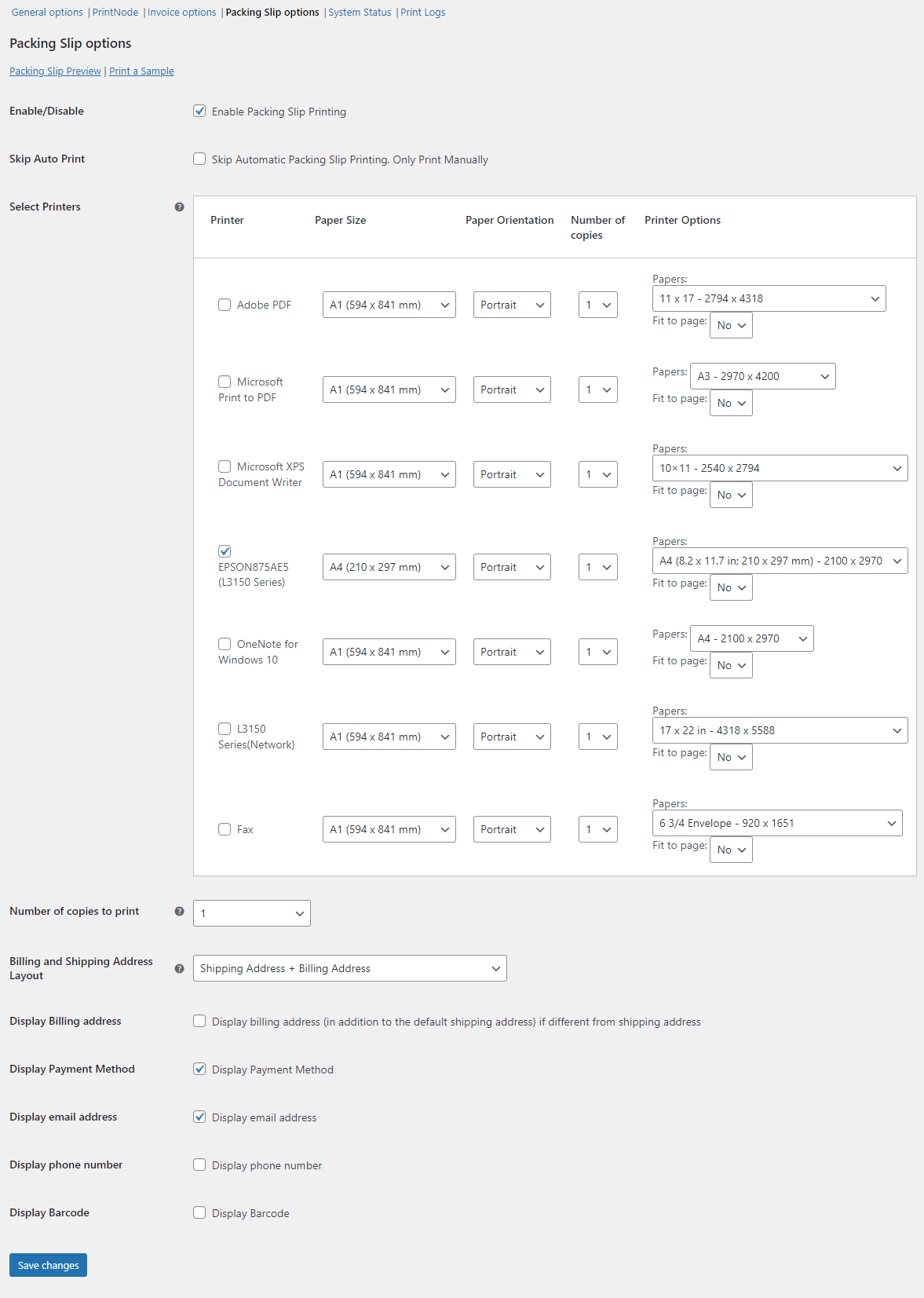
Package Slip Options
You can configure your package slip options here such as, number of copies to print, billing & shipping address layout etc…
- Enable/Disable : Enable or disable invoice printing.
- Skip Auto Print : Check this to disable auto print of the invoice.
- Select Printers : Choose your printers. You can choose multiple printers here.
- Number of copies to print : Input number of copies to print.
- Billing and Shipping Address Layout : Choose your billling / shipping address layouts.
- Display shipping address : Choose to display shipping address or not.
- Display Shipping Method : Choose to display shipping method or not.
- Display email address : Choose to display email address or not.
- Display phone number : Choose to display phone number or not.
- Display Barcode : Choose to display barcode or not.
System Status
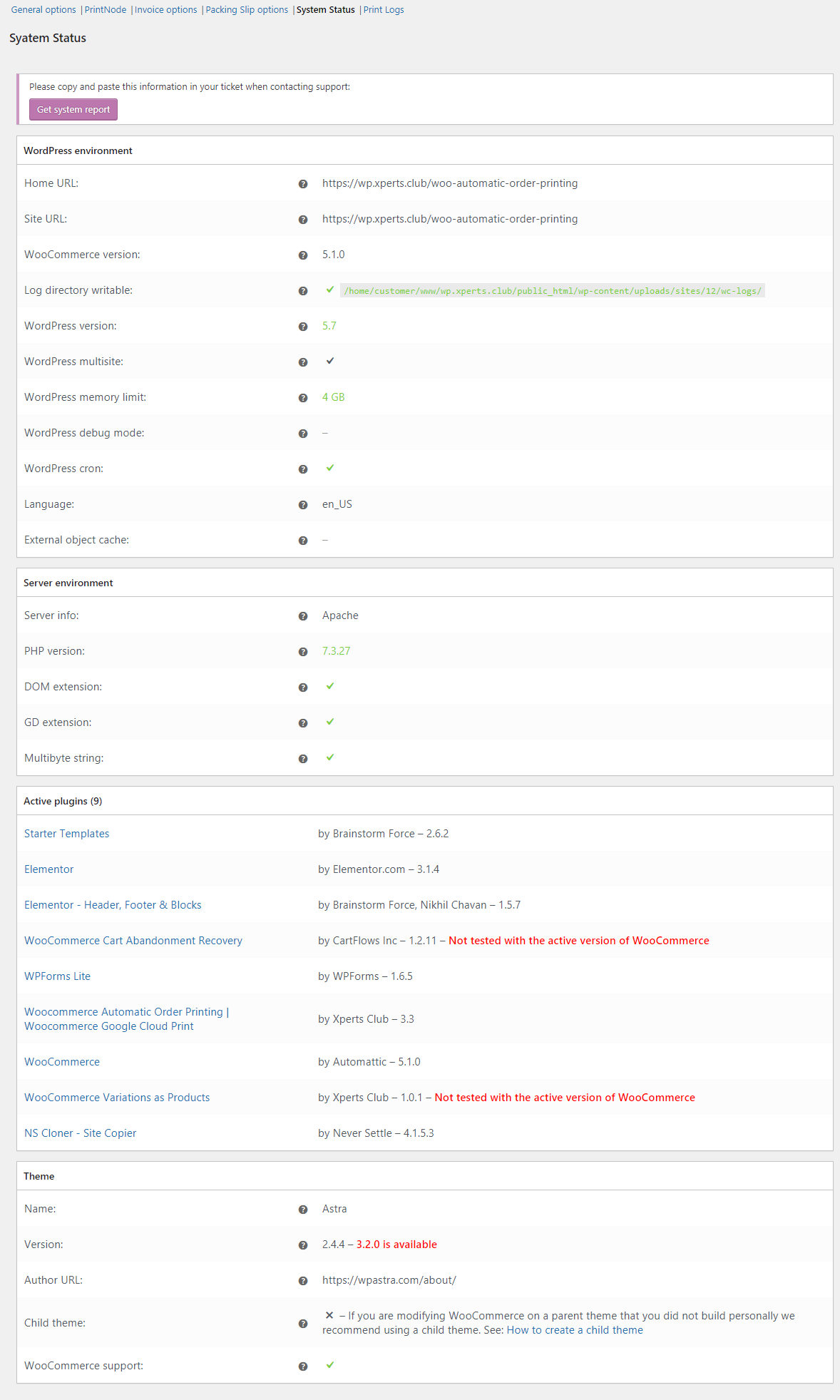
System Status is useful when you contacting support to resolve any conflict caused. To get the system status, click on “Get system report” button, and then the system report will be generated. Then click on “Copy for support” button and paste it in the support ticket message.
Print Logs
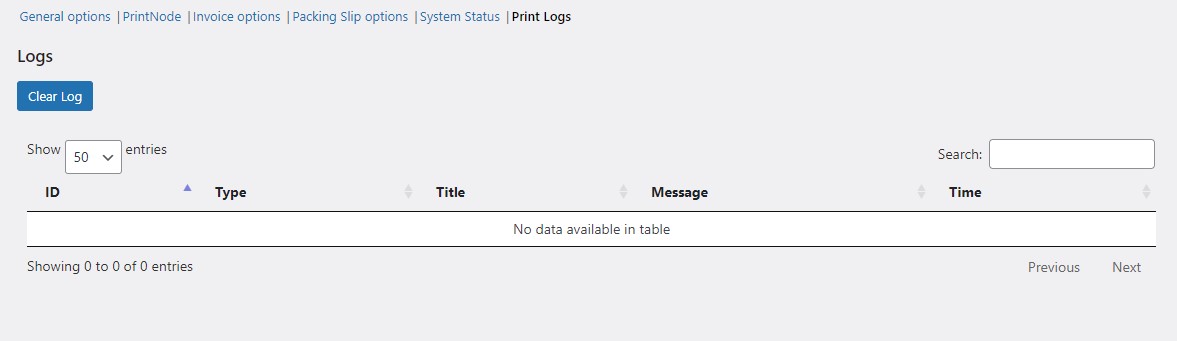
Print Logs tab is to check the list of prints which are printed automatically using print node.
Follow Us


Credits and Assets
Updates & Changelog
= 3.6 - 2022.06.22 =
*Fixed : compatibility issue with WooCommerce 6.6.x
*Fixed : Removed WooCommerce depricated functions.

= 3.5 - 2021.07.15 =
*Update : Updated DOMPDF to support PHP 8.0.
*Fixed : compatibility issue with WooCommerce 5.5.x

= 3.4 - 2021.04.22 =
*Fixed: Added temp directory path to plugin to fix issues on some hosts.
*Fixed: compatibility issue with WooCommerce 5.2.x

= 3.3 - 2021.01.19 =
*New : Skip Automatic Print Option.
*Fixed : Only print after payment option.

= 3.2 - 2020.12.24 =
*New : Integrated PrintNode.

= 3.1 - 2020.04.25 =
*Fixed : issue with faild order printing

= 3.0 - 2020.04.15 =
*Fixed : issue with COD paymentgateway

= 2.9 - 2020.04.03 =
*Fixed : compatibility issue with Woocommerce 4.0x
*Fixed: WordPress 5.3x Ready

= 2.8 - 2019.09.17 =
*Updated : Invoice and packing-slips template structure

= 2.7 - 2019.08.28 =
*Fixed : compatibility issue with Woocommerce 3.7

= 2.6 - 2019.05.27 =
* Fixed : WC_REST_System_Status_Controller error

= 2.5 - 2019.05.09 =
* Fixed : Multiple prints issue

= 2.4 - 2019.03.25 =
* Fixed: Cron issue
* Added: even, odd class to invoice and packing slips product rows.

= 2.3 - 2019.01.09 =
* Added: Auto Update feature
* Added Placeholders ( {billing_first_name} , {billing_last_name}, {order_number} , {order_total}, {site_title} ) to footer
* Fixed Header logo not displaying on some servers
* Fixed Some orders are skipped by Cron

= 2.2 - 2018.11.06 =
* Fixed Cron time issue
* Added time to print logs

= 2.1 - 2018.10.11 =
* Added Print status to order notes
* Added support to Woocommerce sequential order numbers
* Added Printer logs for better debugging

= 2.0 - 2018.07.25 =
* Added fearure US Paper (Letter (216 x 279 mm)) paper size
* fixed minor layout issues

= 1.9 - 2018.06.20 =
* Added fearure Multiple printer selection
* fixed minor layout issues

= 1.8 - 2018.04.30 =
* Added fearure A8 (52 x 74 mm) paper size

= 1.7 - 2018.02.26 =
* fixed minor layout issues

= 1.6 - 2018.02.17 =
* fixed issus with fonts
* added wp cron job for printing

= 1.5 - 2018.02.10 =
* Add feature preview invoice / packing slip from the order admin page

= 1.4 - 2018.02.01 =
* Added "Number of copies" option

= 1.3 - 2018.01.25 =
* Add Barcode display for both invoice and packing slip
* fixed minor layout issues

= 1.2 - 2018.01.21 =
* Select order for sample printing.
* Enable / Disable Payment method on packing slips page.
* Billing and Shipping methods order on Invoice and Packing Slip Page Please
* fixed minor layout issues

= 1.1 - 2017.12.27 =
* Feature added Print size &  Orientation.
* Feature added Print a Sample.

= 1.0 - 2017.12.21 =
* Initial release!
Categories
External listing. code.market does not sell this product and does not process payment for it. Pricing, payment, delivery, licensing, refunds, and support are handled by the third-party merchant on its own website. We may earn an affiliate commission from a referral. Details.
Products of the Week.
Submit#1

wanapi.app
Wan API is a developer platform for the Wan video model family. Compare Wan 3.0, Prime and Pro specifications and prices, then prepare a request in the preview playground.
Other · 7,844 views · 19 clicksOther · Week 42 · 7,844 views · 19 clicks
#2

wanapi.ai
Wan API is a developer platform for the Wan video model family. Compare Wan 3.0, Prime and Pro specifications and prices, then prepare a request in the preview playground.
Other · 7,224 views · 11 clicksOther · Week 42 · 7,224 views · 11 clicks
#3

yee.site
Your link in bio, but a real website. Start from beautiful templates and ready-made sections, then add a shop, bookings, a blog and as many pages as you need. Perfect for your link in bio, portfolio or personal site.
Other · 13,268 views · 20 clicksOther · Week 42 · 13,268 views · 20 clicks
#4

upvote.club
Free Social Media Engagement that Helps Boost Your Content. Upvote Club supports 19 social networks with 100+ engagement actions in one dashboard. Add links to your posts and get free engagement from real users.
SaaS · 34,175 views · 104 clicksSaaS · Week 42 · 34,175 views · 104 clicks
#5

Seenshot App
Free, Fast, MacOS Screenshot app. Make Screenshot cmd+shift+2 and send it via link
Desktop App · 22,670 views · 114 clicksDesktop App · Week 42 · 22,670 views · 114 clicks
#6

Conversational Backlinks for Busy Founders
Place Backlink Relevant Conversation for your domain across Forums and Conversations
Website · 34,459 views · 204 clicksWebsite · Week 42 · 34,459 views · 204 clicks
#7

Substack Posting API
Onboard your Agent to Substack. Write Publish on Substack via API
SaaS · 53,333 views · 190 clicksSaaS · Week 42 · 53,333 views · 190 clicks
#8

codester.com
SocialDesk+: Omnichannel Social Commerce & Business Management Platform This is stronger than simply “Social Commerce and Messaging” because it tells buyers this is a complete business platform, not just a messaging script. Turn Social Conversations Into Sales SocialDesk+ is a complete omnichannel social commerce and business management platform built for businesses that sell and communicate with customers through social media. Instead of switching between WhatsApp, Facebook, Instagram and TikTok, businesses can manage customer conversations, comments, products, leads, follow-ups, automation, teams and business reports from one professional workspace. And because the full source code is included, developers, agencies and entrepreneurs can customize, rebrand and launch SocialDesk+ as their own business solution or SaaS platform. 🚀 Build Your Own Social Commerce Business SocialDesk+ gives you the foundation to launch: - Your own SaaS platform - A white-label social CRM - A social-commerce management system - A customer communication platform - A business messaging solution - A custom solution for clients - A multi-business subscription platform 💬 Connect Your Customers Supported social channels include: WhatsApp • Facebook • Instagram • TikTok Bring supported conversations into one centralized workspace and help businesses respond faster without constantly switching between platforms. 🛍️ More Than a Messaging Platform SocialDesk+ combines communication with the tools businesses need to manage customer opportunities: Inbox Manage customer conversations from connected channels. Comments Monitor and respond to social-media comments. Customers & Leads Organize customer information and potential buyers. Products & Catalog Manage products and give your team quick access to product information. Follow-Ups Make sure potential customers don't get forgotten. Automation Automate repetitive customer questions and responses. AI Assistant Provide AI-assisted communication when configured. Team Management Give managers and staff access to the business workspace. Reports & Analytics Track activity using business reports and analytics. The current product listing already includes these capabilities. 🔥 Why Buyers Will Want It Launch Faster Start with an already-built business platform instead of developing the entire system from zero. Customize Everything The full source code is included, allowing developers to change branding, features, workflows and integrations. Build a SaaS Create multiple business workspaces and offer SocialDesk+ as a subscription-based service. Sell to Businesses Offer it to retailers, restaurants, service businesses, online sellers, agencies and other businesses that communicate with customers through social media. Mobile + Web + Backend This isn't just a mobile UI template. It includes: - Flutter mobile application - Python / FastAPI backend - Web interface - Administration tools - Database infrastructure - API-based architecture - SQLite / PostgreSQL support - Android and iOS project structure 💼 One Platform. Multiple Business Opportunities. For SaaS Entrepreneurs Launch your own subscription platform and allow multiple businesses to operate inside separate workspaces. For Software Agencies Customize and rebrand the platform for clients instead of building an omnichannel business system from scratch. For Developers Use the complete source code as a foundation for your own social-commerce or customer-management product. For Businesses Deploy a dedicated version for your own customer-service and social-commerce operations. 🧩 What's Included Mobile - Flutter / Dart - Android - iOS project Backend - Python - FastAPI - SQLAlchemy - Alembic Database - SQLite - PostgreSQL Web - HTML5 - CSS3 - JavaScript Deployment - Docker - Docker Compose - Production configuration Business Platform - Multi-workspace architecture - Authentication - Teams - Customers - Products - Messaging - Comments - Automation - Reports - Subscriptions - Administration The current listing also documents third-party integrations such as Meta, TikTok, Stripe, Firebase, SMTP and optional OpenAI configuration. ⚡ What Makes SocialDesk+ Different? You're not buying a simple: ❌ Chat UI ❌ WhatsApp clone ❌ Flutter template ❌ Admin dashboard ❌ Basic CRM You're getting a complete business platform foundation that can be customized, branded and commercialized. Connect. Automate. Manage. Grow. SocialDesk+ Omnichannel Social Commerce & Business Management Platform One important change I'd make to the current listing The current page starts with: “A simple guide to managing your social conversations, customers, products and business activity.”
Other · 20,704 views · 35 clicksOther · Week 42 · 20,704 views · 35 clicks
#9

sandbook.app
Sandbook reads EPUB, PDF, web pages and scanned pages aloud with Kokoro TTS, an open neural voice model that runs on your iPhone, free and offline. Choose from 41 natural voices in English, Spanish, French, Italian, Brazilian Portuguese and Hindi and follow each word as it is spoken. Try the same voices in your browser first with the free Kokoro TTS online demo.
Other · 20,623 views · 17 clicksOther · Week 42 · 20,623 views · 17 clicks